
Subscription and Billing
Change your plan, update your payment method, and download invoices.
Updated:
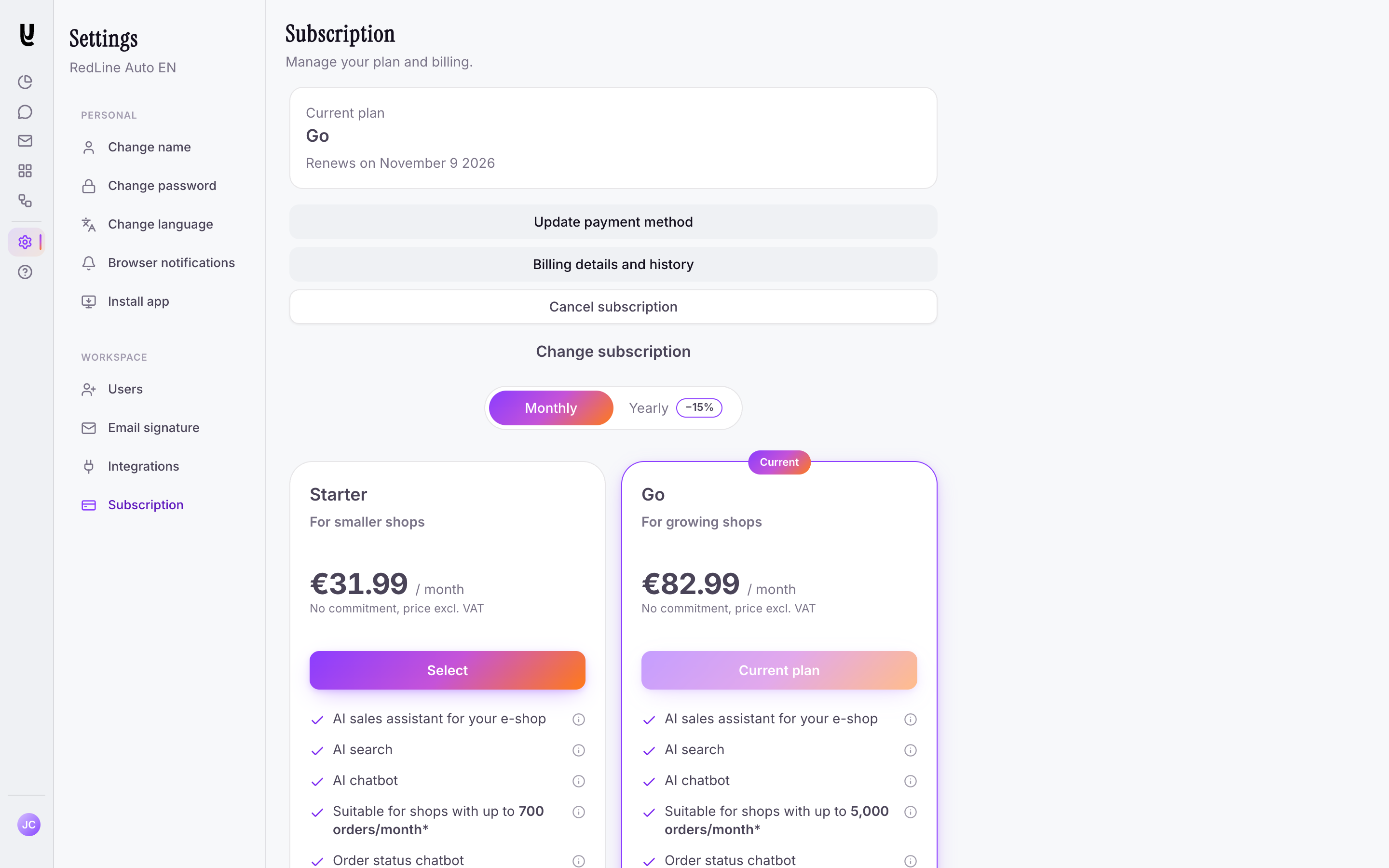
Settings > Subscription shows the plan you are on and when it renews. You can switch plans and cancel your subscription there directly, and open the secure Stripe portal for payment details and invoices.
Changing Your Plan#
Navigate to Settings > Subscription
Navigate to Settings > Subscription in the sidebar. Your current plan is marked Current.
Pick the plan and billing period you want
Switch between monthly and yearly billing with the toggle above the plans, then click the plan you want to move to.
Confirm the change
Before anything happens we show you exactly what the change costs and when it takes effect. Click Confirm to apply it.
When the Change Takes Effect#
- Upgrades apply immediately, and the time you already paid for on the old plan is deducted from what you are charged. Your renewal date does not move, unless you also switch between monthly and yearly billing, which starts a new period today. The confirmation shows the amount and your next renewal date before you commit.
- Downgrades apply at the end of the current billing period, so you keep what you paid for until then. Nothing is charged today, and you can click Cancel change any time before that date to stay on your current plan.
- Changes during your free trial are free. Your trial keeps running to the same date, and the new plan is what you are billed for when it ends.
If the Payment Is Declined#
An upgrade is only applied once it is paid for. If your card is declined, your plan stays as it is and a Pay outstanding invoice button appears in Settings > Subscription. Paying that invoice applies the upgrade. If you would rather drop it, click Cancel change.
Updating Your Payment Method#
Click Update payment method in Settings > Subscription. The Stripe portal opens on the card form, and the new card is used for your next renewal as soon as you save it.
Billing Details and History#
Click Billing details and history in Settings > Subscription to open the secure Stripe portal. There you can update your company name, billing address and VAT ID, and view and download past invoices.
Canceling Your Subscription#
Click Cancel subscription in Settings > Subscription and confirm. Your subscription stays active until the end of the current billing period, or until your free trial ends, and it does not renew after that. A plan change you had planned is dropped.
Changed your mind? Until that date, click Keep subscription and your subscription renews as before.
Inactive Subscription Warning#
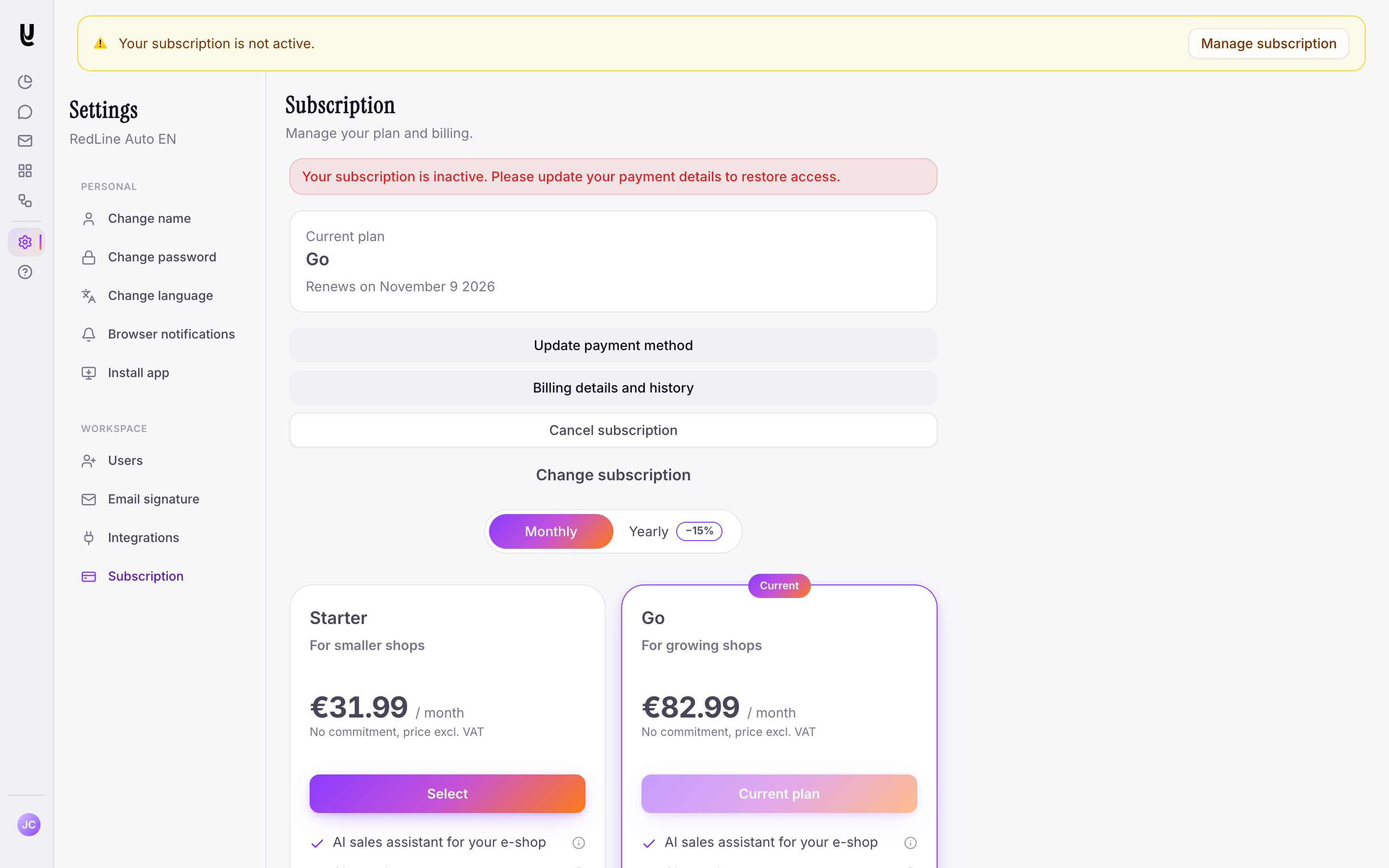
If your payment fails or your subscription expires, you will see a banner at the top of the Yasan app: “Your subscription is not active.”
- To restore access, click the button in the banner or go to the Subscription settings to update your payment details.
Invoice-Based Payment#
The self-service billing portal is for credit card payments. If you require payment by bank transfer based on an invoice, please contact our support team to arrange an individual offer.