
Customizing AI Sales Agent Appearance
Customize the colors, avatar, and position of your AI Sales Agent to perfectly match your brand.
Updated:
You can customize how your AI Sales Agent looks to match your brand identity.
Appearance Settings#
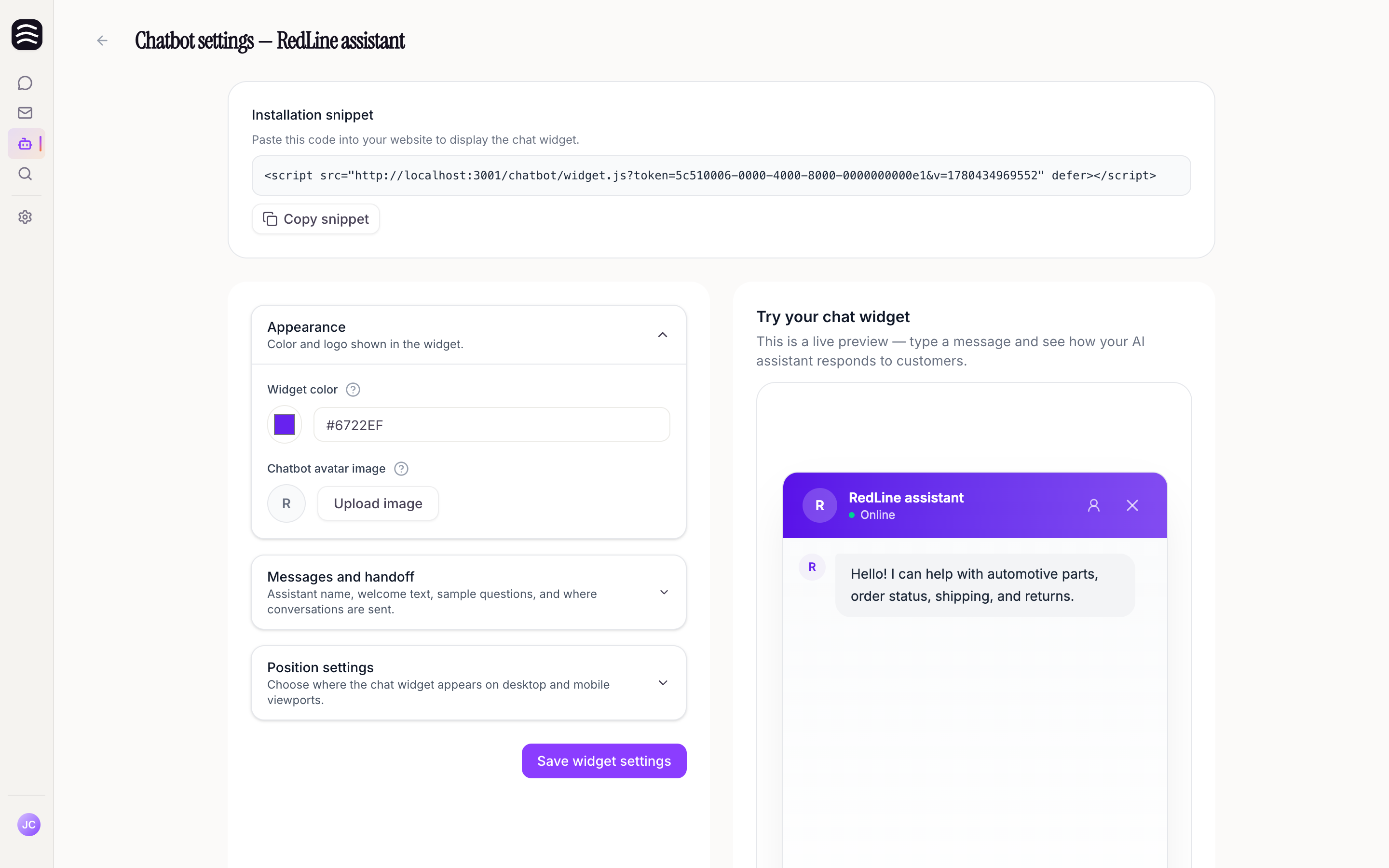
Navigate to AI Sales Agents and click on your bot to access these settings:
- AI Sales Agent color: This is the main color of AI Sales Agent, used in the header, messages, and other UI elements. Click the color circle to use a color picker or enter a hex code.
- Chatbot avatar image: Upload a custom logo to be used as the chatbot’s avatar in AI Sales Agent. The maximum file size is 2MB. If you don’t upload an image, AI Sales Agent will use the first letter of the chatbot’s name.
- Chatbot name: This is the name displayed in the AI Sales Agent header (e.g., “Chatbot assistant”).
Position Settings#
You can choose where the AI Sales Agent appears on both desktop and mobile viewports.
Desktop Position#
- Horizontal anchor: Choose where AI Sales Agent is anchored (Left, Center, Right).
- Horizontal offset (px): The distance in pixels from the selected anchor edge. (Not used when the anchor is Center).
- z-index: Controls the CSS stack order. The default is very high (2147483647) to keep AI Sales Agent on top. Lower it only if you need specific page elements to appear above the chat.
Mobile Position#
When the viewport width is at or below the mobile breakpoint, AI Sales Agent uses these mobile-specific anchors and offsets. (It falls back to desktop values if left empty).
- Mobile breakpoint (px): Viewport width at or below which the mobile layout applies. Default is 640px.
- Mobile horizontal anchor: Where the chat launcher sits on small screens.
- Mobile horizontal offset (px): Distance from the edge on mobile.