
Connecting WooCommerce
Connect your WooCommerce store to Yasan in one click with the Yasan plugin for WordPress, or with REST API keys.
Updated:
Install the Yasan plugin in your WordPress admin and connect your store with one click. The plugin creates the WooCommerce API key Yasan needs and adds the AI Sales Agent and AI Search to your storefront, so there is nothing to copy or paste. You can still connect with REST API keys you create yourself. Those steps are at the end of this article.
What you get#
- Product catalog sync: The AI Sales Agent can search your products and answer questions about them.
- Order lookup: After a customer verifies their email, the assistant can find their orders.
- Widgets without code: When you turn the AI Sales Agent or AI Search on in Yasan, the plugin adds it to your storefront. You don’t edit your theme.
Before you start#
- A WordPress administrator account that can install plugins and manage WooCommerce.
- WordPress 6.5 or newer, PHP 7.4 or newer, and an active WooCommerce plugin.
- Your store must be served over HTTPS at a public address.
- Pretty permalinks must be on. In WordPress, open Settings → Permalinks and choose any option except Plain.
- You don’t need a Yasan account in advance. You can sign in or create one while you connect the store.
Install the Yasan plugin#
Download the plugin
In Yasan, go to Settings > Integrations, click Connect integration and choose WooCommerce. Click Download the Yasan plugin to save the
.zipfile. Don’t unzip it.No Yasan account yet? Download the plugin directly from app.yasan.ai/api/wordpressPlugin/download.
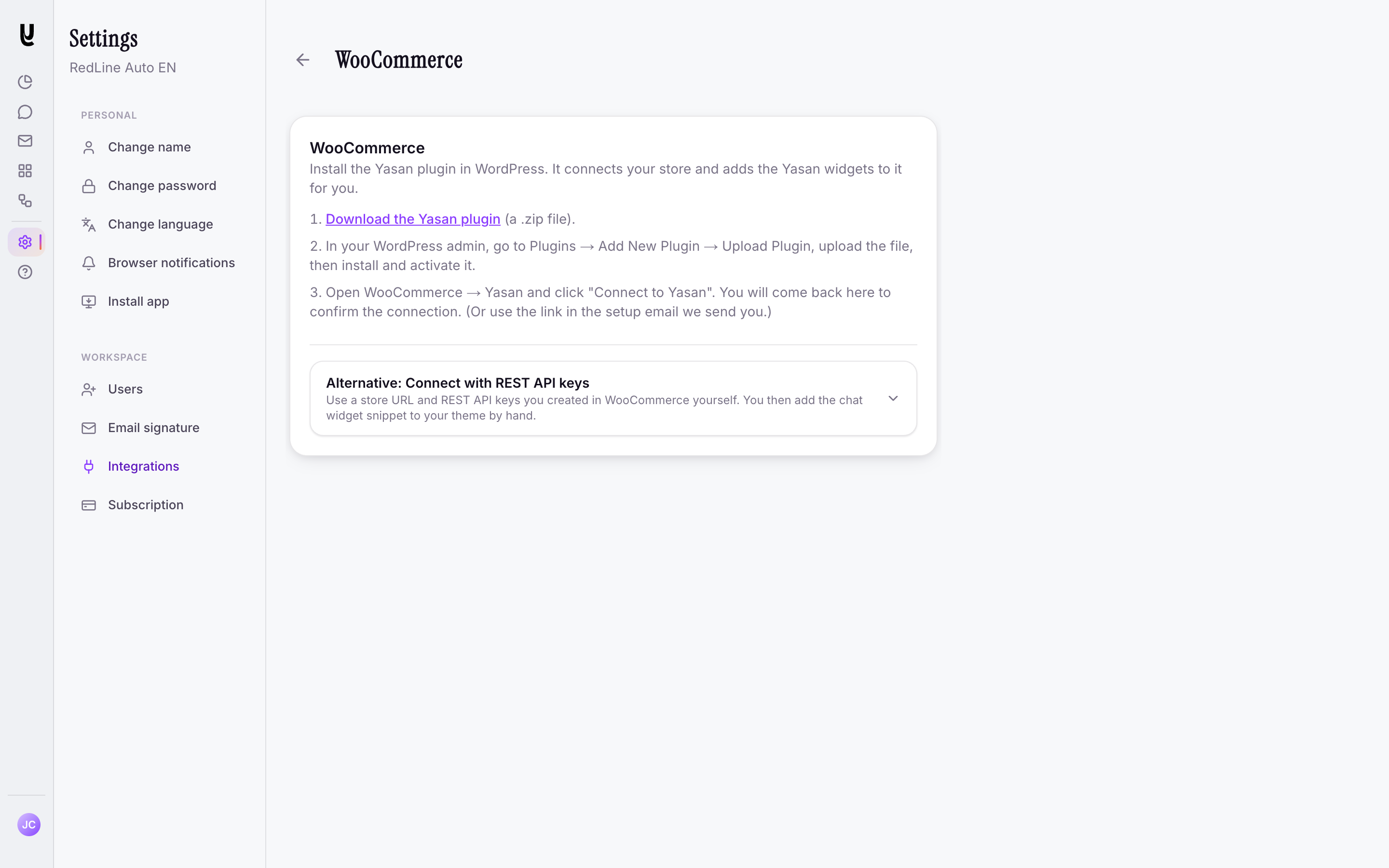
Download the plugin from Settings > Integrations > WooCommerce Upload it to WordPress
In your WordPress admin, go to Plugins → Add Plugin and click Upload Plugin. Choose the
.zipfile and click Install Now.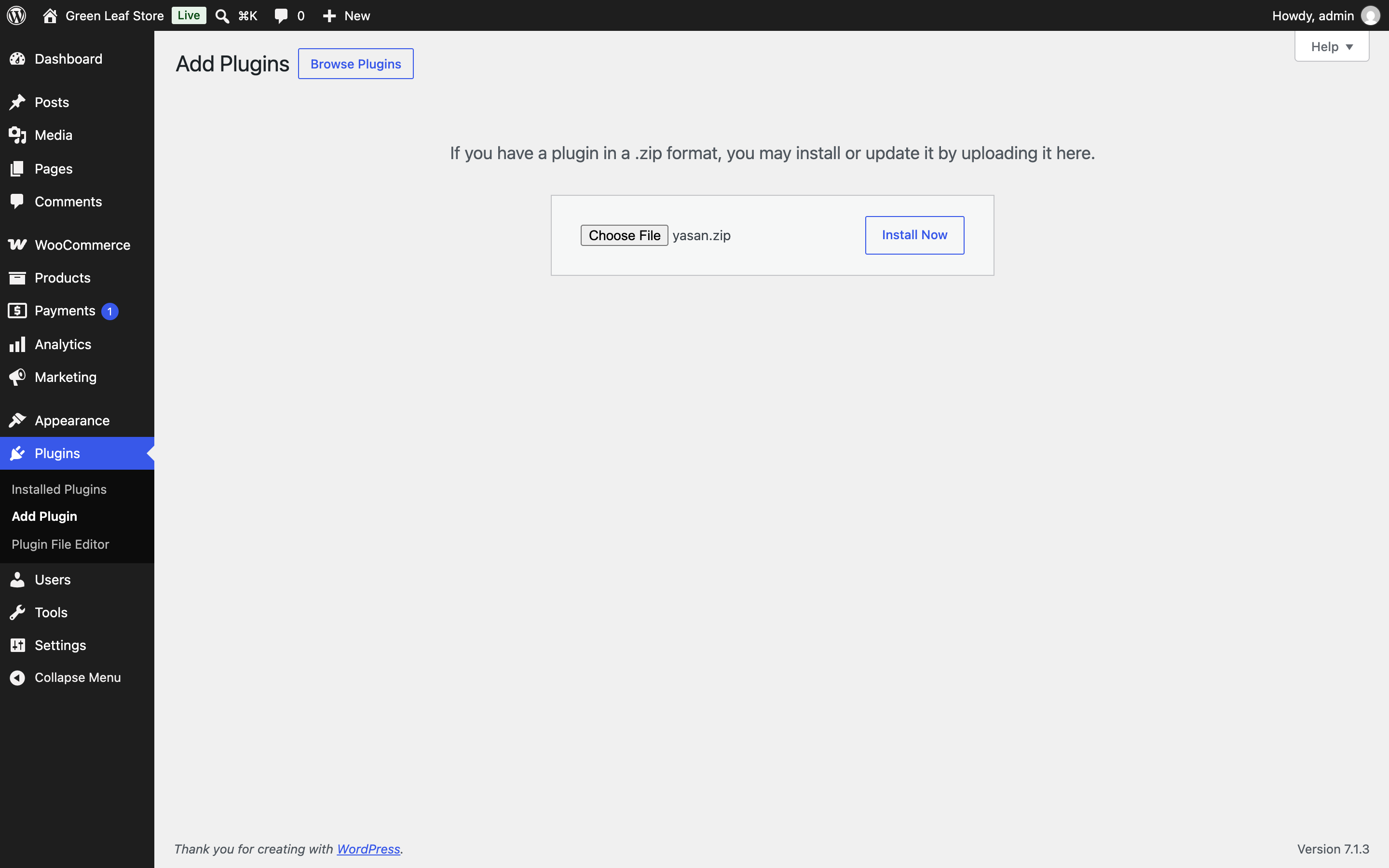
Upload the zip file under Plugins → Add Plugin → Upload Plugin Activate the plugin
Click Activate Plugin. Activating sends nothing to Yasan. The store is connected only after you click Connect to Yasan in the next section.
Connect your store#
Open the Yasan screen
In the WordPress menu, go to WooCommerce → Yasan. You can also click Connect next to Yasan in the Plugins list.
The screen checks that your store is ready. Every item must have a check mark before you can connect. If one doesn’t, see Troubleshooting.
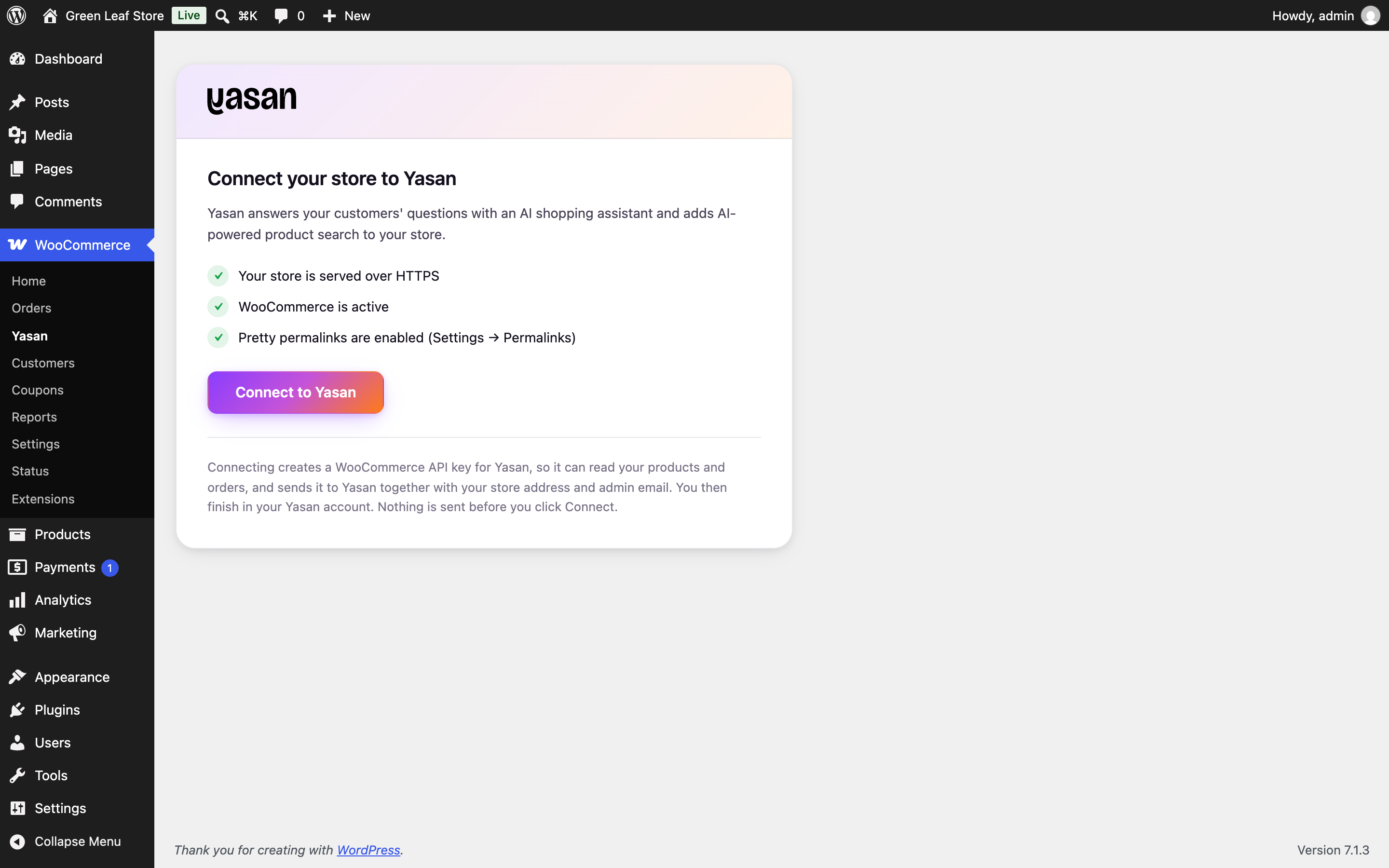
All three requirements are met, so Connect to Yasan is available Click Connect to Yasan
The plugin creates a WooCommerce API key with read and write access for Yasan. It sends that key to Yasan together with your store address and the site’s admin email. Yasan then opens in a new browser tab.
We also email a setup link to your WordPress admin email address, so you can finish later.
Sign in or create your Yasan account
In the new tab, sign in to Yasan. If you don’t have an account yet, create one first. Your store is waiting for you when you’re done.
Confirm the connection
Yasan shows the store and the Yasan organization it will connect to. Check both and click Connect.
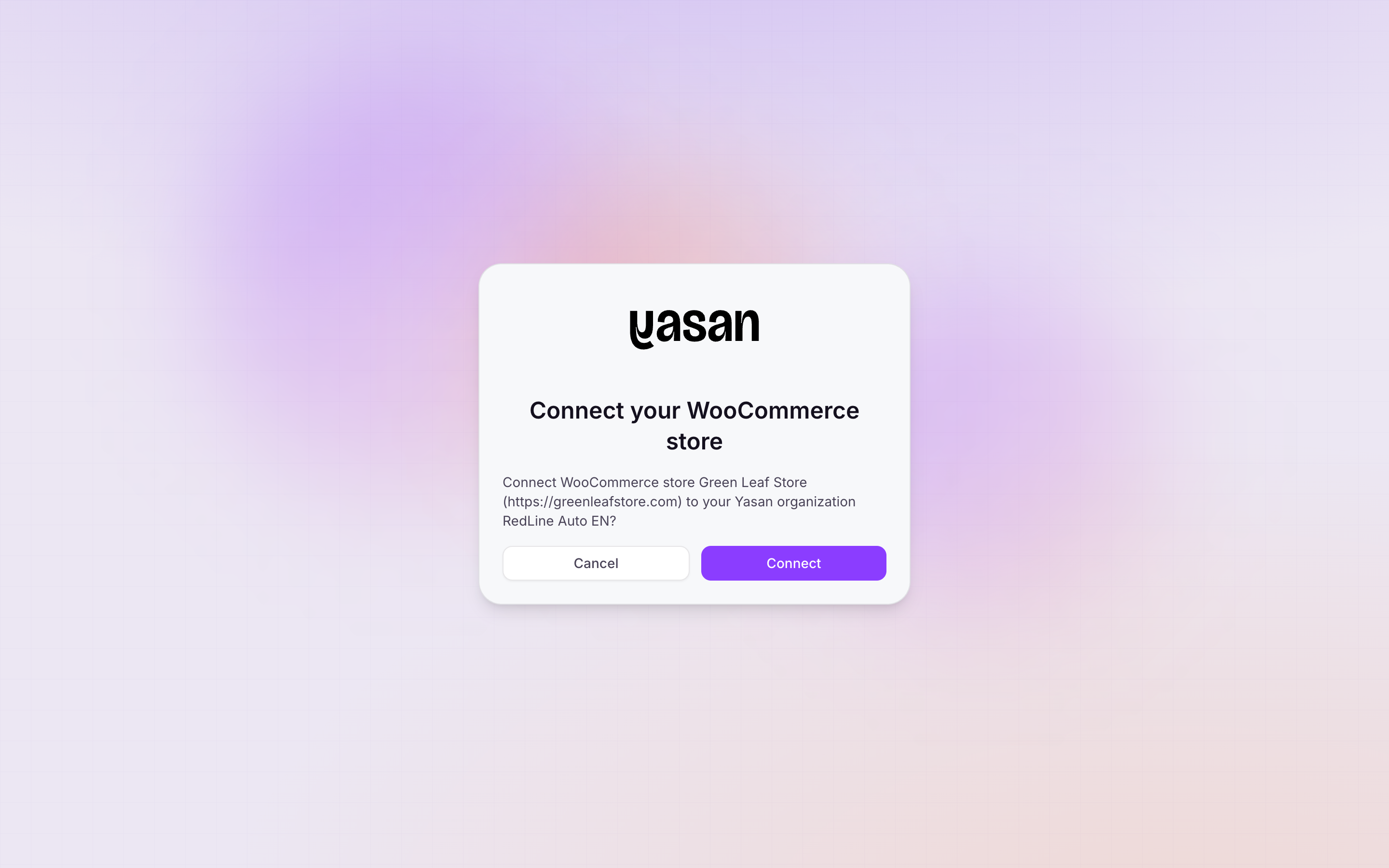
Confirm which store connects to which Yasan organization Check the plugin screen
Until you confirm, WooCommerce → Yasan shows Finish setting up in Yasan. Use Continue in Yasan to reopen the setup tab, or Cancel to start over.
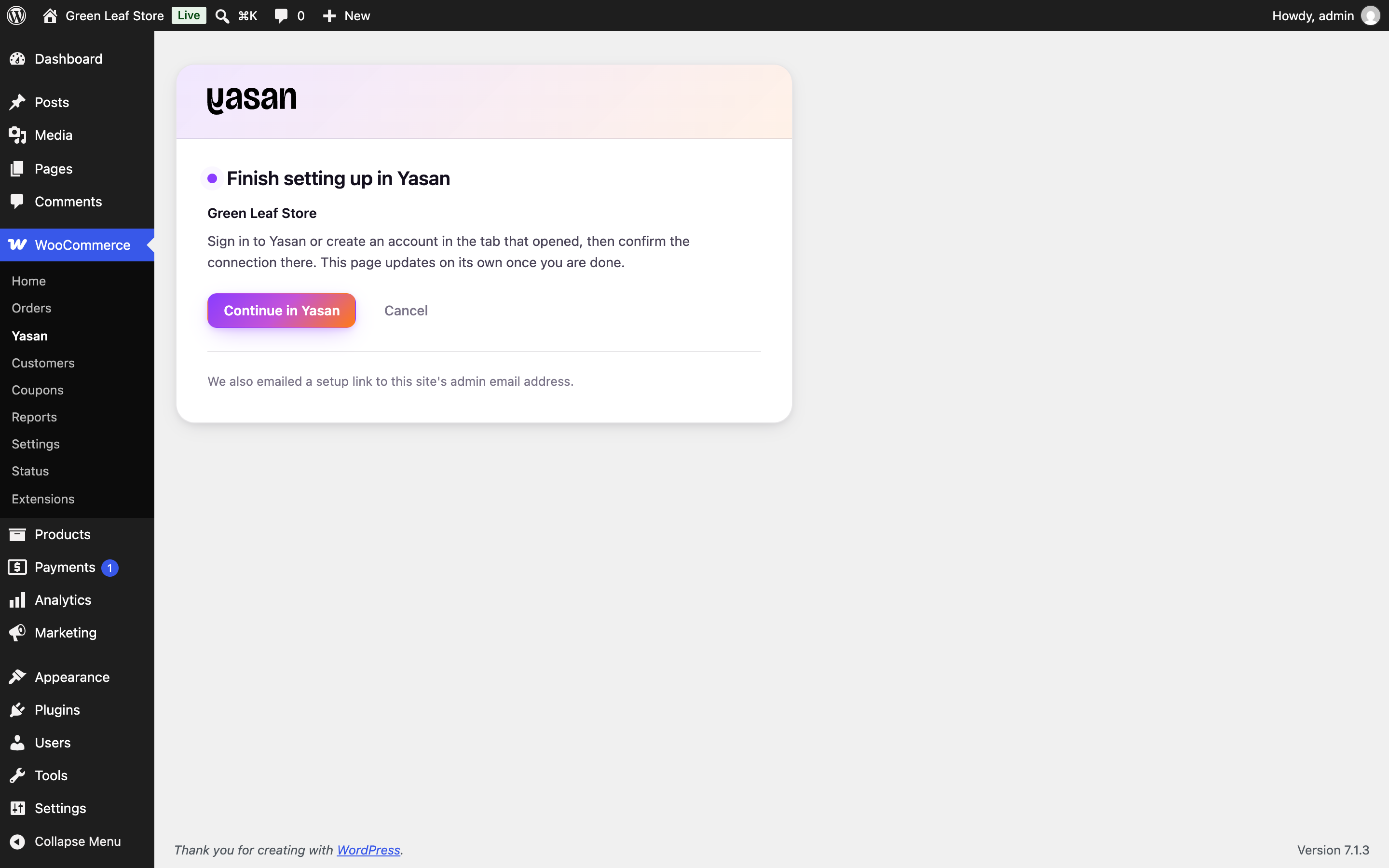
The plugin waits while you finish in Yasan, and updates on its own Once you confirm, the screen updates on its own and says Your store is connected to Yasan. It shows your Yasan organization and whether the AI chatbot and AI Search are live on your storefront.
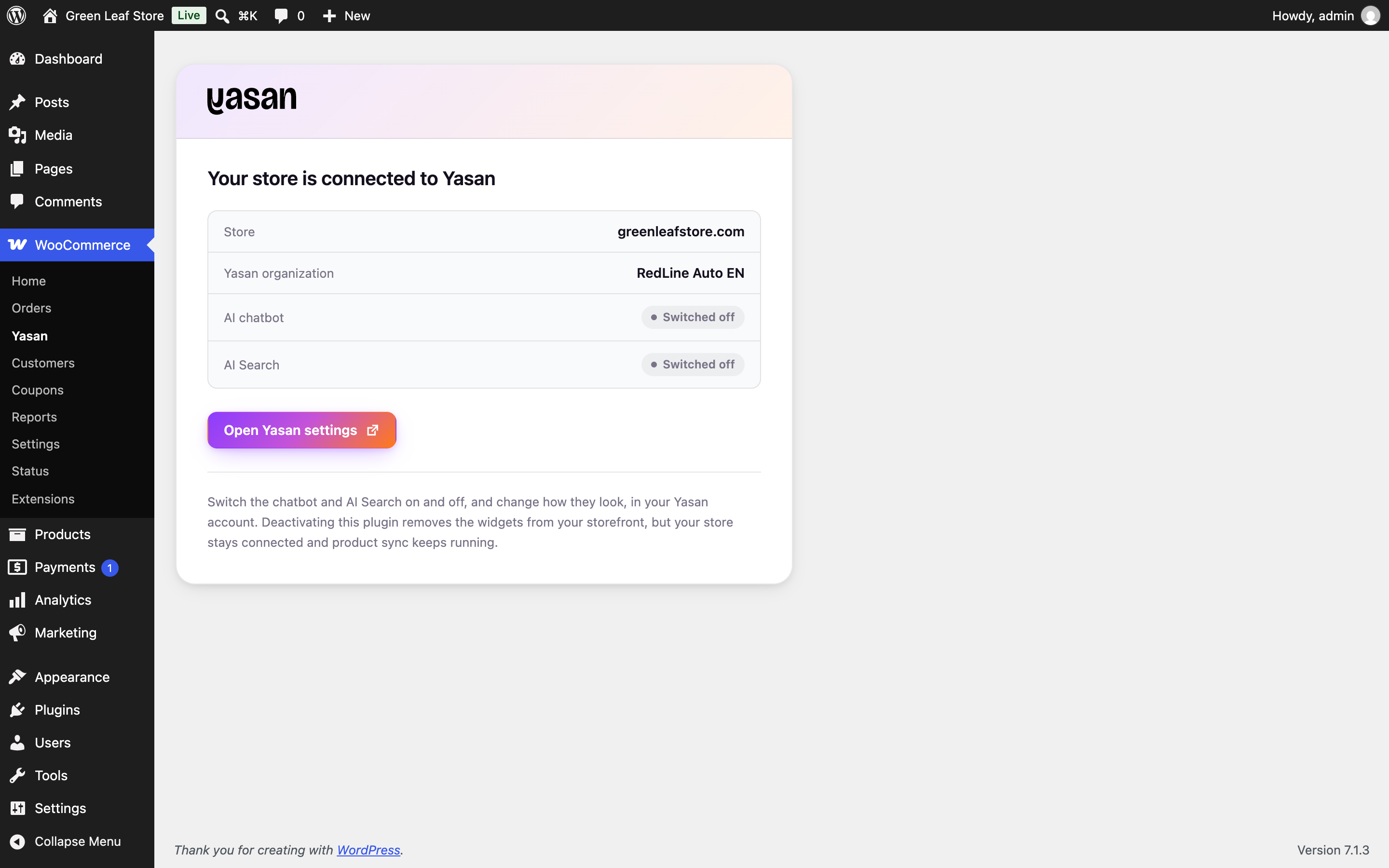
A connected store, with the status of each widget
Yasan then starts syncing your product catalog. The first sync can take a while for a large catalog.
Turn on the AI Sales Agent and AI Search#
You switch the widgets on and off, and change how they look, in Yasan. Click Open Yasan settings on the plugin screen, or see Enabling and Disabling the AI Sales Agent and Setting up AI Search.
When you turn a widget on, the plugin loads it on your storefront for you. You don’t paste a snippet into your theme. The plugin screen shows each widget as Live, Setting up, Switched off or Not available. If you use a caching plugin or a CDN, purge its cache so visitors get the updated pages.
Managing the connection#
- Deactivating the plugin removes the widgets from your storefront. Your store stays connected and the product sync keeps running.
- Deleting the plugin disconnects the store from Yasan and removes the API key the plugin created.
- Updates appear in Plugins in WordPress, like updates for any other plugin.
- In Yasan, a store connected through the plugin has no editable API keys. To reconnect it, use the plugin in your WordPress admin.
Connect with REST API keys#
Use this method if you can’t install plugins on your store. You create the REST API keys yourself and add the chat widget snippet to your theme by hand.
Create REST API keys in WooCommerce#
Go to the REST API settings
In your WordPress admin, select WooCommerce > Settings > Advanced > REST API.
Add a new key
Click Add key. Name the key (for example “Yasan”), select a user, and set Permissions to Read/Write.
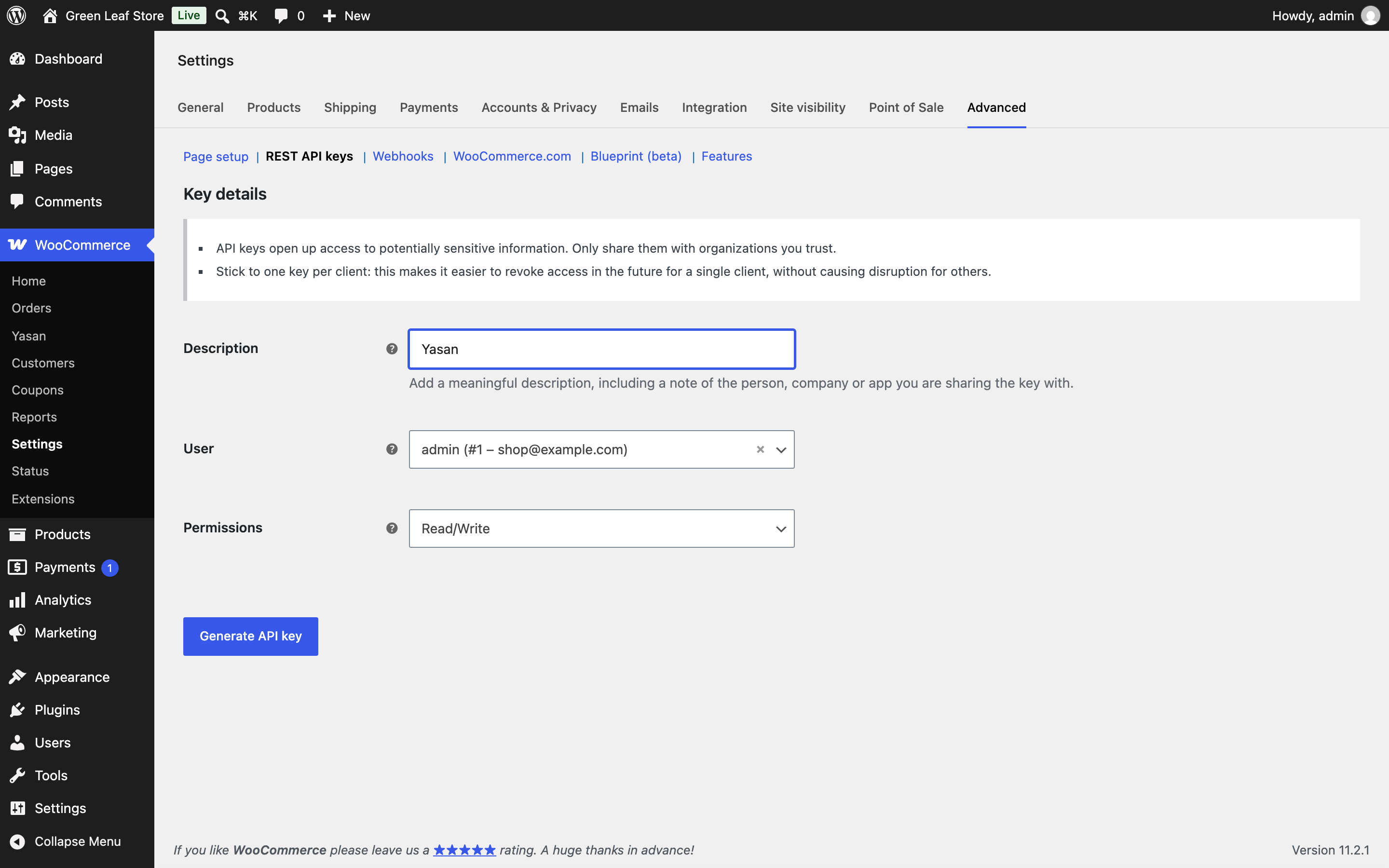
Creating a new API key in the WooCommerce admin Generate the keys
Click Generate API key. Copy the Consumer key and the Consumer secret. WooCommerce shows the secret only once.
Enter the keys in Yasan#
Open the WooCommerce form
Go to Settings > Integrations, click Connect integration and choose WooCommerce. Expand Alternative: Connect with REST API keys.
Fill in the details
- Store URL: The full address of your store, for example
https://example.com. - Consumer key: Starts with
ck_. - Consumer secret: Starts with
cs_.
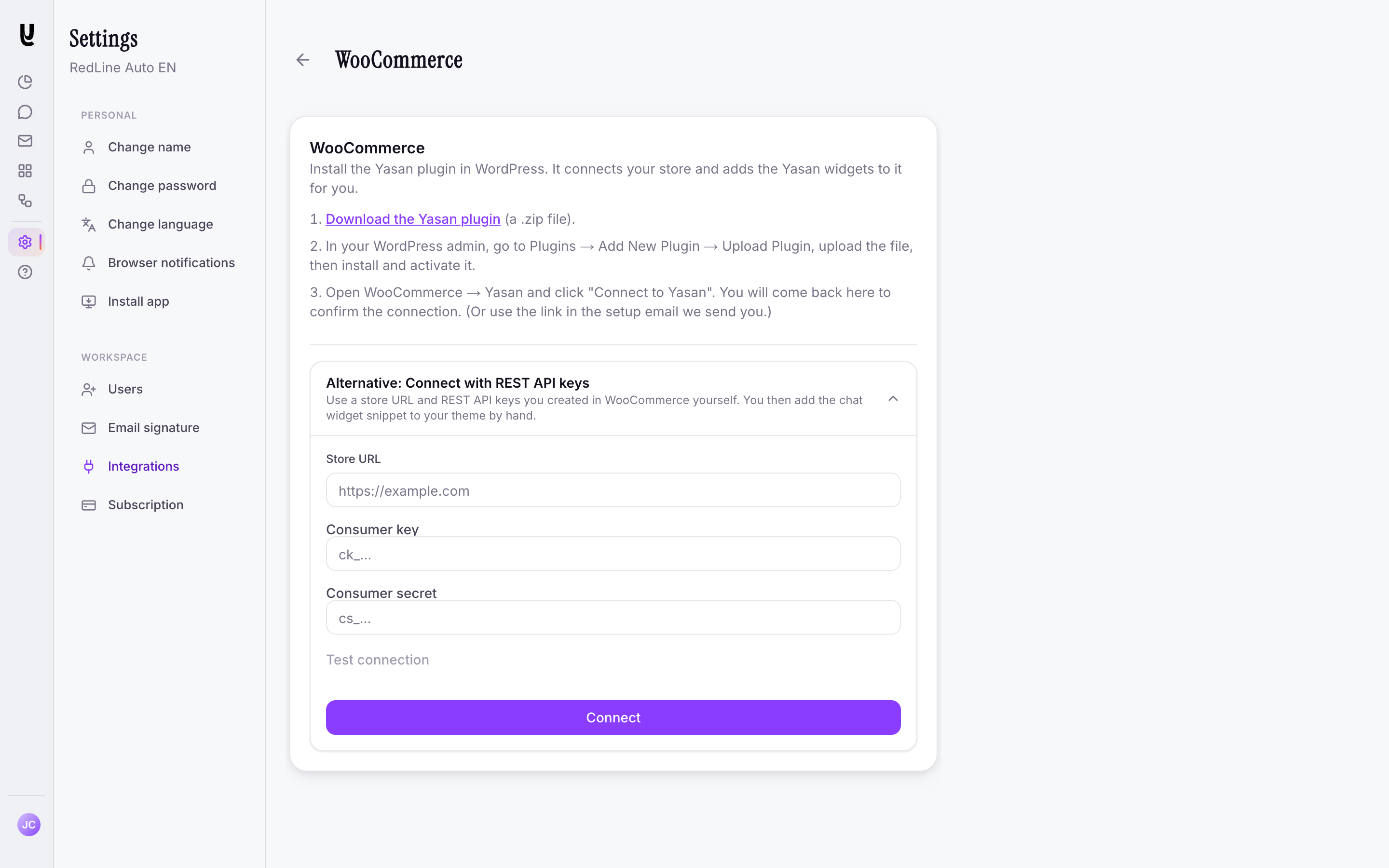
The store URL and REST API keys form - Store URL: The full address of your store, for example
Test and save
Click Test connection. When the test succeeds, click Connect.
Install the chat widget
Add the installation snippet to your theme. See Installing the AI Sales Agent.
Troubleshooting#
Connect to Yasan is greyed out
One of the requirements on the plugin screen isn’t met. Serve your store over HTTPS, make sure WooCommerce is active, and turn on pretty permalinks in Settings → Permalinks.
"Yasan could not reach this plugin on your store"
Yasan must be able to reach your store’s REST API at
/wp-json/. A firewall, a security plugin or a maintenance mode may be blocking it. Allow requests to/wp-json/yasan/v1/and/wp-json/wc/v3/, then try again."Yasan cannot reach this store at its address"
Yasan connects only to stores served over HTTPS at a public address. A store on a local or private network can’t be connected.
"This store is already connected to Yasan"
The store is already connected, possibly to a different Yasan organization. Manage it in that Yasan account, or ask its admin to deactivate it there before you connect again.
Your browser blocked the Yasan tab
Allow pop-ups for your WordPress admin and click Connect to Yasan again. You can also use the setup link from the email.
The setup link expired
In your WordPress admin, open WooCommerce → Yasan and click Continue in Yasan to get a fresh link.
The chat widget doesn't appear
Check that the AI Sales Agent is turned on in Yasan and shows as Live on the plugin screen. Then purge your caching plugin or CDN, and check that your cookie consent tool isn’t blocking the widget script.