
Search Triggers
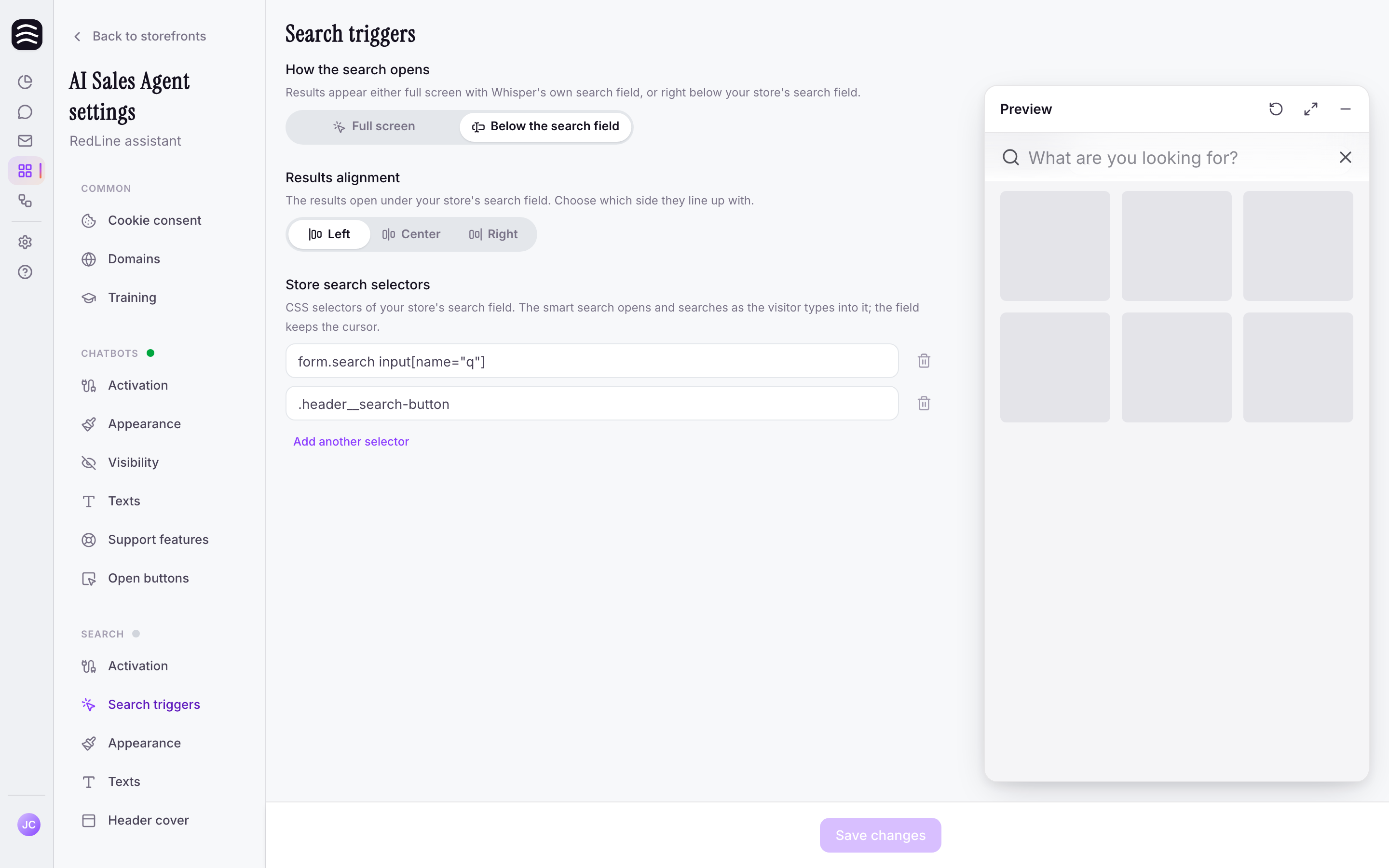
Choose which of your store's search boxes AI Search listens to — the results open right below the field as the shopper types.
Updated:
Search triggers tell AI Search which of your store’s search boxes to listen to. You’ll find them under AI Sales Agent → your store → Search → Search triggers.
Before you start#
Where the results appear#
Shoppers type into your store’s own search field just as before, and the smart search results appear right under it. The cursor stays in your field, so the search feels like a natural part of the page. Pressing Enter in the field doesn’t submit your store’s old search — the shopper stays in the smart search.
On phones, the search opens full-screen with its own field instead, since it would otherwise cover the field the shopper is typing into.
Store search selectors#
Store search selectors holds the CSS selectors of your search field or of a box that contains it. When a shopper types into any of them, the smart search opens.
form.search input[name="q"]Finding the selector in your browser#
You don’t have to write the selector by hand — your browser can hand it to you.
Inspect the search field
Open your store, right-click its search field and choose Inspect (in Safari, Inspect Element, once the Develop menu is enabled). The developer tools open with that field highlighted.
Copy the selector
Right-click the highlighted line and choose Copy → Copy selector (in Firefox, Copy → CSS Selector).
Paste it into Search triggers
Paste the selector into Store search selectors exactly as copied.
Save and try it out
Click Save changes, open your store and use its search field. If nothing happens, purge your cache or CDN and try again.
Several search boxes#
A store often has several search boxes — one in the header, another in the mobile menu or on the results page. Add a selector for each with Add another selector; the search listens to any of them. Remove a selector you no longer need with the trash icon next to its row.