
Live Chat: Monitoring and Responding
Use the Chat page to monitor live sessions and take over conversations from AI Sales Agent.
Updated:
The Chat page is your central hub for monitoring live AI Sales Agent sessions and responding to customers in real-time.
Chat Page Overview#
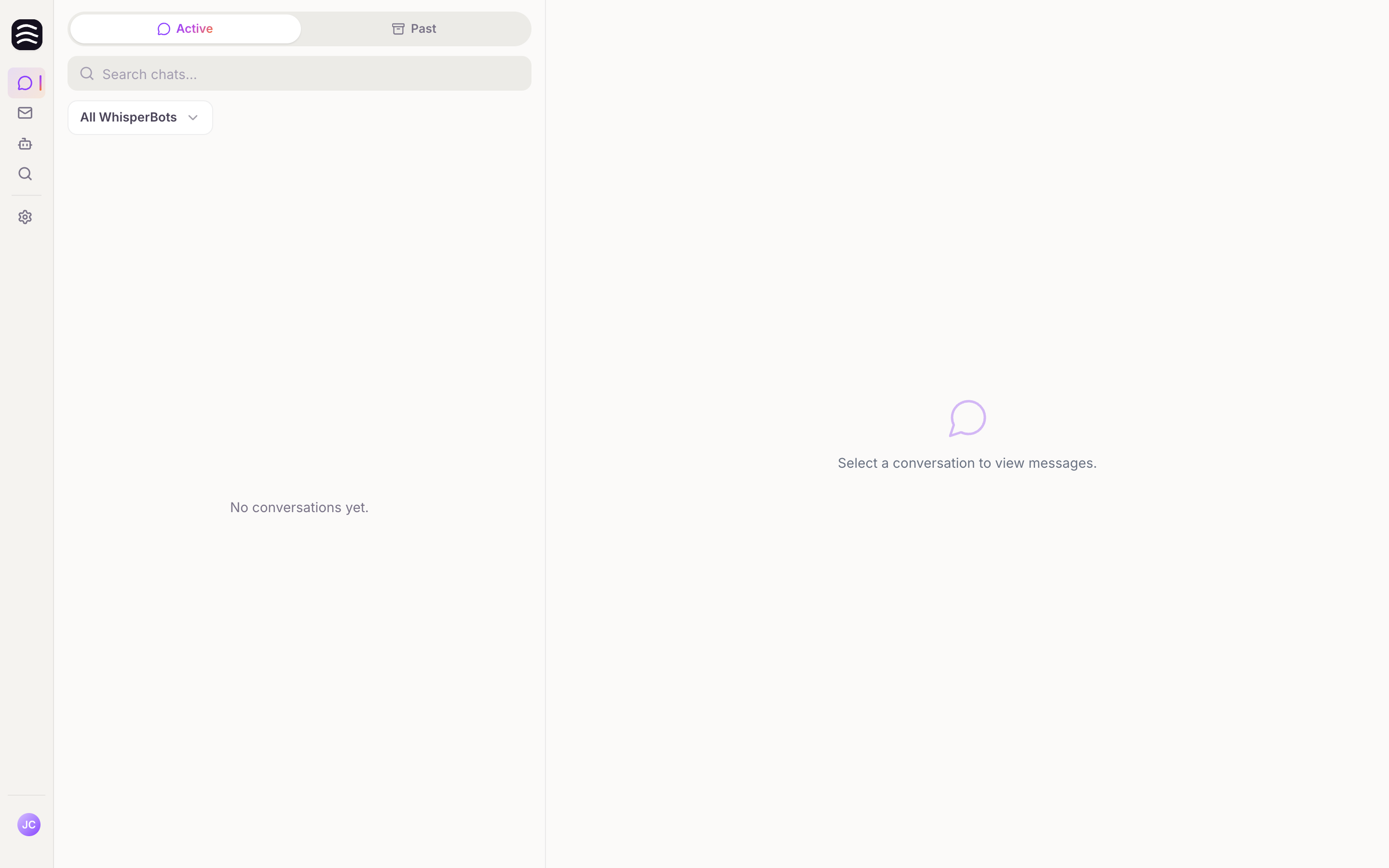
Navigate to Chat in the sidebar. The interface is divided into a conversation list on the left and the active conversation view on the right.
List Modes#
- Active: Ongoing conversations. These are split into two sections:
- Assisted: Conversations where a human operator is involved or requested.
- Automated: Conversations fully handled by the AI AI Sales Agent.
- Past: Archived, completed conversations.
You can search conversations or filter the list to show a specific AI Sales Agent.
Taking Over a Conversation#
If you have Enable live chat turned on in your bot’s settings, you can intercept and reply to customers directly.
Select a conversation
Select an active conversation from the list.
Take over the chat
Click the Take over button.
Respond to the customer
You can now type and send operator messages.
Leave the chat
When you are finished, click Leave chat or Return to AI to let the AI Sales Agent resume handling the customer.
Note: If another operator is already handling the chat, you will see a warning. You can still choose to “Take over again” if necessary.
Switching Live Chat Availability#
When the list shows a single AI Sales Agent (you have one, or you filter to one) and its live chat is on, a Live chat switch appears under the filter: Always online, By opening hours or Offline. Switch to Offline when nobody can answer, for example at the end of a shift, and back when you return. By opening hours can be picked once opening hours are saved in the AI Sales Agent settings. With By opening hours selected, the switch also shows whether live chat is online right now and when that changes, for example Now: online · closes today 17:00. While live chat is offline, customers who want a person leave their email and question in the contact form, and you still see their conversation in the Assisted section.
Customer Status Indicators#
In the conversation view, you will see indicators regarding the customer’s status:
- Customer is online / offline: Real-time websocket presence.
- Inactive warning: If it has been more than 5 minutes since the customer’s last message, a warning will indicate they may no longer have the chat open.
Rating AI Messages#
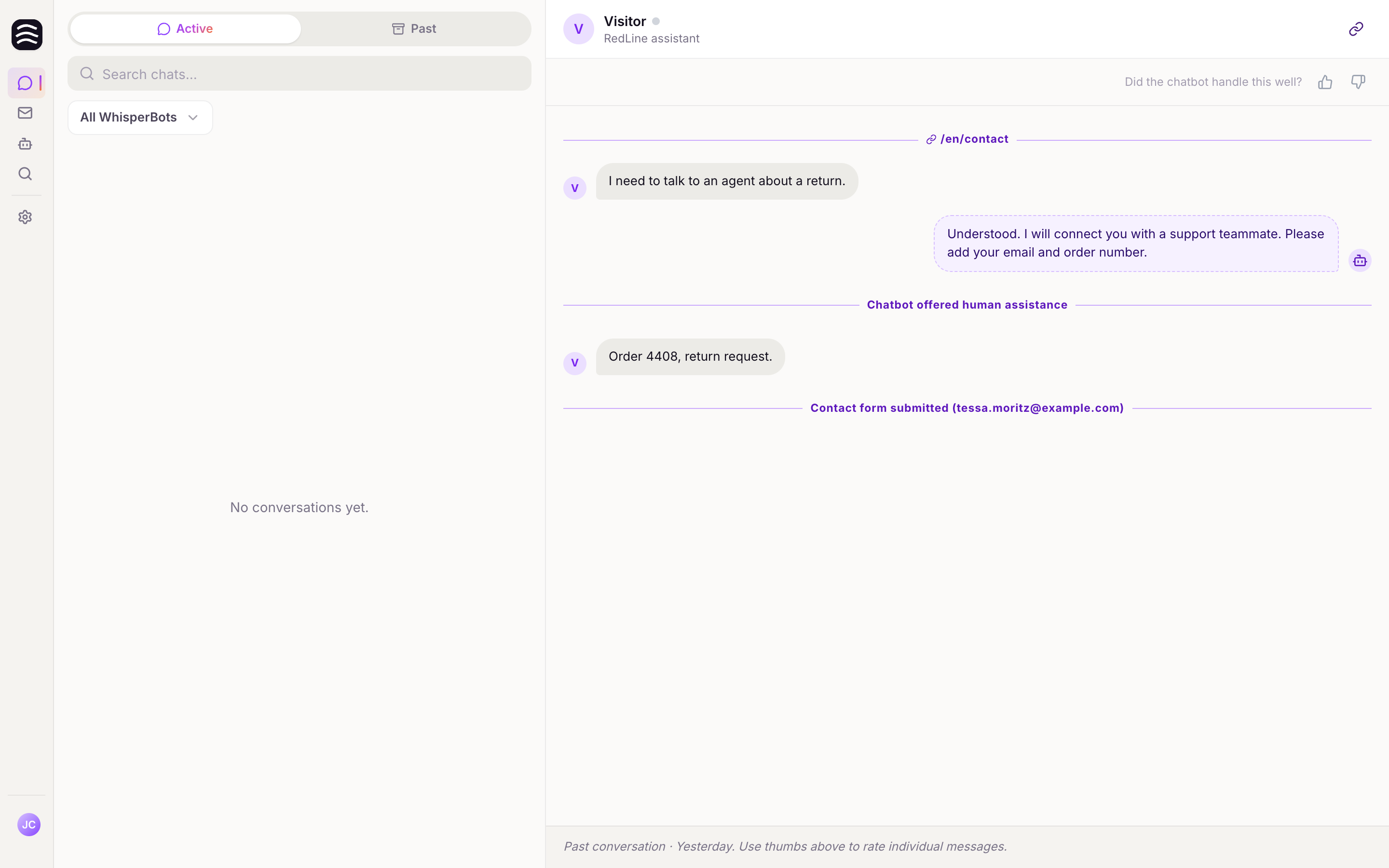
To help improve the AI, you can provide feedback on past sessions.
Open a past conversation
Go to the Past tab and select a conversation.
Rate the messages
Use the Thumbs up or Thumbs down buttons on individual assistant messages to rate them.
Add a note
You can also add an optional note to explain your rating.