
Quick start
Master sign-in, onboarding, and your first steps in Yasan in just a few minutes.
Updated:
Deploying Yasan on your e-shop is a matter of moments. This guide will take you from your first login, through the initial setup, to getting familiar with the admin panel.
Two main ways to use it#
Yasan helps you in two key areas. Choose the one you’re interested in and proceed accordingly:
- E-shop + AI Sales Agent — a smart chatbot right on your website that advises customers on their purchases. Go through the steps below and then continue to store installation.
- Email support — an AI assistant that prepares draft replies and actions for you in your inbox. We set it up on request: click Contact me on the Email page and we’ll get in touch. Then connect your email in Settings → Integrations and check out the daily email workflow.
Of course, you can use both features at the same time.
Sign in and initial setup#
Open the app
Go to app.yasan.ai and click Sign in with email. Yasan works without passwords—we’ll send a link to your email that lets you log in securely with one click.
Go through onboarding
On your first login, you’ll go through a quick setup round: enter your company name, choose your e-shop type, and connect it to Yasan right away.
Let Yasan explore your site
Yasan will then start a deep dive into your e-shop. It will review products, texts, communication style, and other details. This usually takes 15 to 30 minutes. Once it’s done, we’ll send you an email.
First look at the admin#
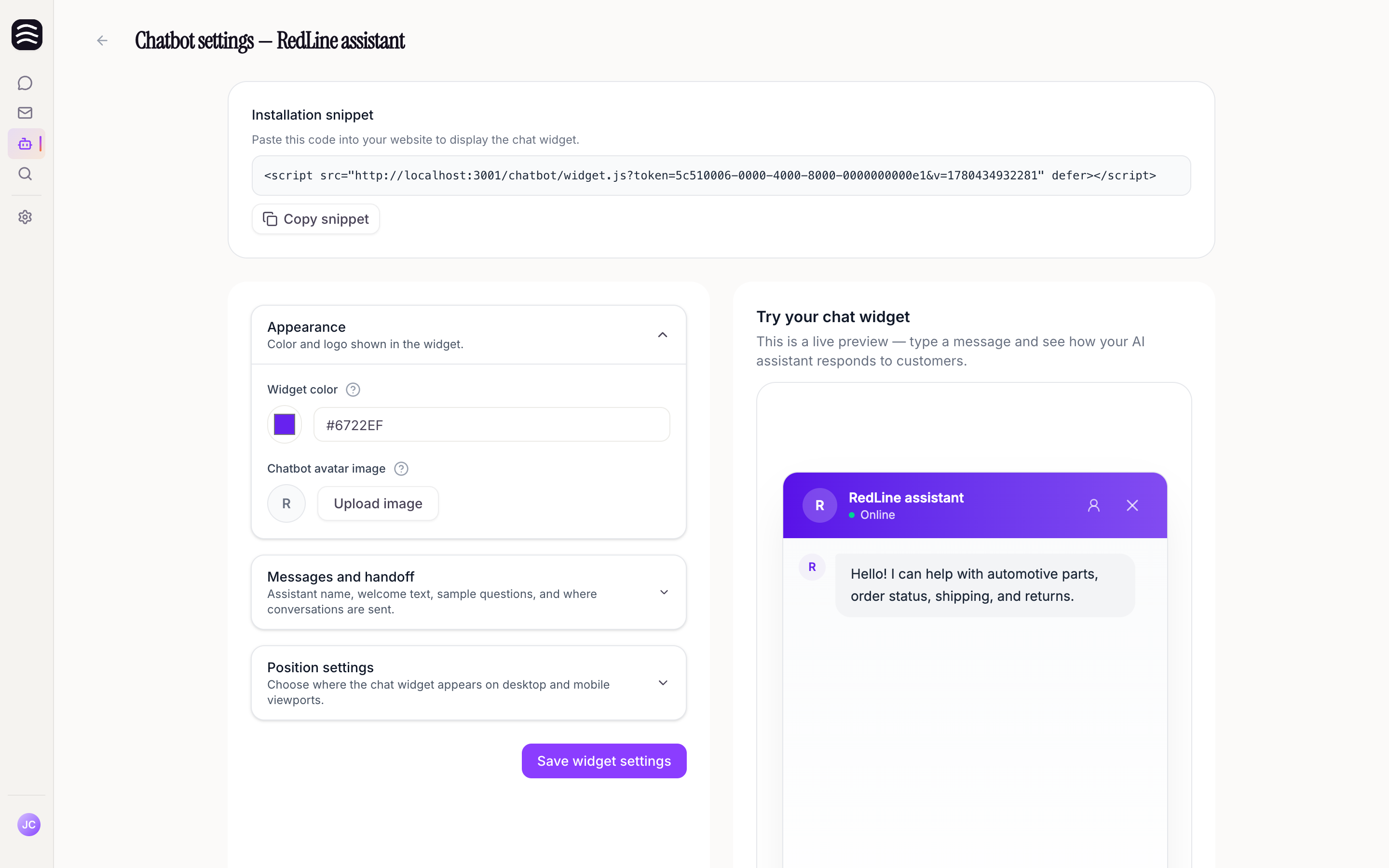
As soon as the research is complete, just log in: you’ll try AI Search and your chatbot in a live preview, choose your plan, and land right on the AI Search activation page, where you switch it on for your customers.
How to proceed next?#
- Store installation — how to get AI Sales Agent directly to your customers
- Knowledge base setup — managing everything Yasan knows about your store
- Daily email workflow — how to efficiently handle customer emails