
Creating and Managing Teams
A guide on how to create, configure, and delete teams in Yasan.
Updated:
As an organization administrator or manager, you can create and configure teams to match your operational structure.
Creating a Team#
The process of creating a new team is straightforward:
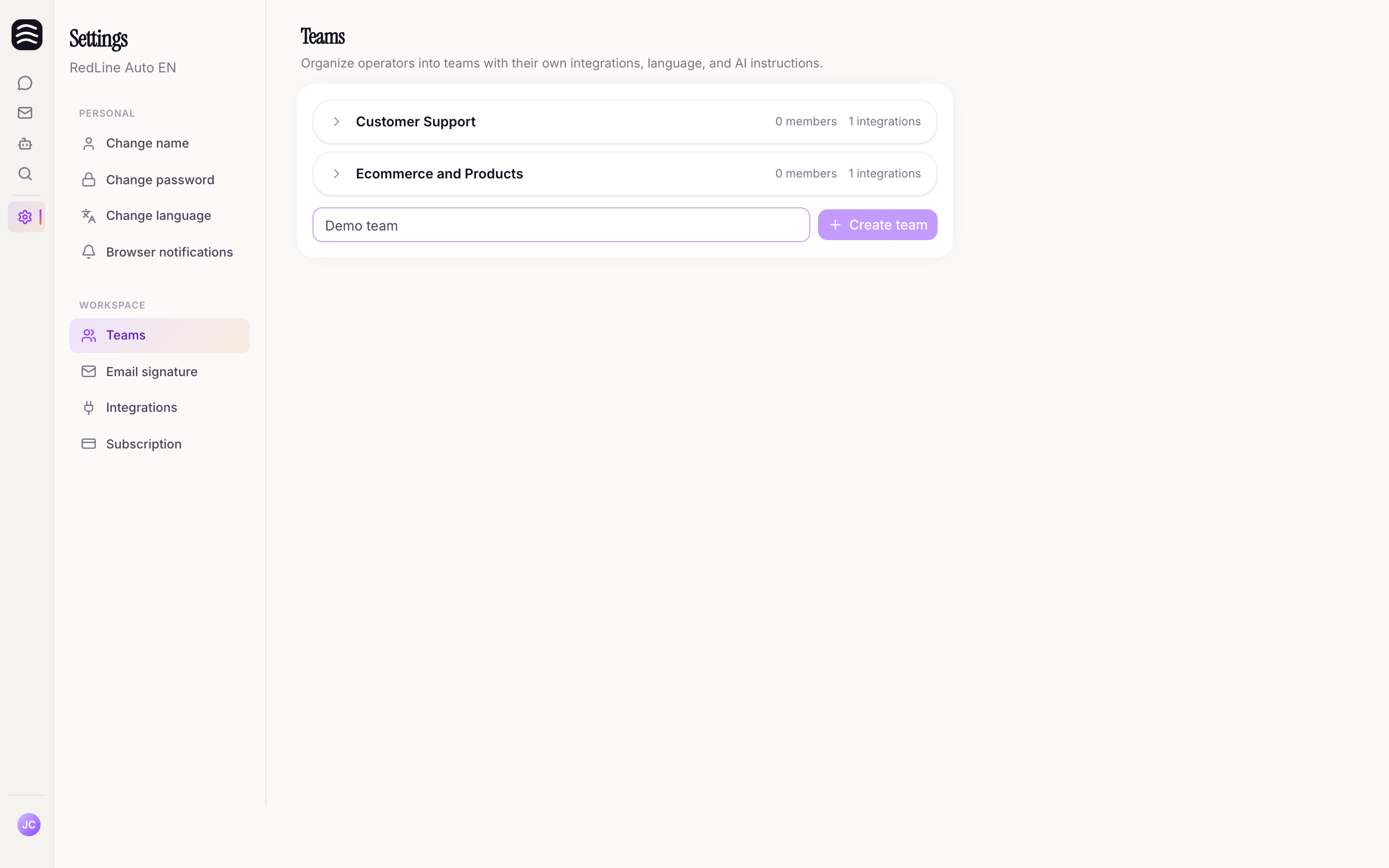
Navigate to Settings > Teams
Navigate to Settings > Teams in the Yasan sidebar.
Click the Create team button
Click the Create team button.
Enter the team name
Enter a descriptive Team name (e.g., “Customer Support (English)”).
Configuring a Team#
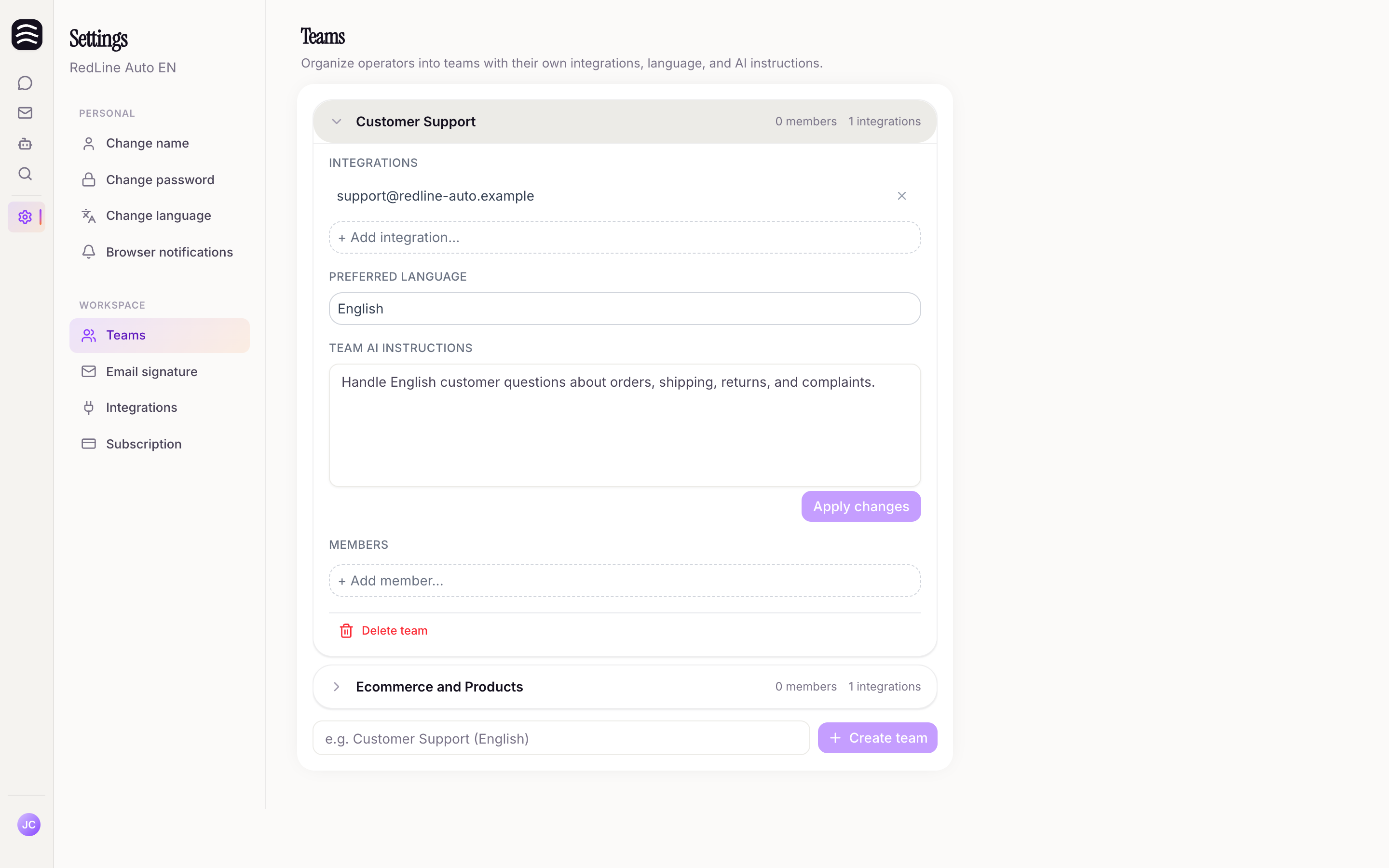
Once a team is created, you can customize it to fit your needs:
- Members: Click Add member to select existing users in your organization to join the team. You can also remove members from this section.
- Integrations: Click Add integration to assign specific email inboxes or stores to the team. This routes related conversations to this team.
- Preferred language: Select the primary language for this team from the dropdown menu.
- Team AI instructions: Enter specific, custom instructions for the AI agent when it handles threads assigned to this team.
Deleting a Team#
If a team is no longer needed, you can delete it:
Select the team
Select the team from the list in the Teams section.
Click Delete team and confirm your choice
Click Delete team and confirm your choice.