
Setting up AI Search
Switch the smart search on for your store, point it at your search box, and match it to your brand.
Updated:
AI Search replaces your store’s own search with a smart search overlay. A visitor writes what they are looking for in their own words, and the search answers with products from your catalogue and asks follow-up questions that narrow the selection down.
Before you start#
Everything below lives in AI Sales Agent → your store → Search. Each change gets a live preview next to the settings, so you can see the overlay before your customers do.
Switching the search on#
Open the store's settings
Click AI Sales Agent in the left menu and pick the store you want the search on.
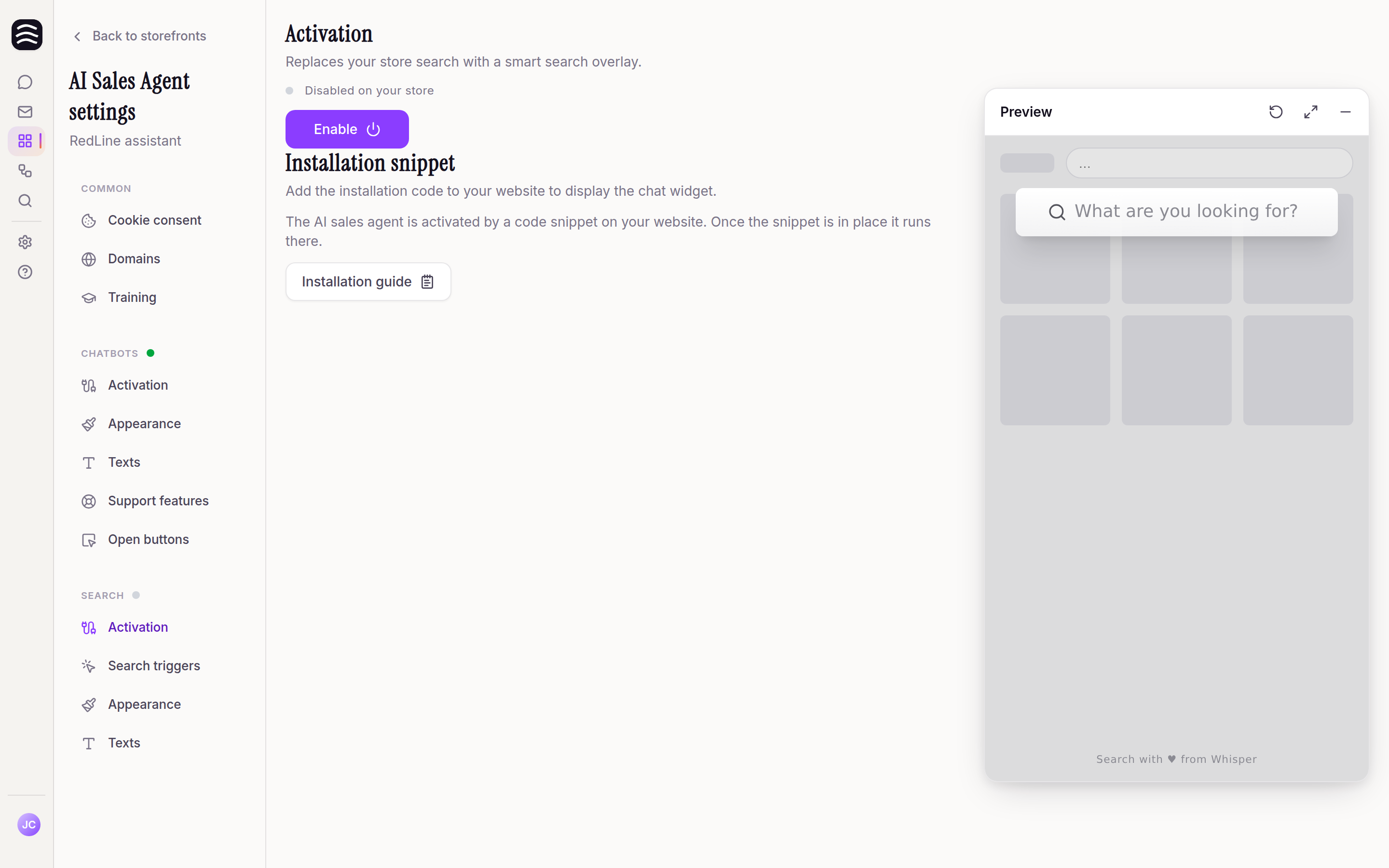
Go to Search → Activation
The Search group in the left column holds Activation, Search triggers, Appearance and Texts.
Click Enable
The dot above the button switches to Enabled on your store.
Install the snippet if you are asked for it
On Shoptet, and on WooCommerce with the Yasan plugin, the code is installed for you. On a Shopify store installed from the App Store, chat and search share the theme embed: once the Widgets embed is on and saved, there is nothing to paste. On a Shopify custom app, WooCommerce connected with REST API keys, and a product feed, the Installation snippet section appears under the switch — paste the snippet just before the closing
</body>tag, the same way as for the chat widget. The snippet is shared by both, so a store that already runs the AI Sales Agent has nothing to paste.Check your store
Purge your cache or CDN, open the store and use its search box — the smart search opens over the page.
Pointing the search at your search box#
Under Search triggers you tell the search which of your store’s search boxes to listen to. The results appear right below your store’s search field as the shopper types.
Fill in the Store search selectors with the CSS selectors of your search field or the whole search box that contains it — a search button alone isn’t enough. Without a selector the smart search never opens; on Shoptet and Shopify, the selector for the standard search field is filled in for you.
form.search input[name="q"]How to find a selector in your browser and cover several search boxes is covered in Search Triggers.
Matching your store’s look#
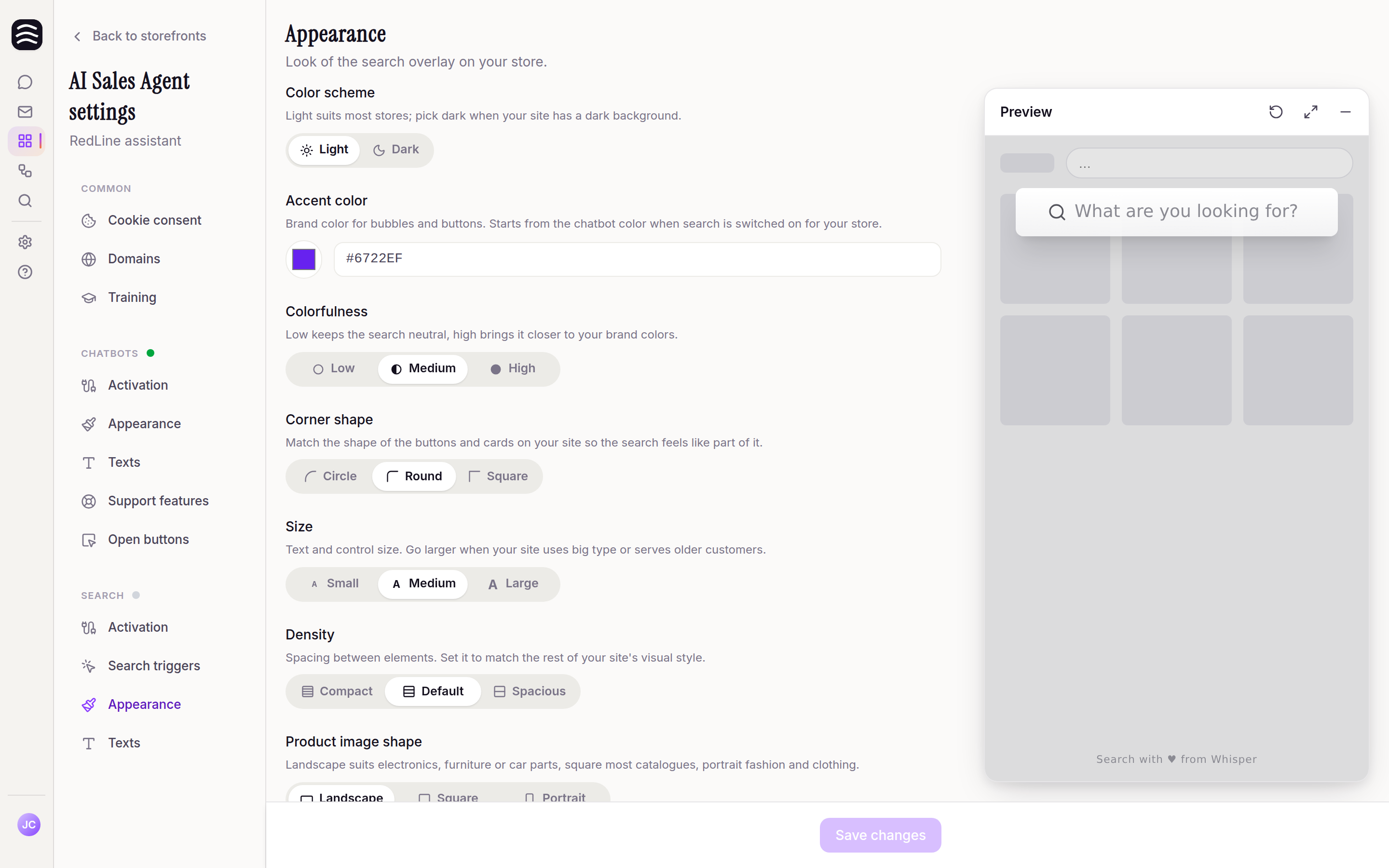
Under Appearance you set how the search looks on your store:
- Color scheme — light or dark.
- Accent color — the brand color for bubbles and buttons. It starts from your chatbot’s color.
- Colorfulness — how far the search leans on your brand color.
- Corner shape, Size and Density — match them to the buttons, type size and spacing of your site.
- Product image shape — landscape for electronics, furniture or car parts, square for most catalogues, portrait for fashion.
Texts#
Under Texts you write the Hints in the refine field — short examples that take turns in the empty field under the results and show customers how to narrow the search down (“Ideally under 500”, “For winter running”). Write them for each of your store’s languages separately; leave them empty and Yasan’s own hints are used.
Switching the search off#
Search → Activation → Disable stops the overlay from serving; your store’s own search takes over again. The product index stays warm, so switching the search back on serves right away. On a snippet install, the snippet stays on your site. On an App Store Shopify store, the theme embed stays on. Both are shared with the AI Sales Agent, so switching the search off never removes them.