
Complete guide to emails in Yasan
Everything you need to know about handling customer emails with AI in one place.
Updated:
Yasan’s Email Support takes your customer service to the next level. Artificial intelligence takes over the routine work, automatically preparing draft replies and specific action suggestions for you.
It’s important to know that Yasan doesn’t group every email from one customer into a single conversation. A new email starts a new conversation; a reply to an existing email stays in that conversation.
How it all works#
Once you connect your email inbox (e.g., via Gmail or IMAP/SMTP), Yasan starts fetching incoming messages. For each one, it understands the context and immediately suggests a draft reply or a specific step (like issuing a refund or changing a delivery address). All you have to do is review the suggestion and approve it with a single click.
Email view modes#
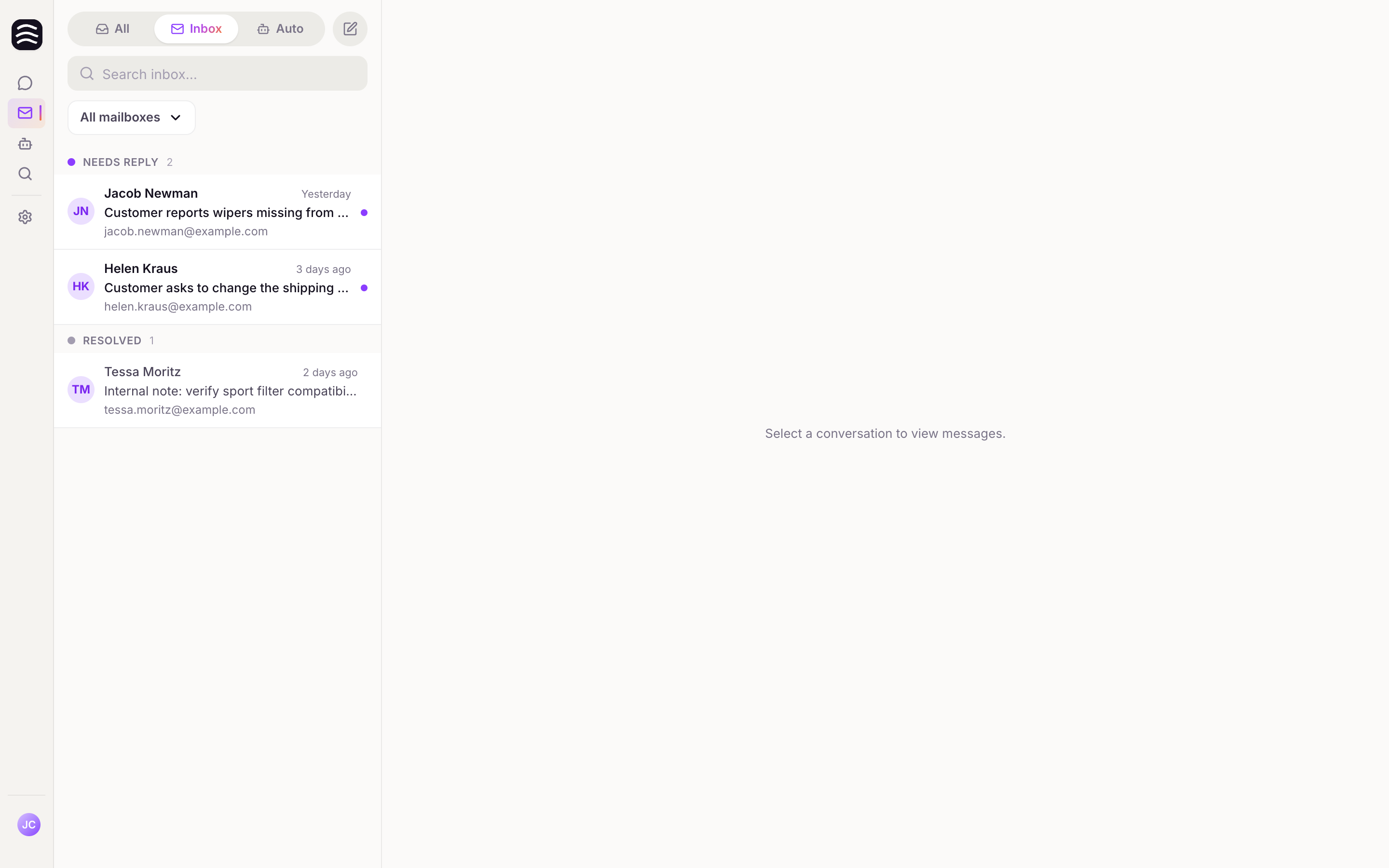
At the top of the screen, you’ll find a toggle between the All, Inbox, and Auto tabs, plus a button for a Compose new email. Here are the three main modes you’ll work with:
- All — the very first tab on the left. Here you’ll find an overview of all threads regardless of their status. All Resolved conversations are automatically moved here. It’s great when you need to track down older communication. You can also turn on spam visibility here (Show SPAM). However, we don’t recommend this mode for your daily routine.
- Inbox — your primary workspace, which opens by default. Here you’ll find only messages waiting for your response (Needs reply). This is where you’ll spend most of your time.
- Auto — Yasan automatically moves messages here that do not need manual attention. This includes filtered messages as well as conversations marked Resolved by Yasan (an automated reply was sent) and Auto-closed (closed without a reply). If a filtered message needs your attention, use Move to Inbox.
For label-based automatic handling, see Email Automations.
Understanding the Email Interface#
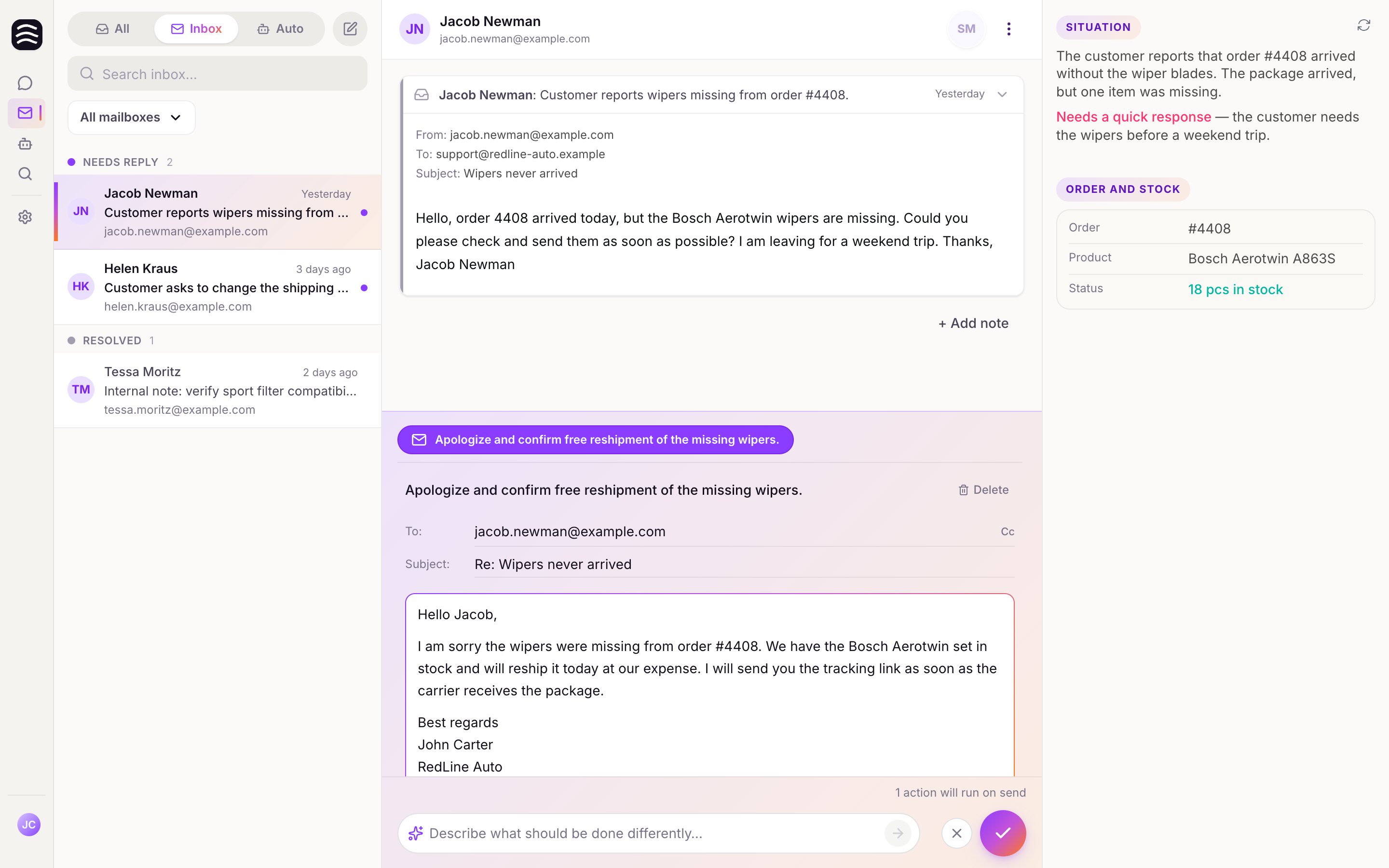
To make your workflow as smooth as possible, we’ve divided the email interface into three clear panes. Yasan doesn’t work with isolated messages, but with entire conversation threads—so you always have the complete communication history with a customer right in front of you.
1. Conversation list (Left pane)#
Here you’ll find an overview of all your email conversations.
- View modes: Easily switch between the All, Inbox, and Auto tabs (learn more in the daily email workflow section).
- Automatic Labels: For each email, you’ll see labels (e.g., Order status, Complaint) that Yasan automatically assigned based on the content. Up to 2 labels are shown, with the rest hidden under a +N icon.
- Search: Quick full-text search within your current view.
- Mailbox selector: You can view conversations from multiple connected mailboxes at the same time. Yasan remembers your selection.
- Assignment: Assign a conversation to yourself or unassign it. The assignee is visible in the list.
- Presence indicators: Avatars show you right away if a colleague is currently reading the same conversation.
2. Conversation view (Center pane)#
This is where the most important work happens—the actual communication with the customer.
- Message history: You’ll see the complete conversation history. The newest message is always expanded.
- Conversation labels: In the header below the customer’s name, you’ll find all labels assigned to the conversation.
- AI suggestions: At the bottom of the screen, you’ll find pre-drafted replies and suggested actions waiting for you.
- Conversation actions: You can Approve, Ignore, Save for later, or Mark as spam directly from the suggestions.
3. Context panel (Right pane)#
This panel provides all the necessary background information so you don’t have to keep switching to other systems.
- Dynamic context: Yasan automatically extracts important details about the customer and their order from the conversation content. This context is generated when the email arrives and updates automatically every day.
- Manual context refresh: You can trigger an update manually using the button in the top-right corner. It takes a few dozen seconds, during which you can comfortably work on other emails.
How to handle spam#
- If you want to see messages that fell into spam, switch to the All mode and turn on the Show spam toggle.
- Found a message in spam that doesn’t belong there? Click Not spam. The message will move back to your inbox and the system will learn from it for the future.
- Conversely, you can easily move unwanted mail to spam using the Mark as spam action directly in the conversation view.
Automatic Labels#
Yasan’s AI automatically analyzes every incoming email and assigns corresponding Labels based on the topic (e.g., Order status, Returns and refunds, Product question). Labels help you see what an email is about at a glance without having to open it.
- Labels appear as small badges in the thread list (left pane) and in the conversation header itself (center pane).
- A single email can have multiple labels assigned at the same time.
- Labels are read-only in the user interface — they cannot be manually added, edited, or deleted. They are fully managed by the AI.
- Messages marked as spam do not receive labels.
- Labels are different from inbox states such as Needs reply, Auto, and Spam.
Daily email workflow#
Yasan doesn’t group all emails from one customer into a single long history. Each new email creates a new conversation; a reply stays in its existing conversation. One customer can therefore appear more than once in the list when they are dealing with different issues.
Where to spend your day#
At the top of the Email interface, switch between All, Inbox, Auto, and Compose new email. For everyday work, stay in Inbox — it is selected by default.
Inbox — your main workspace#
Inbox only shows conversations that require your attention and are waiting for your reply (Needs reply). This is where you spend most of your time. Once you resolve a thread, it automatically moves to the All tab.
In the thread list you can:
- Full-text search within the current view.
- Select one or more mailboxes — the mailbox selector is a multiselect, so you can see threads from multiple inboxes at once.
Auto — automatically filtered emails#
Auto shows threads Yasan classified as not needing your reply. These are typically marketing emails, automatic confirmations, and other messages labeled Ghost.
Ghost is an automatic filter that keeps your Inbox clean. It is not perfect — if you want to reply, use Move to Inbox and handle the thread from there.
In the future, Auto will also show fully automated replies (e.g. order status questions) when you enable them in settings.
All — search across everything#
All (the leftmost option in the top switcher) shows every thread in the selected mailboxes. All resolved threads are automatically moved here. You’ll also find automated or manually handled threads here. Enable Show SPAM to include spam.
Use All when you are looking for a specific old email and do not know its status. For day-to-day work, use Inbox.
Typical conversation resolution flow#
Open a Needs reply conversation
The center pane shows the conversation history. The latest message is expanded.
Review the context
The right Situation and Context panel shows customer and order information. Context is generated when the email arrives and refreshed daily. Use the refresh button in the top-right corner for the latest data — this can take up to a minute; you can work on another thread while it runs.
Review proposed actions
At the bottom of the screen Yasan suggests a reply and next steps. Purple actions run after approval; orange ones are manual tasks — see the Working with AI-Suggested Actions section.
Approve or ignore
Approve sends the reply and runs approved actions. Ignore closes the conversation without action — use when no reply is needed.
Working with AI-Suggested Actions#
Yasan’s AI analyzes incoming emails and generates context-aware draft replies and one-click actions.
Purple and orange actions#
At the bottom of the screen (Actions section), Yasan proposes a set of steps to resolve the thread:
- Purple actions — Yasan runs these automatically when you click Approve (e.g. sending a reply, canceling an order in your store).
- Orange actions — manual tasks you must complete yourself (e.g., a physical inventory check or a step in a system without an integration). Mark them done by clicking the circle checkbox — only then can Yasan continue with automatic steps.
You can expand any action to edit its description or delete it if Yasan suggested something wrong.
Reviewing and Editing Suggestions#
When you open a thread marked “Needs reply”, you will see the AI’s suggestions.
- Editing: You can modify the drafted text directly before approving. Changes are auto-saved.
- Attachments: Add or remove file attachments from the suggested reply.
Copilot Prompt#
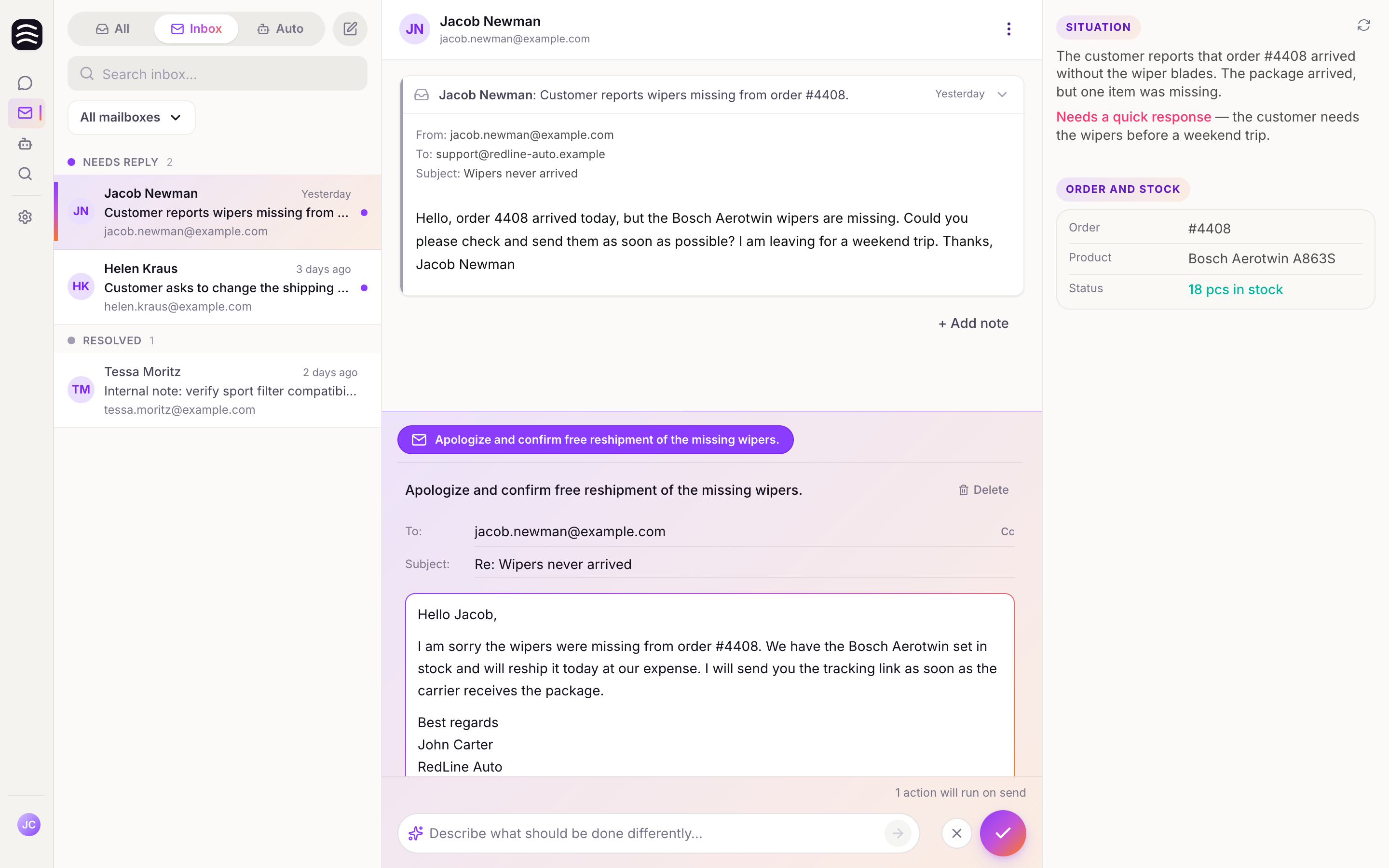
If the AI’s suggestion isn’t quite right, you don’t have to rewrite it manually. Use the Copilot prompt at the bottom of the screen.
- Edit existing actions: Describe what should change (e.g. “Make the tone more formal” or “Add information about our 30-day return policy”).
- New actions: Copilot can also add new actions — e.g. “Forward this email to a colleague on the returns team”.
Approving a Thread#
Once you are satisfied with the suggestions, click Approve to run purple actions and send the reply.
- Unchecked manual tasks: If orange actions remain unchecked, a dialog asks you to mark them done or delete them before approving.
- Approve Footer: A summary at the bottom shows what will happen when you click approve (e.g. “1 action will run on send”).
Ignore — close without action#
Ignore closes the thread without sending a reply or running actions. Use it when no response is needed — the thread moves to resolved.
Other Thread Actions#
- Save for later: Keep the thread open but move on to the next one.
- Mark as spam: Flag the message to improve filtering.
Composing New Emails#
You can start a new conversation with a customer directly from Yasan—no need to wait for them to reach out first.
How to compose a new email#
Navigate to the Email page
Click on Email in the left sidebar.
Click Compose new email
Click the Compose new email button (the pen icon) at the top of the thread list.
Start writing your message
A new pane will open where you can immediately start drafting your email.
Understanding the compose fields#
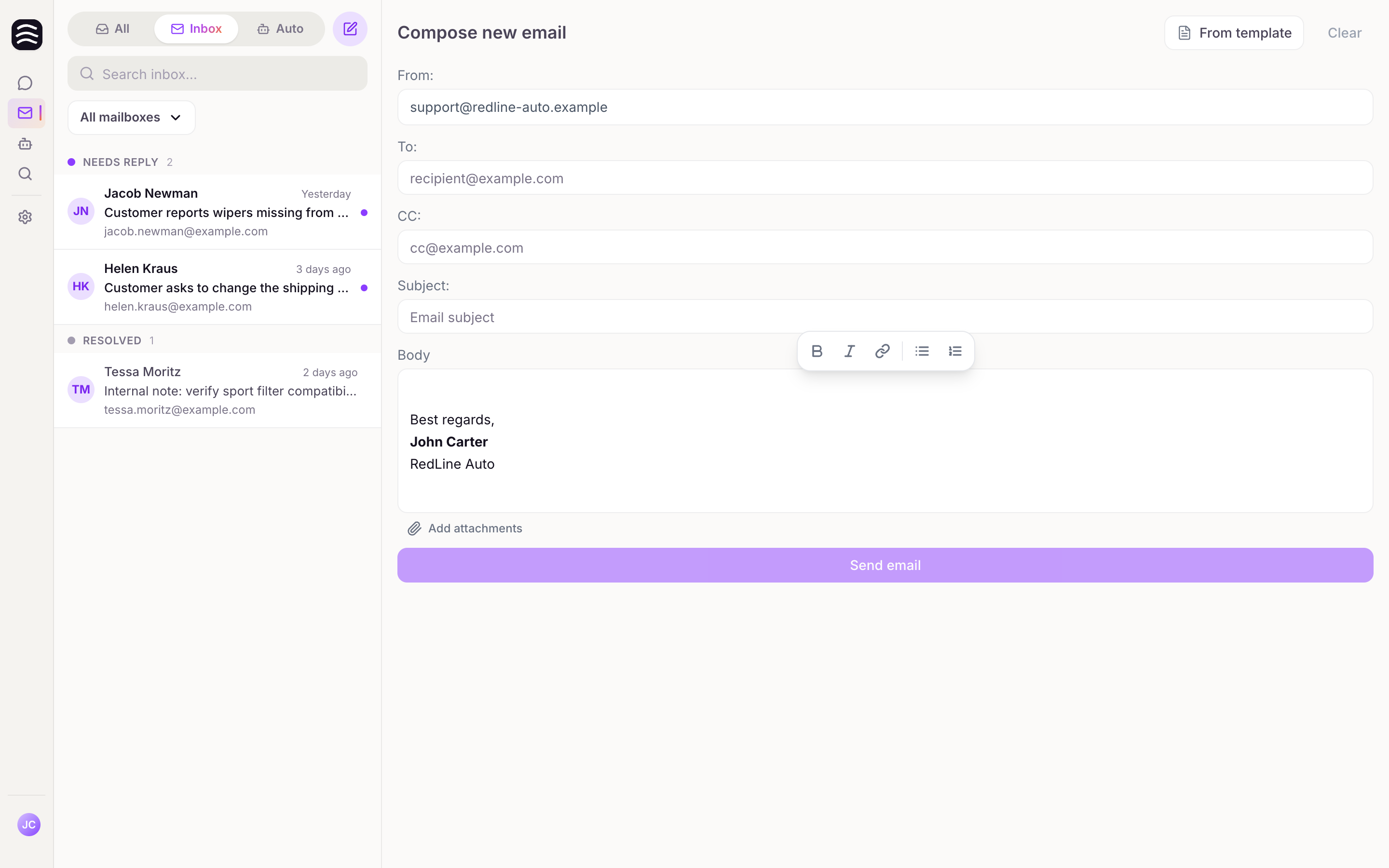
- From: Select the mailbox (integration) you want to send the email from.
- To: Enter the recipient’s email address. Yasan automatically suggests saved contacts based on your connected integrations.
- CC: Click “Cc” to add additional recipients to the carbon copy.
- BCC: Add recipients who get a copy without the other recipients seeing their addresses.
- Subject: Fill in the subject line of your message.
- Body: Write the actual content of your email here.
Using templates#
To save time, click From template to quickly insert one of your pre-saved responses into the message.
Open conversation detection#
If you try to email a customer who already has an active conversation, Yasan alerts you:
- You’ll see a warning that the recipient has an open conversation.
- You can jump straight into the existing conversation to keep the communication together.
Sending your message#
Once your email is ready, click Send email. You’ll then choose from these options:
- Send and close: Sends the email and immediately marks the conversation as resolved.
- Send and keep open: Sends the email but leaves the thread active so you can follow up later.
Resolved Conversations and Follow-ups#
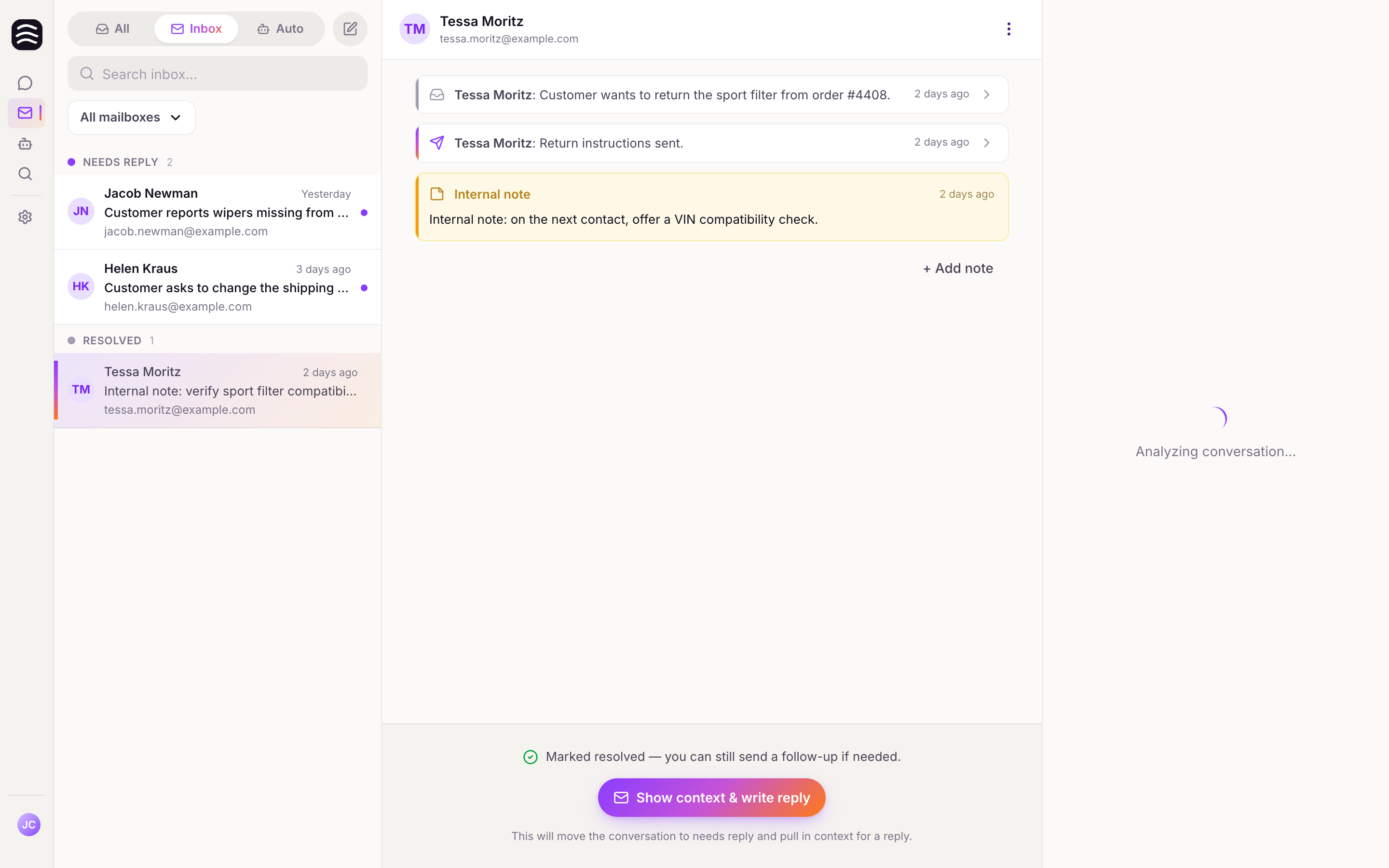
Once an email conversation is handled, it is marked as resolved. Yasan retains its context for about 30 minutes after resolution, so a follow-up can continue with useful context. However, you can always review the history or reopen it if necessary.
Viewing Resolved Threads#
- All resolved inquiries are automatically moved to the All tab in the top switcher.
- Simply open any closed thread here and you’ll instantly see a complete overview of all previous messages.
Following Up#
If you need to contact the customer again regarding a resolved issue:
Find the thread
Open the closed thread.
Click the follow-up button
Click the Write a follow-up button at the bottom of the conversation.
Draft a new message
This action moves the thread back to your Inbox and pulls in the context so you can draft a new message.
Internal Notes#
Even after a thread is closed, you can add internal notes. Click + Add note to leave a comment for your team. These notes are visible only to operators and are never sent to the customer.
Managing Email Templates#
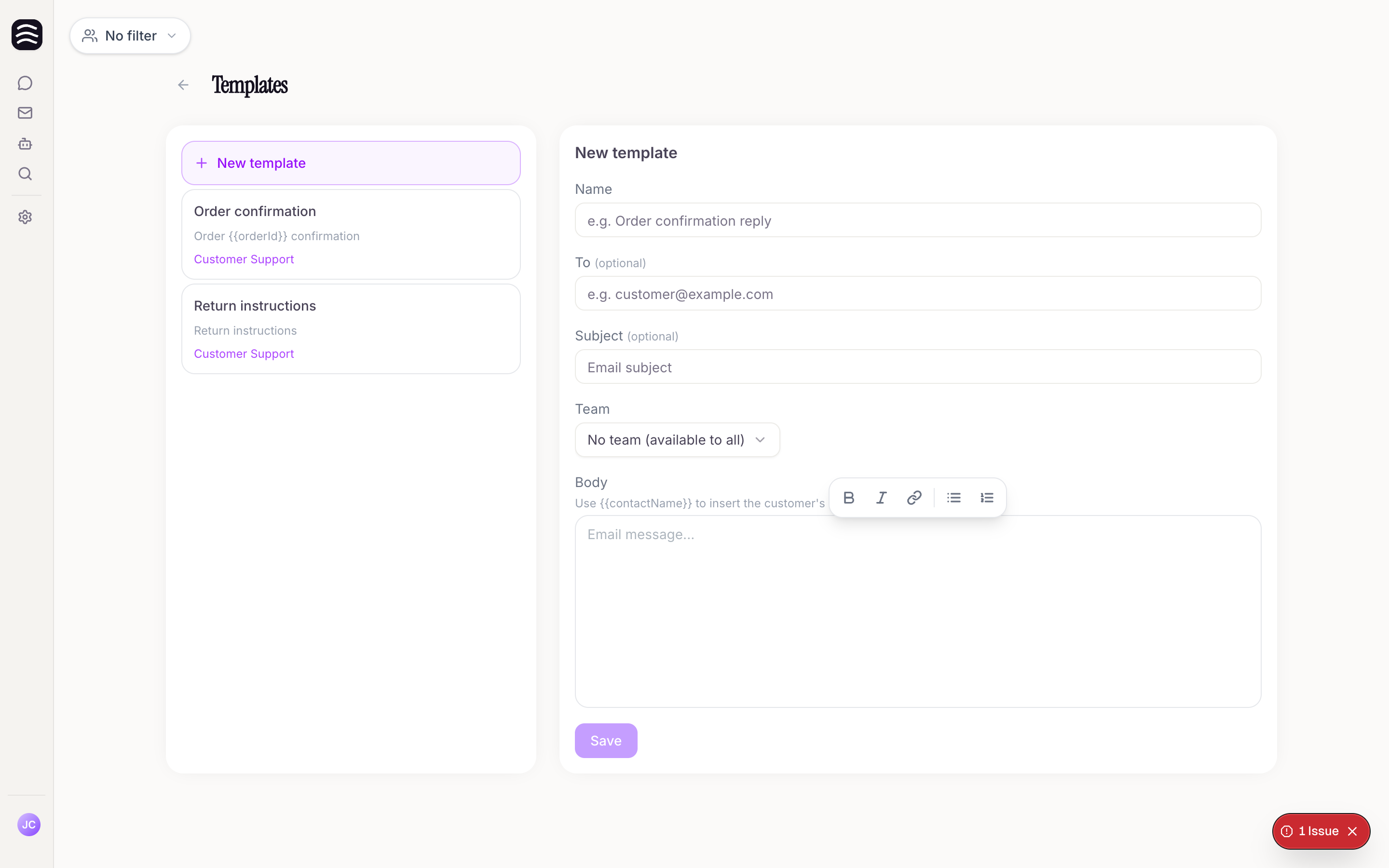
Templates allow you to save frequently used responses, saving your team time and ensuring consistent communication.
Creating a Template#
From the Email page
From the Email page, open the compose pane and click Manage templates, or navigate directly to the
/templatesroute if you have it bookmarked.Click Create template
Click Create template.
Fill in the details
Fill in the details:
- Name: A descriptive name (e.g., “Order confirmation reply”).
- Subject (optional): A default subject line.
- To (optional): A default recipient email.
- Body: The main content of the template.
- Team: Assign the template to a specific team, or choose “No team” to make it available globally to all operators.
Using Dynamic Placeholders#
In the body of your template, you can use {customerName}. When you apply the template to an email, Yasan will automatically insert the customer’s actual name.
Editing and Deleting#
- To edit, click on an existing template, make your changes, and save.
- To delete, click Delete template and confirm the prompt.
Email Signatures#
In Yasan, you can easily set up a unified email signature that automatically appends to all outgoing messages from your organization.
How to set up your signature#
Navigate to Settings > Signature
Select Settings > Signature from the left sidebar. (Note: You will only see this section if email support is active for your organization).
Create your signature
Use the markdown editor to format your signature exactly how you want it.
Save your changes
Don’t forget to save your settings.
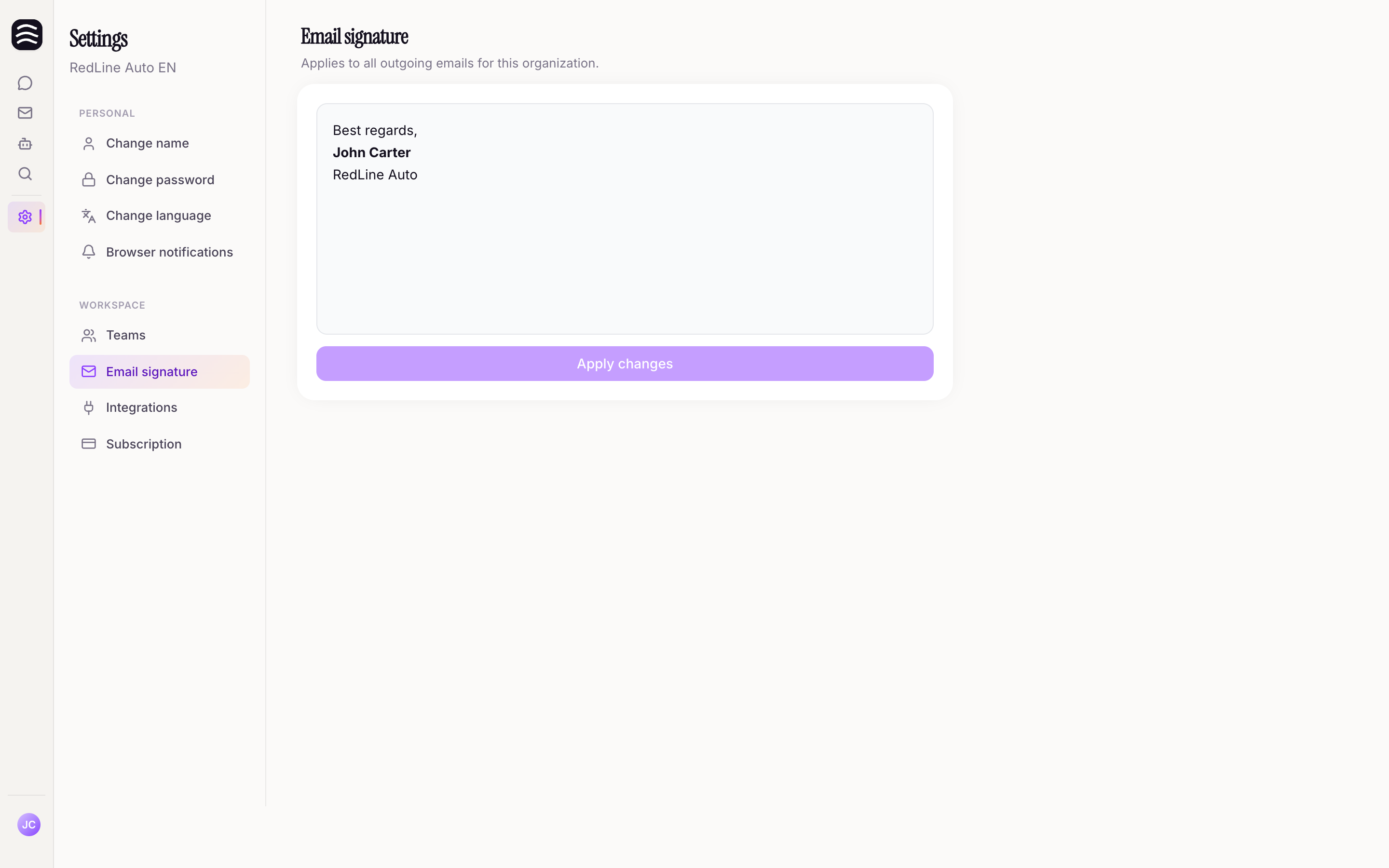
That’s it! This signature will now be automatically added to all new messages and replies sent from Yasan on behalf of your organization.