
Organization Management
Learn how to manage organization-level settings and add new users.
Updated:
As an administrator, you manage the high-level settings for your entire Yasan workspace (your organization).
Deleting an Organization#
If you need to permanently remove your organization and all associated data from Yasan, you must submit a formal request.
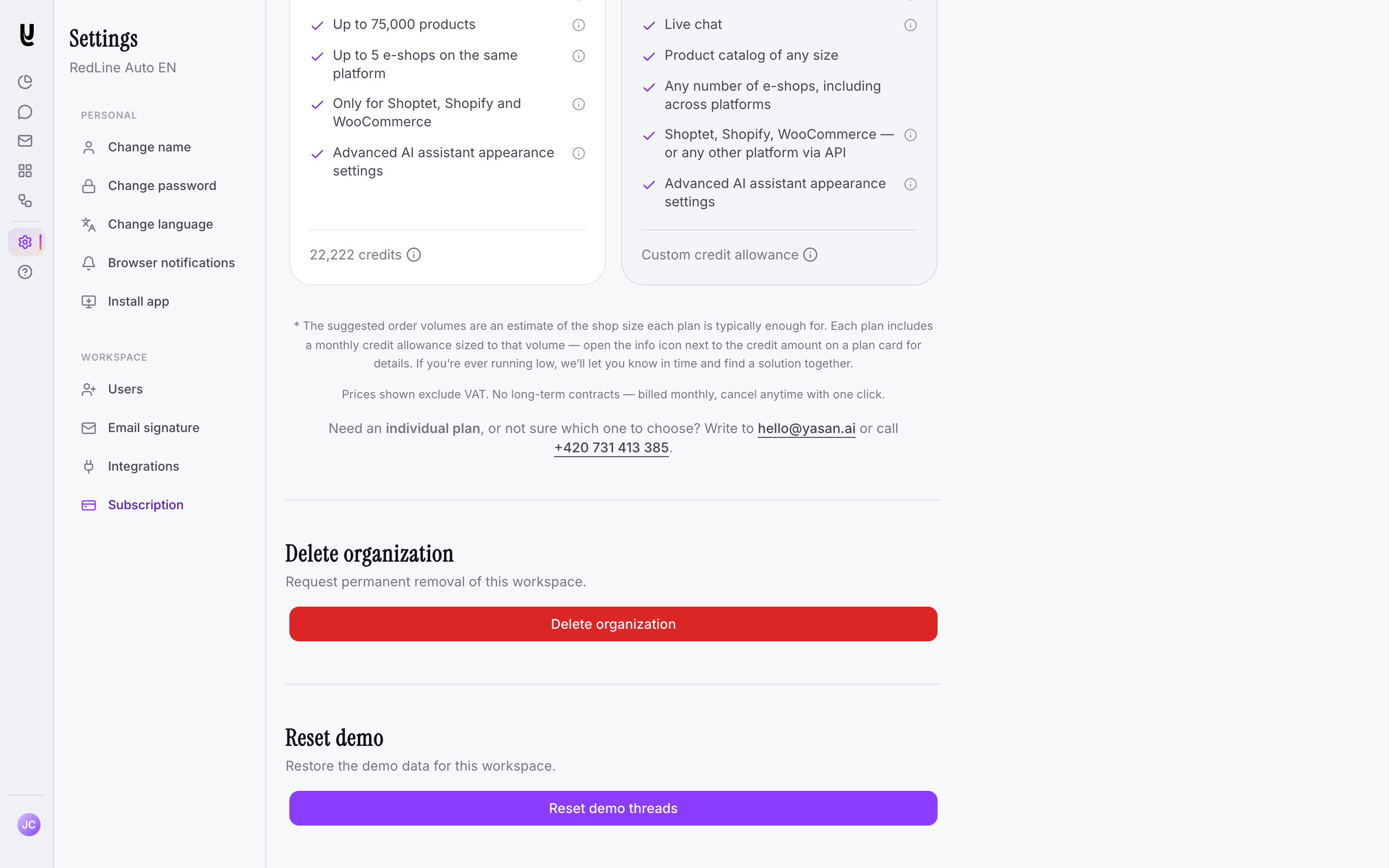
Navigate to Settings > Subscription
Navigate to Settings > Subscription in the sidebar.
Scroll down to the Delete organization
Scroll down to the Delete organization section.
Click Delete organization
Click Delete organization.
Submit the request
A contact dialog will open. Please provide a brief reason for leaving, and submit the request.
Our team will process the deletion and confirm when your data has been permanently removed.
Inviting Team Members#
Open Users
Go to Settings → Users.
Add a user
Click Add user, enter the person’s email address, and optionally assign a team.
Send the invitation
Click Send invitation. The invited person receives an email to join your organization.
Until they accept, invited people appear under Sent invitations. You can search and sort both active users and pending invitations, or cancel a pending invitation from the same page. To remove a member who has already joined, contact support.