
Navigating the App
An overview of the main navigation areas in the Yasan app after completing onboarding.
Updated:
Once you’ve completed onboarding, you will land in the main Yasan interface. Here is a breakdown of the main navigation areas.
Sidebar Navigation (Desktop)#
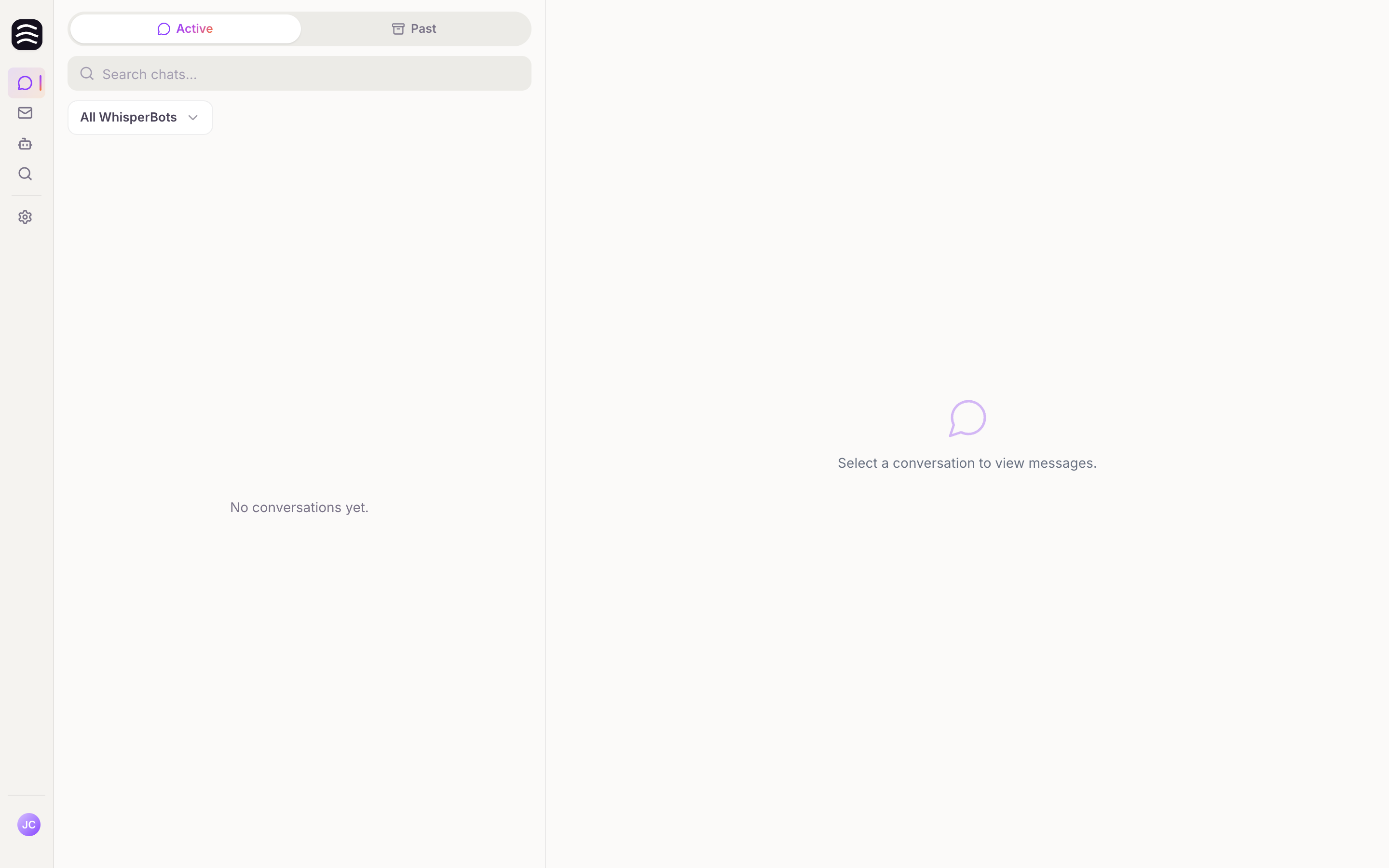
The main navigation is located on the left side of your screen:
Conversations
Conversations: View and manage live conversations from your AI Sales Agents.
Email
Email: Access your unified inbox where Yasan drafts AI-powered replies for your support emails.
AI Sales Agent
AI Sales Agent: Manage, configure, and train the agents connected to your stores.
Automations
Automations: Configure how Yasan handles incoming emails by their labels. This item is available to organizations with access to email automations.
AI Search
AI Search: Smart product search for your customers. This item appears until your organization has AI Search — click Contact me and we’ll get in touch to set it up together.
Settings
Settings: Access personal and workspace settings, including your profile, teams, integrations, and billing.
At the bottom of the sidebar, you can click your user profile to log out.
Mobile Navigation#
On mobile, the bottom bar shows your three main workspaces:
- Conversations — live chat sessions from your AI Sales Agent
- Email — your customer email inbox
- AI Sales Agent — configure and manage your storefront agents
Tap More for Settings, Automations, and AI Search.