
Installing the AI Sales Agent
Learn how to install the AI Sales Agent on Shoptet, Shopify, and other platforms.
Updated:
To display AI Sales Agent on your website, you need to install it first. The process varies slightly depending on the e-commerce platform you are using.
Shoptet (Automatic Installation)#
If you connected Shoptet using the Marketplace addon, the installation is completely automatic.
- You do not need to copy any code.
- Simply use the Enable/Disable toggle on the AI Sales Agents page to easily show or hide AI Sales Agent on your store.
Other platforms (snippet installation)#
For a custom site, and for a Shopify store connected with a custom app, you will use a short installation snippet. An App Store Shopify install does not use this snippet. WooCommerce has its own steps below.
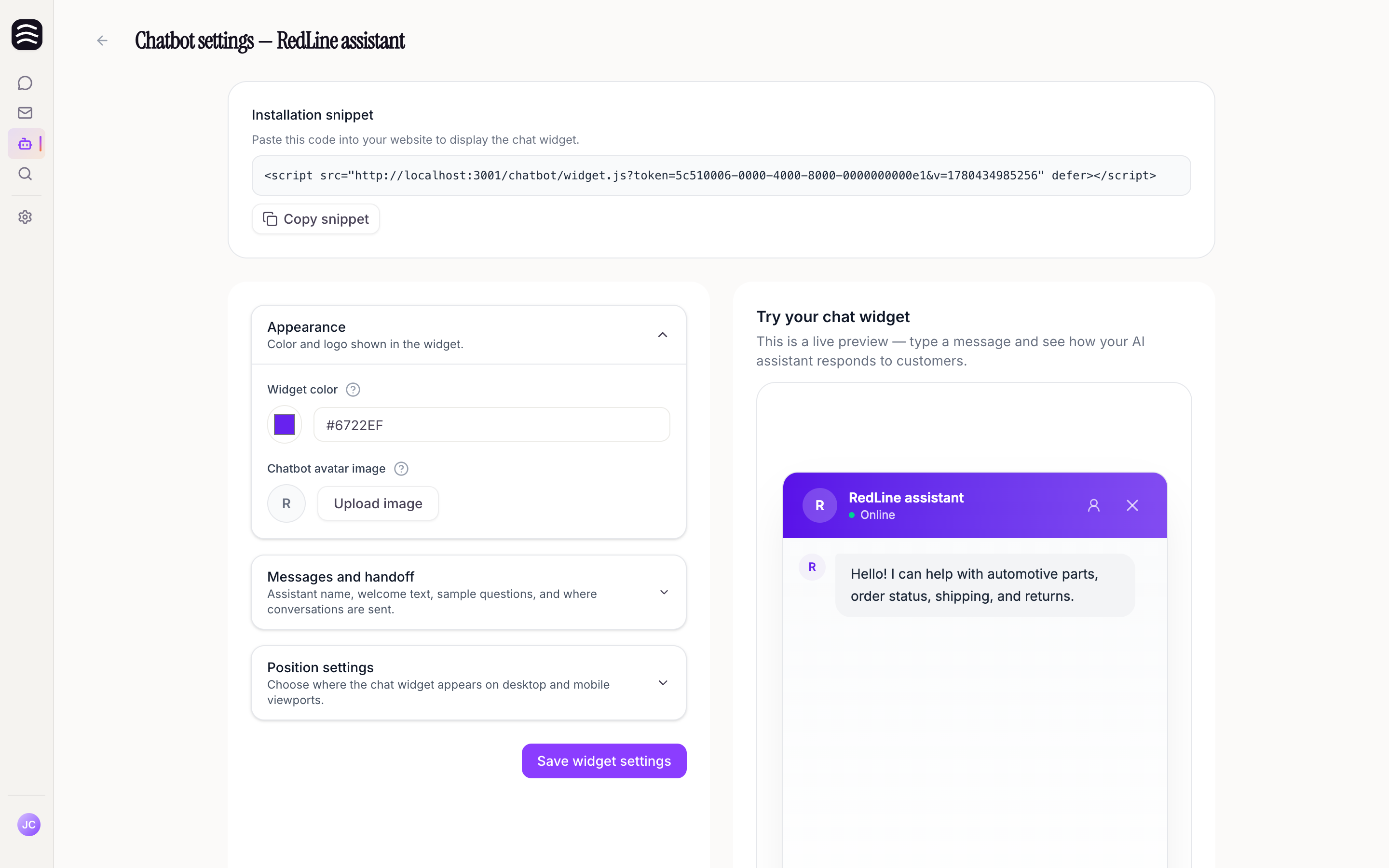
Open bot settings
Navigate to the AI Sales Agents section and click on your bot to open its settings.
Find the installation snippet
Scroll down the page to the Installation snippet section.
Copy the snippet
Click the Copy snippet button.
Paste into your HTML
Paste the snippet on its own line just before the closing
</body>tag, in a template that renders on every page of your site. Paste it in HTML / source-code mode — a visual editor would turn it into plain text.Publish and purge caches
Save the change and publish your site. If your site uses a cache or CDN, purge it and reload the page — the chat widget appears at the bottom of the page.
Shopify (App Store)#
If you installed Yasan from the Shopify App Store, you do not paste any code. Open AI Sales Agent, choose the store, and use Activation.
Enable the AI sales agent in Yasan
Choose Enable. That publishes the shared widgets loader to Shopify. Chat and AI Search share this loader.
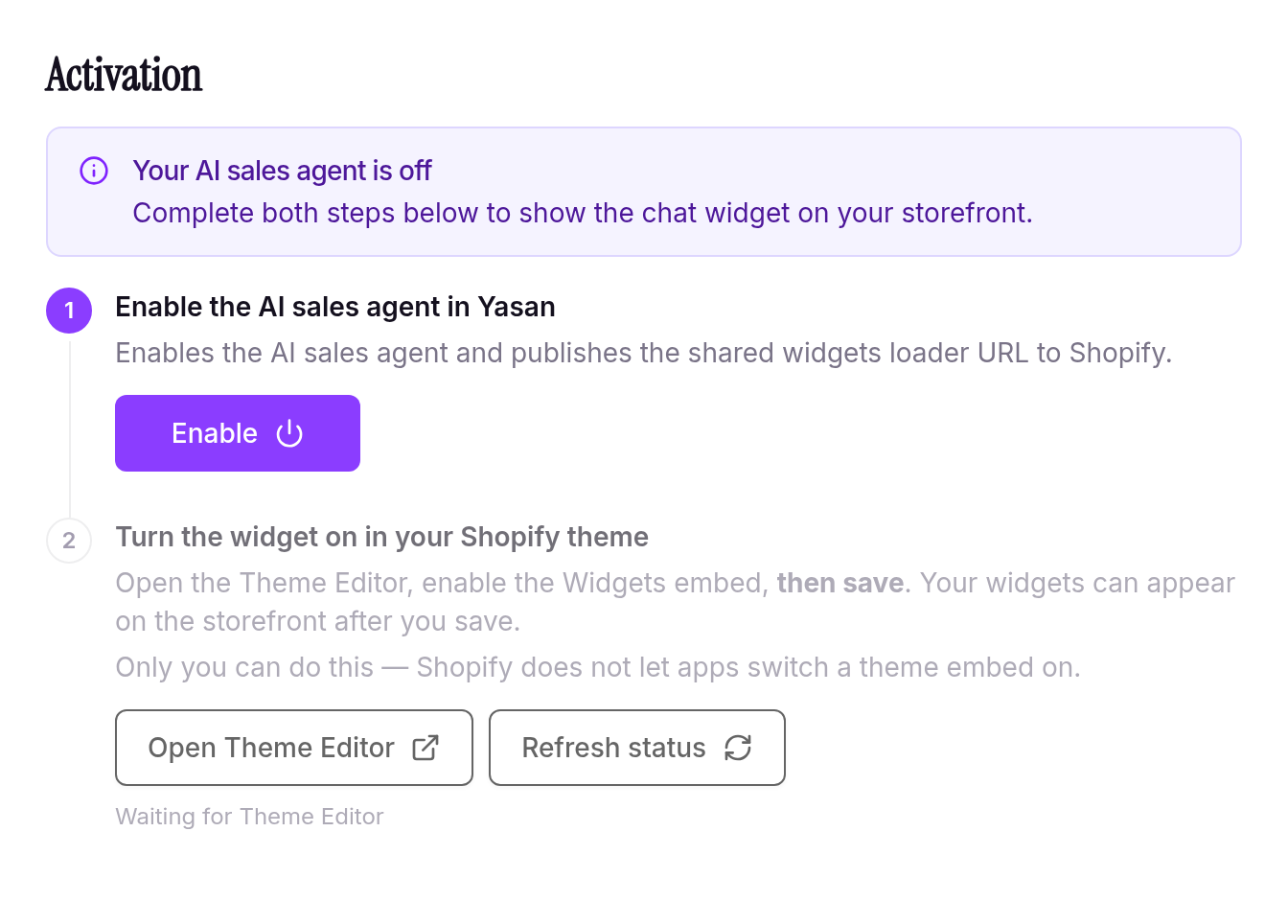
Enable the AI sales agent in Yasan, then turn the widget on in the theme Turn the widget on in your Shopify theme
Choose Open Theme Editor. Turn on the Widgets embed and save. The embed has no settings. Only you can do this — Shopify does not let apps switch a theme embed on. After you save, it loads on every page of that theme.
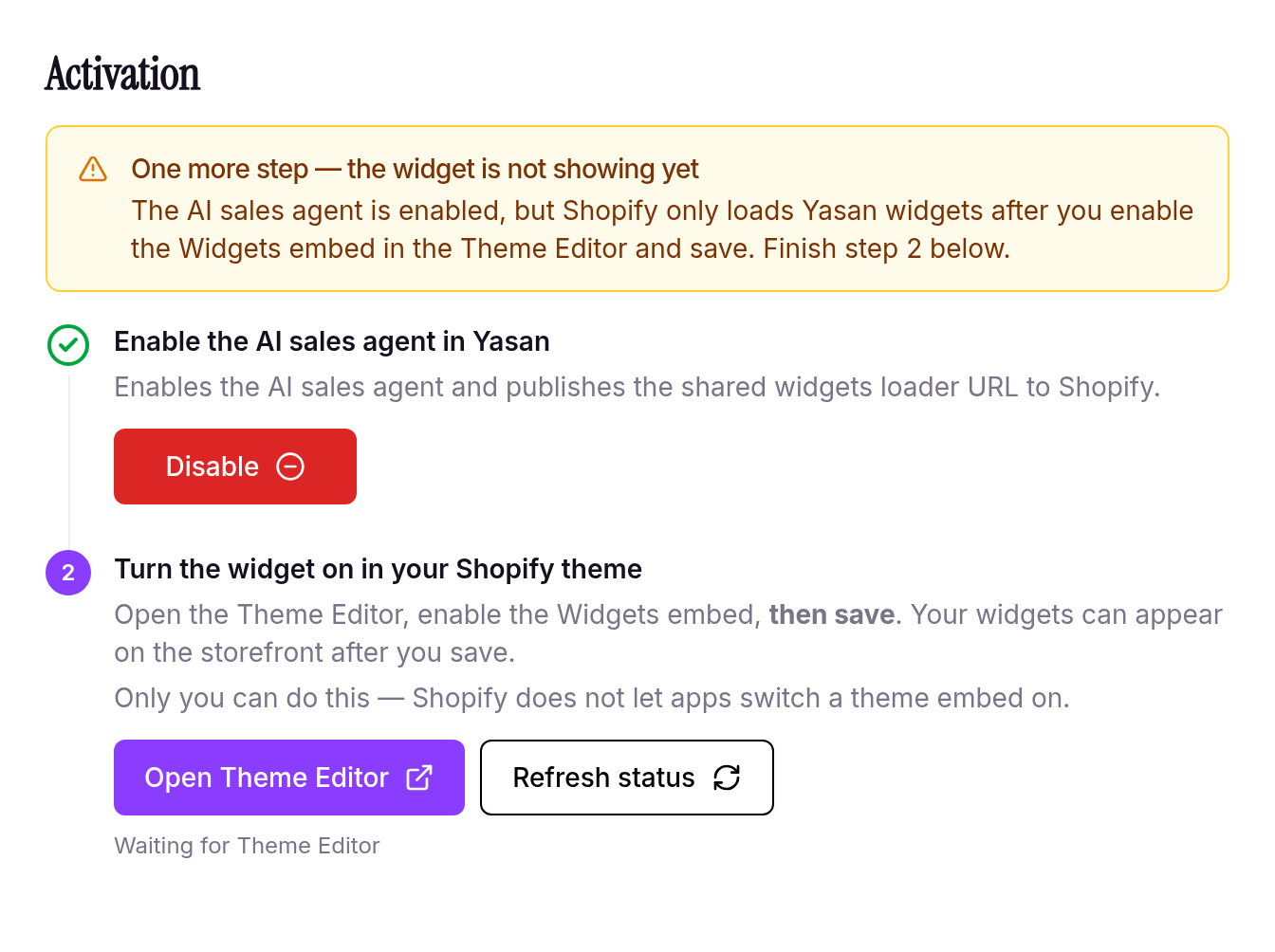
The agent is on. Open the Theme Editor, turn on the Widgets embed, and save
Disabling the AI sales agent in Yasan hides the chat. The theme embed can stay on. To stop loading the script, open the Theme Editor again, switch Widgets off, and save.
Shopify (custom app)#
If you connected Shopify with a custom app, paste the installation snippet into your theme.
Copy the snippet
Copy the installation snippet following the steps described above.
Open the theme code editor
In your Shopify admin, go to Online Store > Themes, then open the ⋯ menu next to your active theme and choose Edit code.
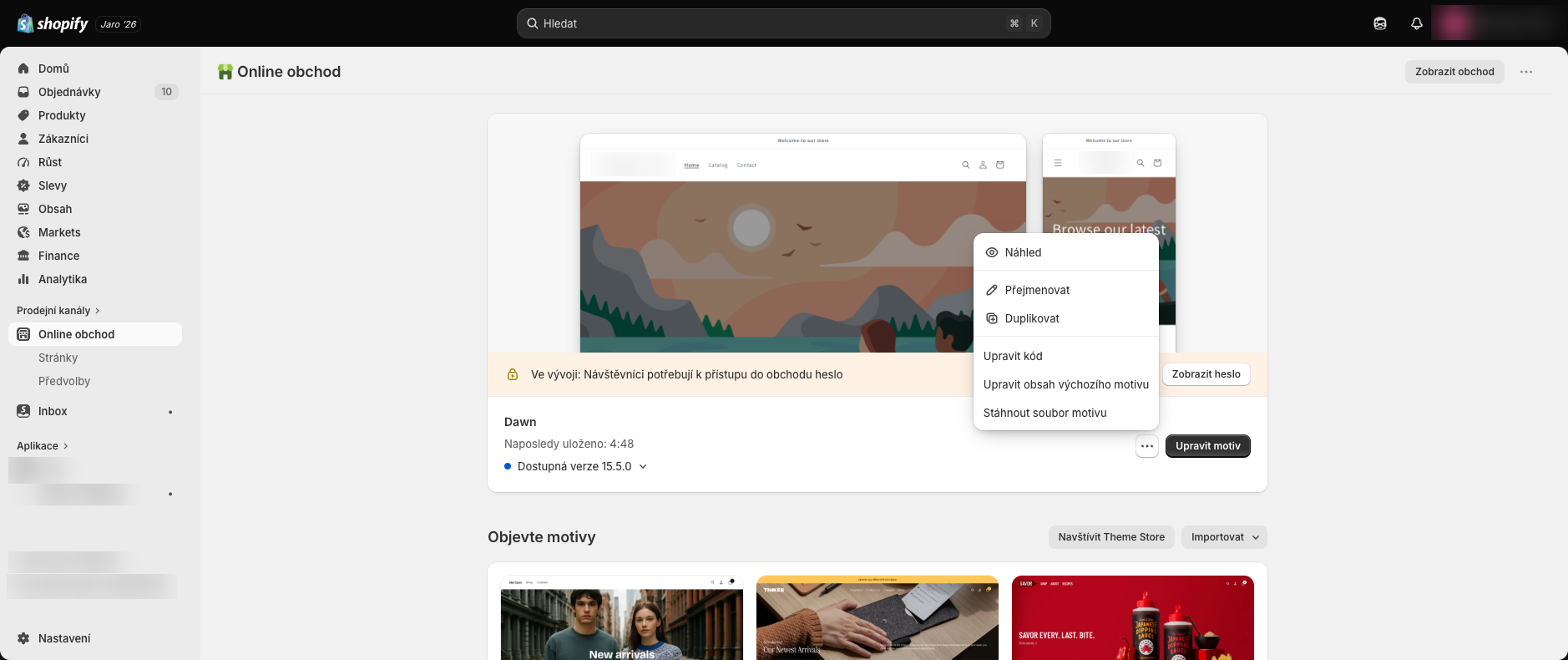
Opening the theme code editor from Online Store > Themes Open theme.liquid
In the Layout folder, open the
theme.liquidfile.Paste the snippet
Paste the snippet just before the closing
</body>tag.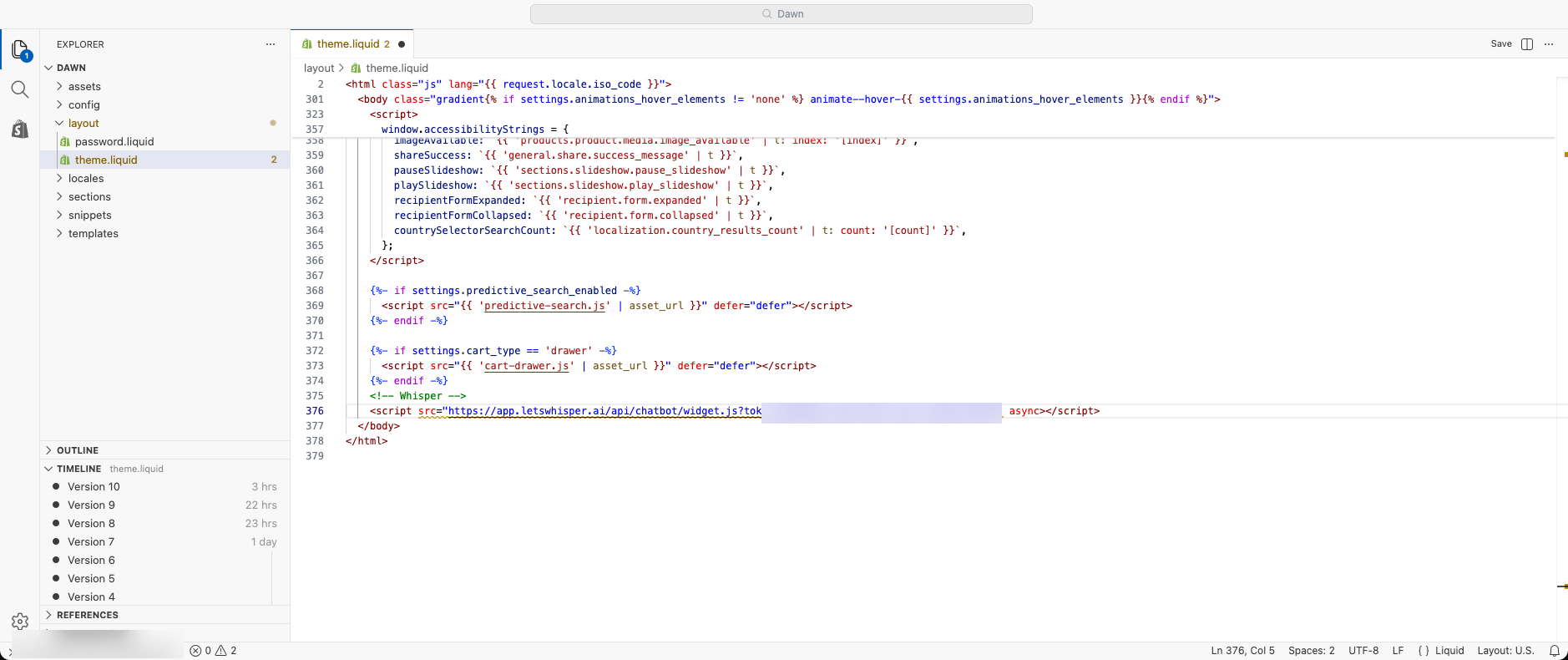
The installation snippet pasted before the closing </body> tag in theme.liquid Save and check
Save the file and open your live storefront to confirm AI Sales Agent appears.
WooCommerce#
With the Yasan plugin for WordPress there is nothing to paste: turn the AI Sales Agent on in Yasan and the plugin adds it to your store. See Connecting WooCommerce.
If you connected your store with REST API keys, paste the snippet into your WordPress theme:
Copy the snippet
Copy the installation snippet following the steps described above.
Recommended: add the snippet with a plugin
The safest path is a code-snippets plugin such as WPCode — the snippet survives theme updates. Insert it into the footer (before
</body>) following the plugin’s instructions and you can skip the remaining steps.Alternative: the theme file editor
In your WordPress admin, go to Appearance → Theme File Editor. Only edit a child theme — a snippet placed directly in a parent theme is wiped by its next update.
Open footer.php
In the Theme Files sidebar, select the
footer.phpfile (Theme Footer) of your active theme.Paste the snippet
Paste the snippet on its own line just before the closing
</body>tag.Save and purge caches
Click Update File. If you use a caching plugin (e.g. WP Rocket, W3 Total Cache), purge the cache and then confirm AI Sales Agent appears on your site.
Common installation mistakes#
- The snippet sits in the
<head>or on a single page only — it belongs just before</body>in a template shared by the whole site. - The snippet went through a visual (WYSIWYG) editor that turned it into plain text — paste it in HTML / source-code mode.
- Your site serves an old version of the page from a cache or CDN — purge the cache and reload the page.
- The snippet is on the page more than once — keep a single copy.
- Your cookie consent tool blocks the widget script — allow it in the tool’s settings, see Setting up cookie consent.