
Importing Products via Feed
How to import your product catalog into Yasan using an XML or TSV feed.
Updated:
If you use a custom e-commerce platform or prefer to use product feeds (like Google Merchant, Heureka, or Zbozi), you can import your catalog into Yasan using a feed file.
Step-by-Step Instructions#
Open Integrations settings
Navigate to Settings > Integrations in the Yasan sidebar.
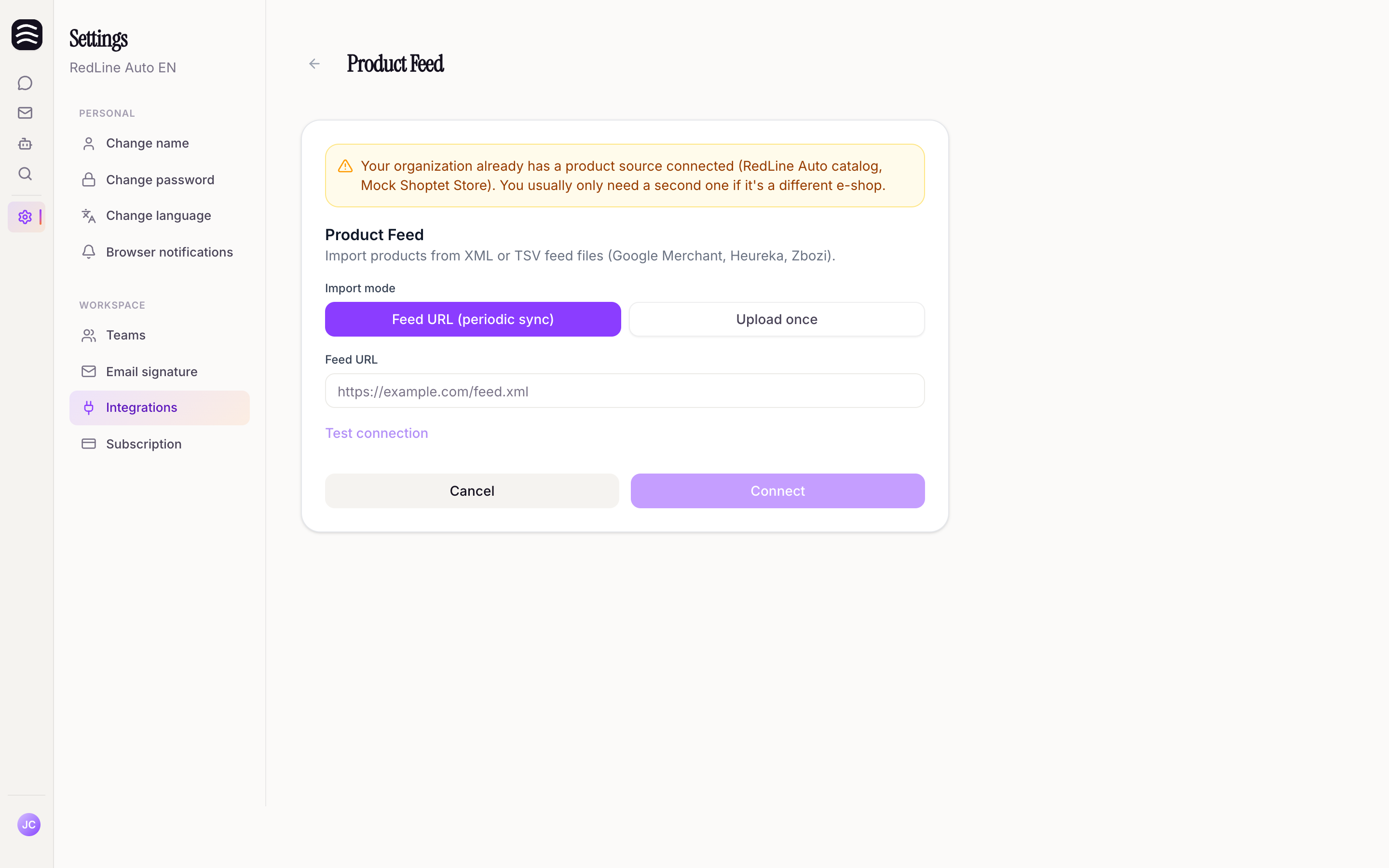
Select Product Feed
Click Connect integration and select Product Feed.
Choose your import mode
Choose your Import mode:
- Feed URL (periodic sync): Yasan will regularly fetch and update your catalog from this URL.
- Upload once: Manually upload a feed file.
Enter URL or upload file
If using a URL, enter the Feed URL. If uploading, click Upload feed file and select your file.
Verify the format
Yasan will validate the file and display the Detected format (e.g., XML or TSV).
Save the integration
Once validated and ready, save the integration.
Troubleshooting#
- Parse Failed: If you see a “We could not parse this file” error, ensure your file strictly follows standard product feed schemas (XML or TSV).
- Validation Required: You must successfully validate a feed file before saving the integration.