
Common Issues
Here are solutions to some of the most common issues you might encounter while using Yasan.
Updated:
Here are solutions to some of the most common issues you might encounter while using Yasan.
Integrations#
"Connection failed" when testing an email integration
Double-check your IMAP/SMTP server addresses, port numbers, and ensure you have entered the correct password (or app-specific password if you have 2FA enabled).
Shoptet verification code not received
Check your spam or junk folder for an email with the subject “Connect your Shoptet store to Yasan”. Ensure you are checking the email address associated with your Shoptet store account.
Shopify App Store: the store is installed, but Yasan does not show it
Open Yasan from Apps in Shopify admin and choose Continue in Yasan, or use the setup link emailed to the store contact. If App Home stays on Choose a plan, pick a plan in Shopify. The app stays off until that plan is active.
Shopify custom app: "Store unavailable" or "App not installed"
Enter only your store handle as the store name (for example
my-store), not the full.myshopify.comdomain or a custom domain. Also make sure your custom app is installed on the store you are connecting.Shopify orders not found by the assistant
The email a customer verifies must match the email on their order. An App Store install can look up about the last 60 days. A custom app also needs the
read_orders,read_customers, and (for older orders)read_all_ordersscopes. Newly connected stores need a short time to finish the first sync.
AI Sales Agent#
AI Sales Agent not appearing on website
- Ensure the bot is toggled to “Enable” in the AI Sales Agents list.
- On a Shopify App Store store, the Widgets embed must be turned on in the Theme Editor and saved. See Installing the AI Sales Agent.
- On WooCommerce with the Yasan plugin, open WooCommerce → Yasan in WordPress and check that the AI chatbot shows as Live. See Connecting WooCommerce.
- On a custom app, WooCommerce connected with REST API keys, or another snippet install, verify that the installation snippet is correctly placed in your website’s HTML before the closing
</body>tag. - If you use a custom setup, check that your website’s domain is in the allowed origins (this is usually set up during onboarding).
- Check that your cookie consent tool is not blocking the widget script — allow it in the tool’s settings.
- If your site uses a cache or CDN, purge it — an old version of the page without the snippet may still be served.
Conversation analytics stay empty
The widget only sends conversation analytics after the visitor grants analytics consent and you pass that choice to the widget. Check the connection in Setting up cookie consent.
AI Sales Agent blocked by other page elements
In the chatbot’s Position settings, increase the z-index value to ensure it stays on top of other elements.
Email Support#
AI suggestions not generating
Sometimes the AI needs more context to generate a helpful reply, or the background workers may still be processing the message. Wait a few moments or use the “Re-analyze” button in the context panel.
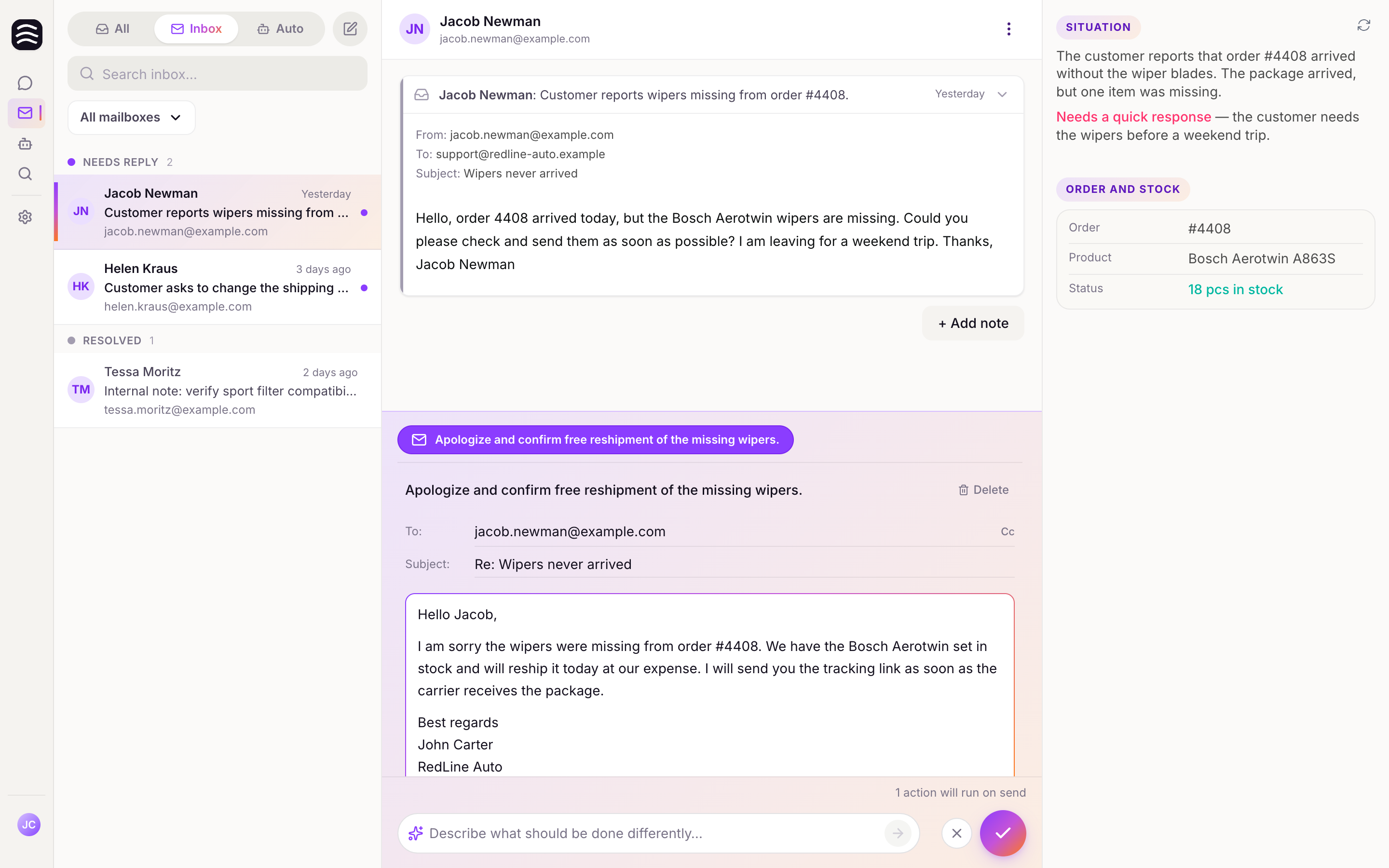
Using the Re-analyze button to generate new suggestions
Billing#
"Your subscription is inactive" banner
This usually happens if a payment fails. Click the button in the banner or navigate to Settings > Subscription to update your payment details in the billing portal.
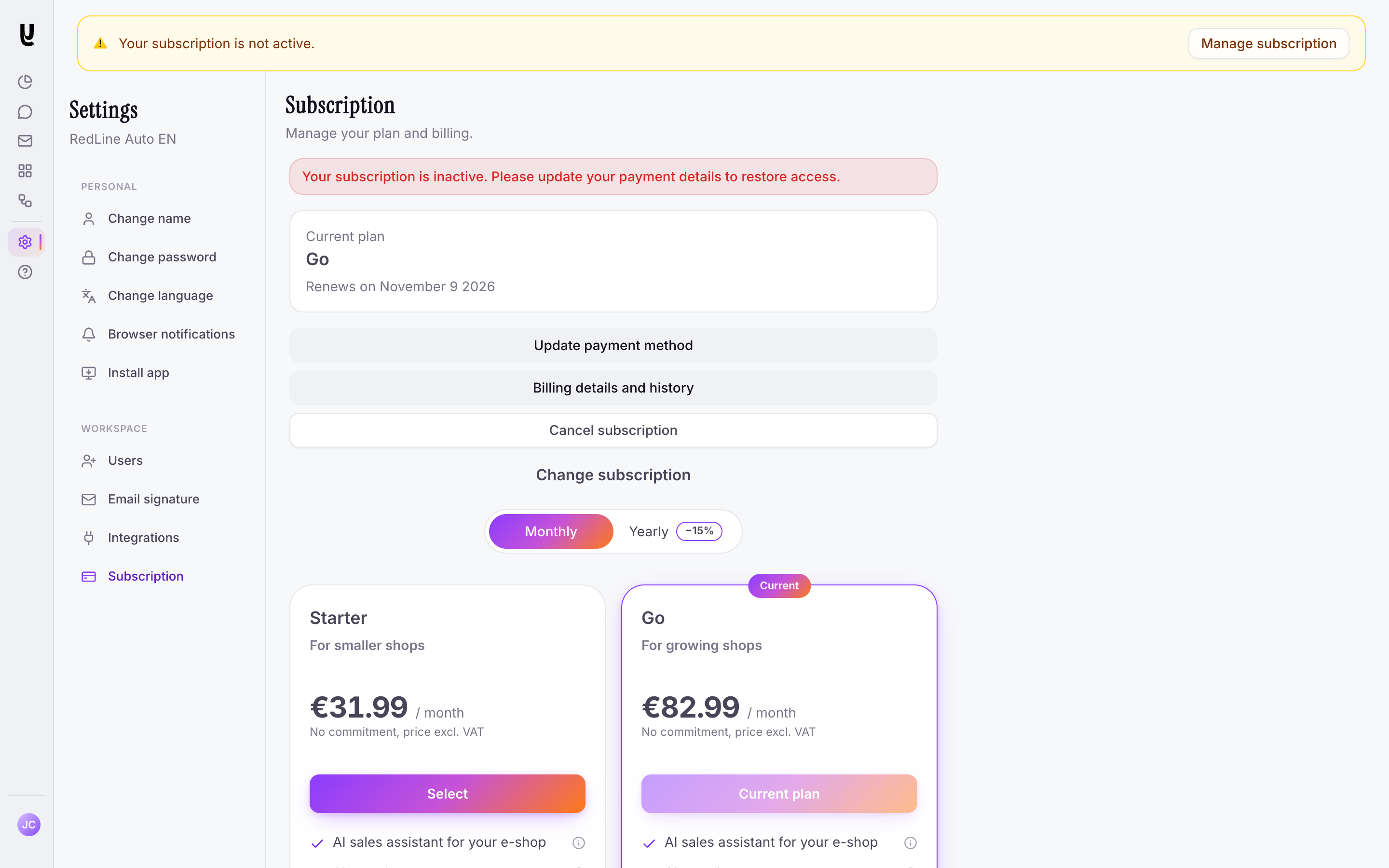
Updating payment details when a payment fails