
Onboarding Walkthrough
Follow this step-by-step guide to prepare your Yasan workspace for its first real customer conversations.
Updated:
Setting up Yasan is quick and only takes a few minutes. Our guide will walk you through all the essential steps to perfectly prepare your AI assistant for communicating with your customers.
Step 1: Setting up your account#
After your first login, please complete your user profile. Enter your full name, select your preferred language, and agree to the Terms & Conditions.
Step 2: Organization setup#
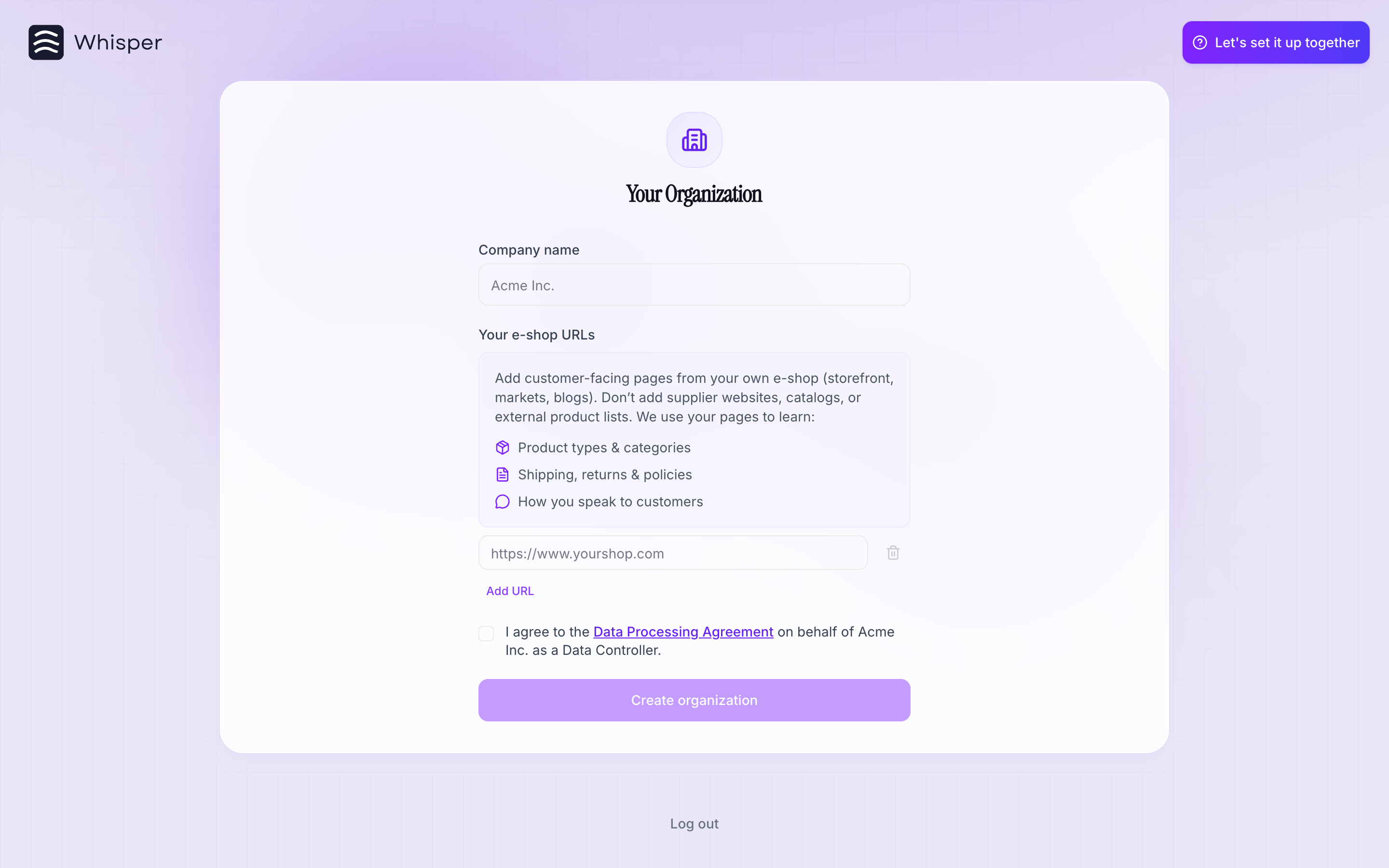
Now it’s time to introduce us to your e-shop:
Company name
Company name: Fill in the official name of your business (e.g., Acme Inc.).
Your e-shop URLs
Your e-shop URLs: Enter the main web address of your store.
Data Processing Agreement
Data Processing Agreement: On behalf of your company (as the Data Controller), agree to the Data Processing Agreement (DPA).
Step 3: Integration selection#
For Yasan to start working fully, it needs to connect to your data. Choose from the following options:
- Shopify
- WooCommerce
- Shoptet
- Product Feed
- Custom
This connection gives the assistant the necessary information for real conversations.
Step 4: Research phase#
Once you enter your URLs and connect an integration, Yasan gets to work and starts exploring your e-shop in detail.
- This process usually takes around 30 minutes.
- Yasan will map out your catalog, index your products for AI Search, read your terms and conditions, and fine-tune its tone to perfectly match your brand.
- You can safely close the page. As soon as the assistant is ready, we’ll send you an email!
Step 5: AI Search preview#
Once Yasan finishes its research, you can try AI Search on your own catalog:
Try a search
Try a search: Search the live preview the way your customers would — describe a need, not just a product name.
Opens from your search box
Opens from your search box: Once you switch AI Search on, it takes over the search field your customers already use in your e-shop.
Fine-tune anytime
Fine-tune anytime: Search triggers, colors and texts can be adjusted later under AI Sales Agents.
Step 6: Chatbot preview#
Next, meet your AI sales agent:
Upload your logo
Upload your logo: Drag and drop your logo file to give AI Sales Agent the face of your brand.
Try the chat
Try the chat: Send it a message in the live preview and see how it would answer your customers.
Fine-tune in Settings
Fine-tune in Settings: You can always adjust the bot’s colors, texts, and behavior later in the admin panel.
Step 7: Choose your plan#
Finally, select the subscription that best fits your needs:
- You can start with a 14-day free trial.
- You don’t need to enter a credit card to start.
- Once you’ve tried everything out, you can decide how you want to proceed.