
Connecting Shopify
Install Yasan from the Shopify App Store, or connect a store that already uses a custom app.
Updated:
Install Yasan from the Shopify App Store. That gives your AI sales agent your product catalog and recent orders, and you turn the chat widget on from your Shopify theme. A store already connected with a custom app can keep that connection. Those steps are at the end of this article.
What you get#
- Product catalog sync: AI Sales Agent can search your products and answer questions about them.
- Order lookup: After a customer verifies their email, the assistant can find their recent orders. An App Store install covers about the last 60 days. A custom app can also be granted access to older orders.
Before you start#
- Administrator access to your Shopify admin.
- For the App Store path, nothing else. You sign in or create a Yasan account while connecting the store.
- For a custom app, a Yasan account with access to Settings > Integrations.
Install from the Shopify App Store#
App Home shows Set up Yasan as a sequence. A finished step is marked done, one step is current, and later steps have no button yet.
Install Yasan
In Shopify admin, install Yasan from the Shopify App Store. If it is already installed, open it from Apps.
Connect this store
The first step is Connect this store. Choose Continue in Yasan. That opens Yasan in a new browser tab so you can sign in or create an account. We also email a setup link to the store contact.
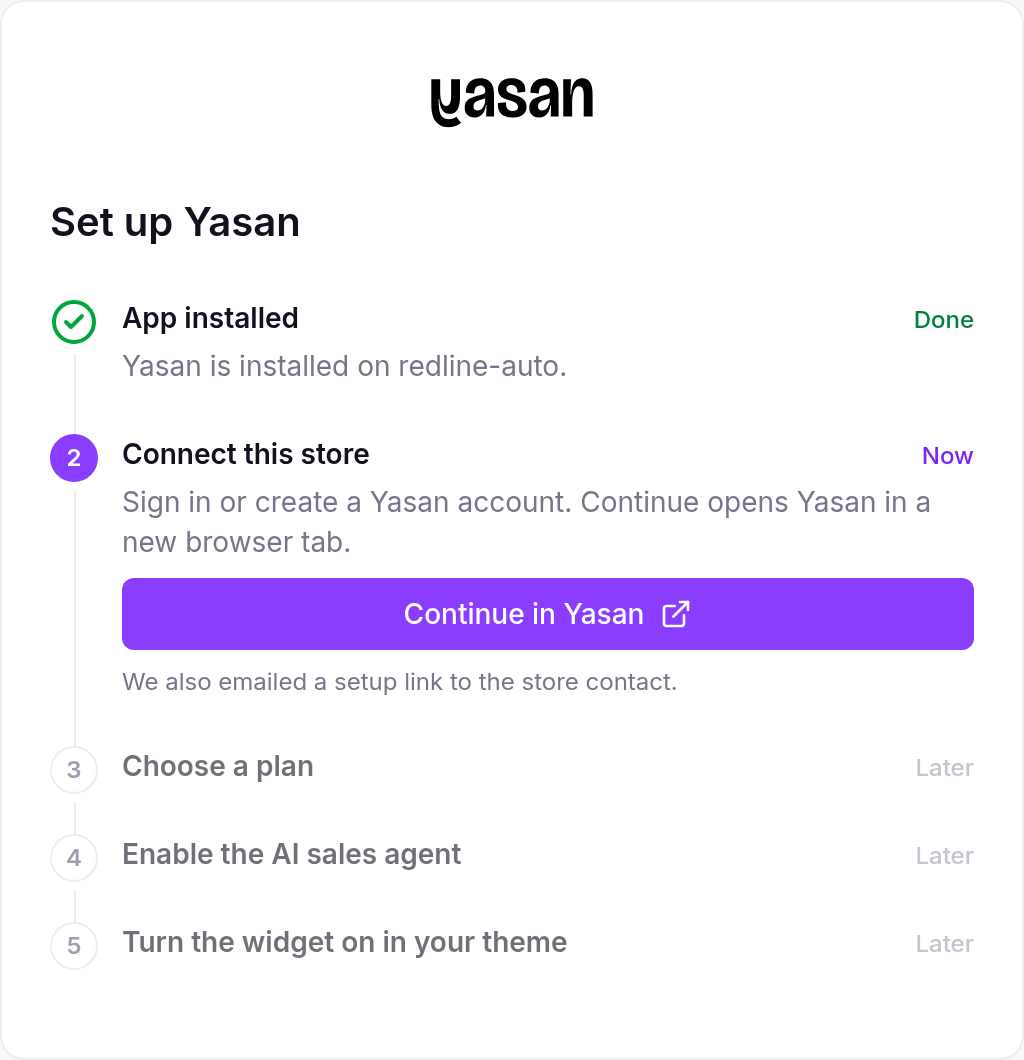
App Home asks you to connect the store before any later step Choose a plan
Pick a plan in Shopify. The app stays off until a plan is active.
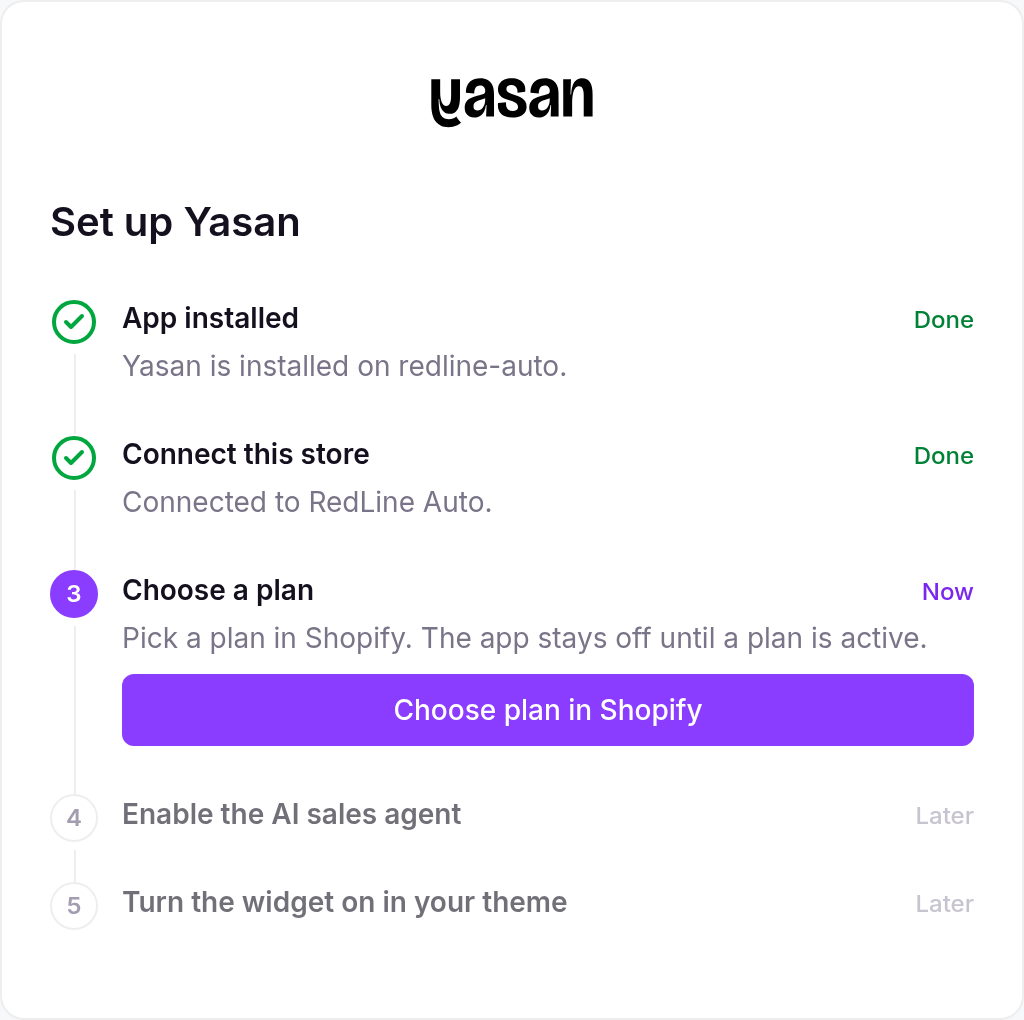
Choose a plan is the only action while Shopify billing has no active plan Enable the AI sales agent
When the plan is active, the next step is Open widget settings in Yasan. Turn the AI sales agent on there. That publishes the widget to this store.
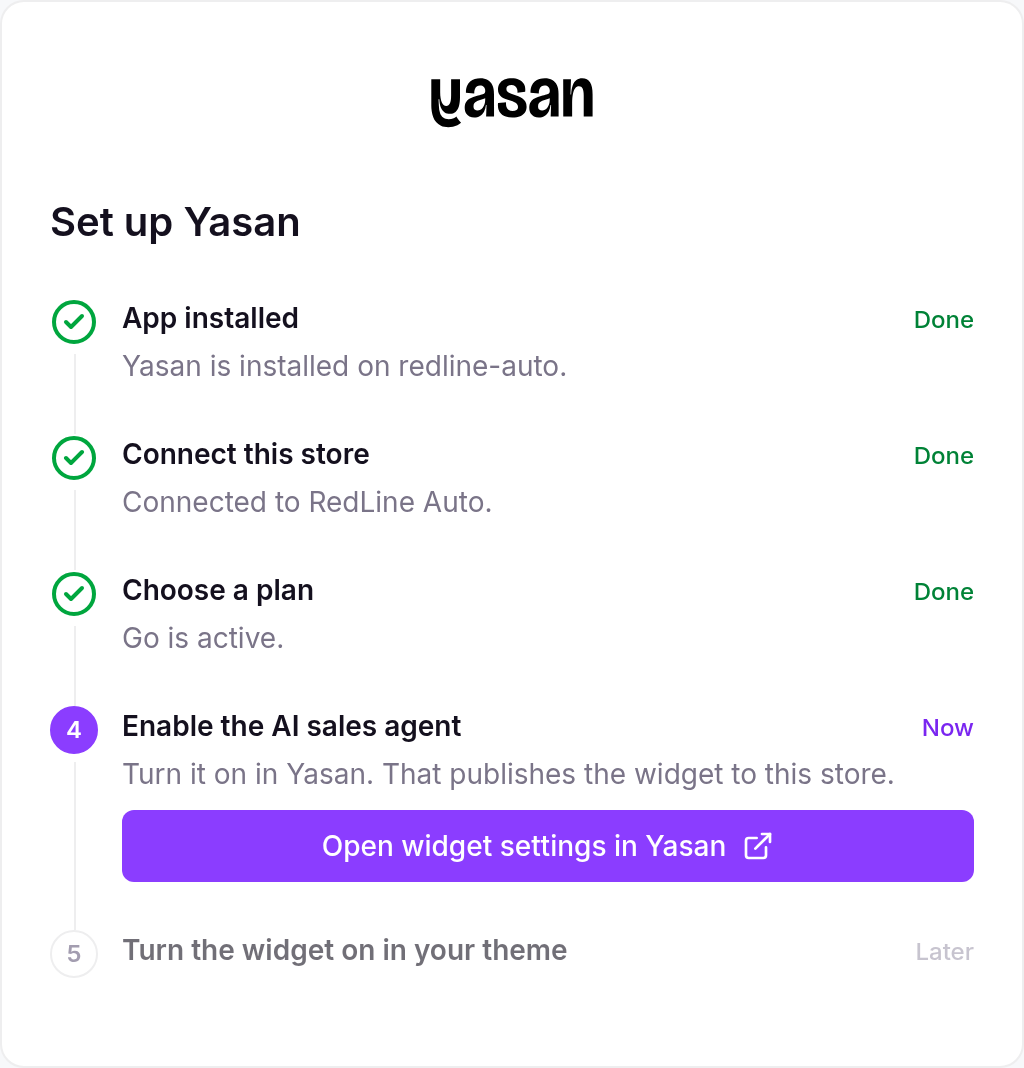
With a plan active, the next step is to enable the AI sales agent Turn the widget on in your theme
The last step is in the Theme Editor. Follow Installing the AI Sales Agent: open the Theme Editor, turn on the Widgets embed, and save. The embed has no settings. Shopify does not let an app switch it on for you.
When every step is done, App Home says Yasan is ready. Open Yasan dashboard is the main button. Open Theme Editor stays available so you can switch the Widgets embed off.
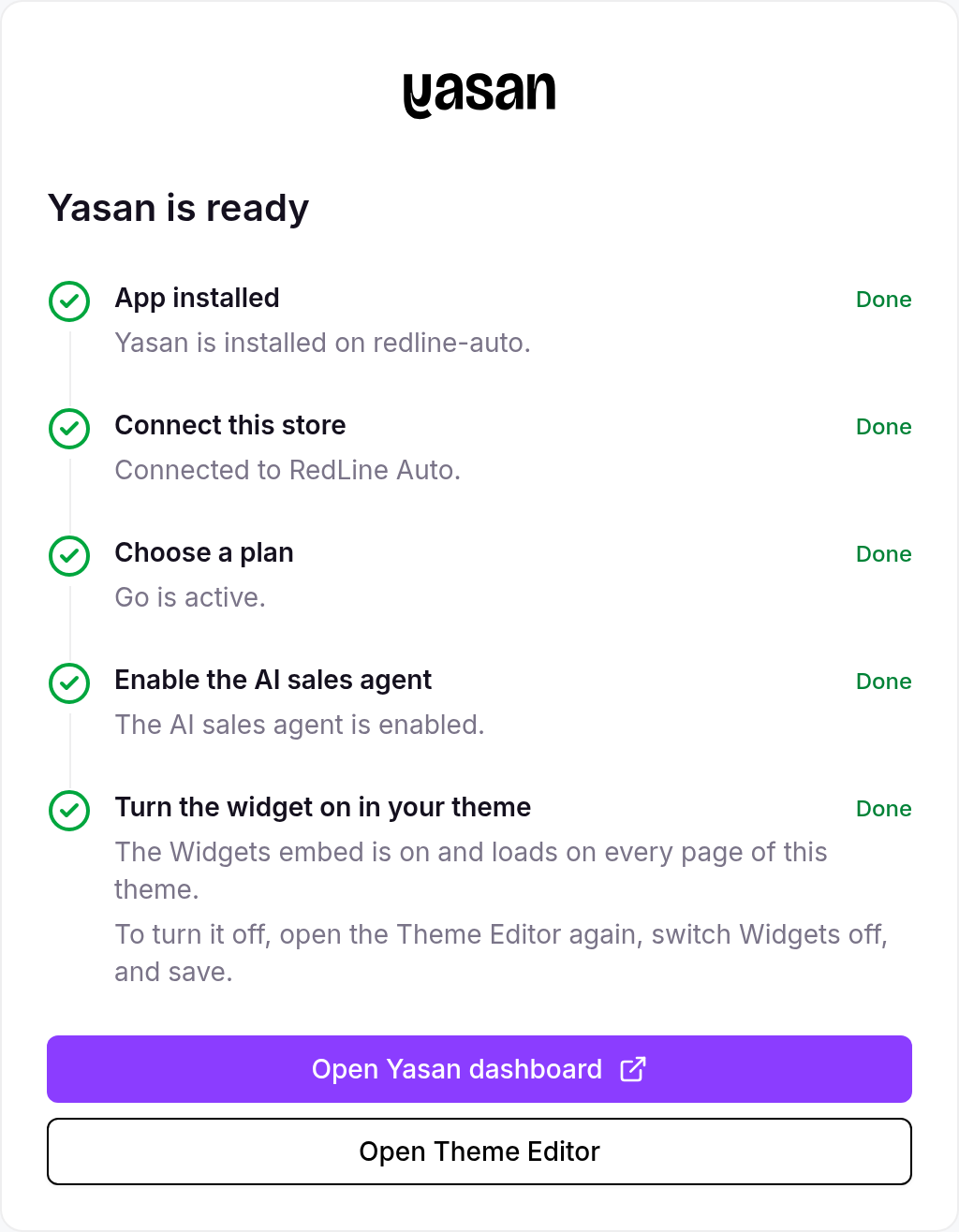
When setup is finished, open the Yasan dashboard. Theme Editor stays available to turn the embed off
Connect with a custom app#
Use these steps when the store is not installed from the Shopify App Store. You create your own app, enter its Client ID and Client Secret in Yasan, and later paste an installation snippet into the theme. An App Store install does not use this form.
To get your Client ID and Client Secret, create a custom app in the Shopify Dev Dashboard, set up Custom distribution to install it on your store, and copy the credentials. App creation happens in the Dev Dashboard (dev.shopify.com) — you don’t need a separate Partner account, as the “App developer” role is available in a regular Shopify (merchant) organization.
Create the app with the required scopes
In the Shopify Dev Dashboard (dev.shopify.com), open Apps in the left sidebar, click Create app, and choose to create a custom app. On the app’s version form, set the App name (for example “Yasan”) and the App URL to
https://app.yasan.ai. In the Access section, enter the required Admin API scopes in the Scopes field (comma-separated), or use the Select scopes picker:read_products— search your catalog and answer product questions.read_orders— look up customer orders (last 60 days only; full history also needsread_all_orders, added below).read_customers— match orders to a customer’s email address (required for order search).write_orders— allow order modifications where needed.
Click Release (top right) to save the version.
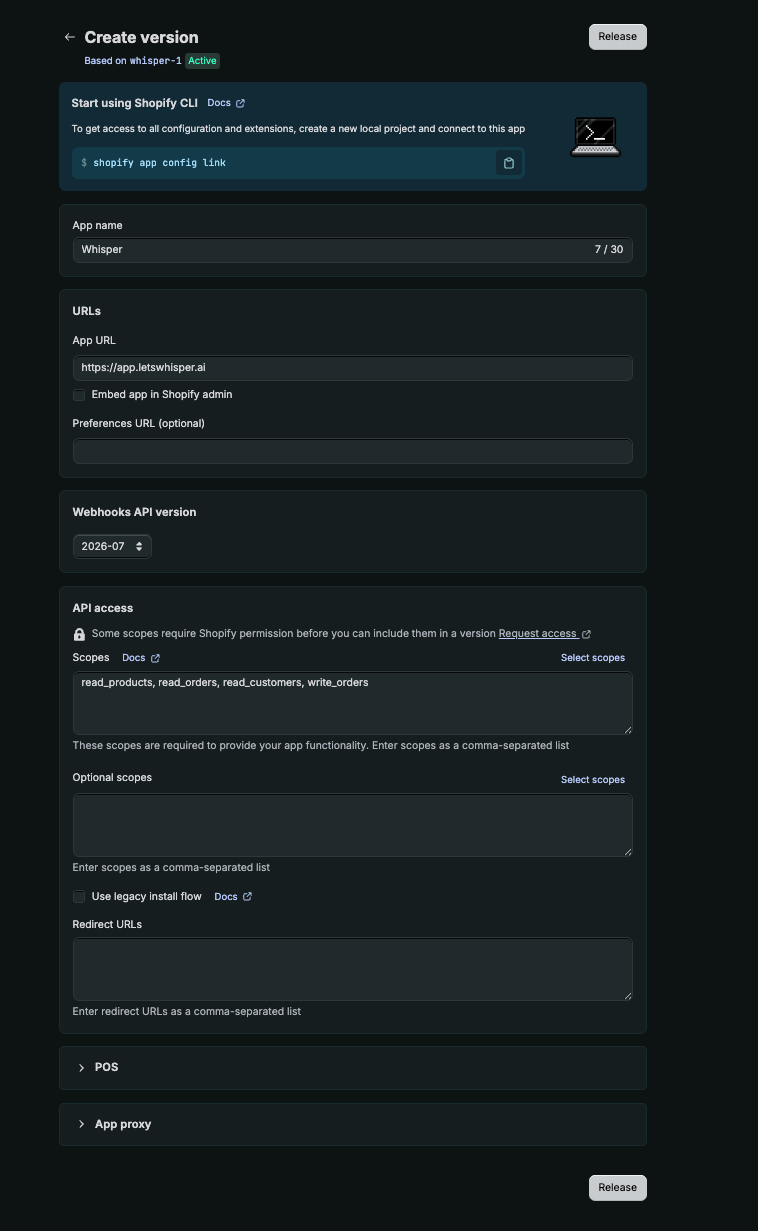
Creating the custom app with the required Admin API scopes filled in Open API access
Some scopes and protected customer data require you to pick a distribution model before you can request them. In the same Access section, click the Request access link (next to the scopes) to open the API access requests page.
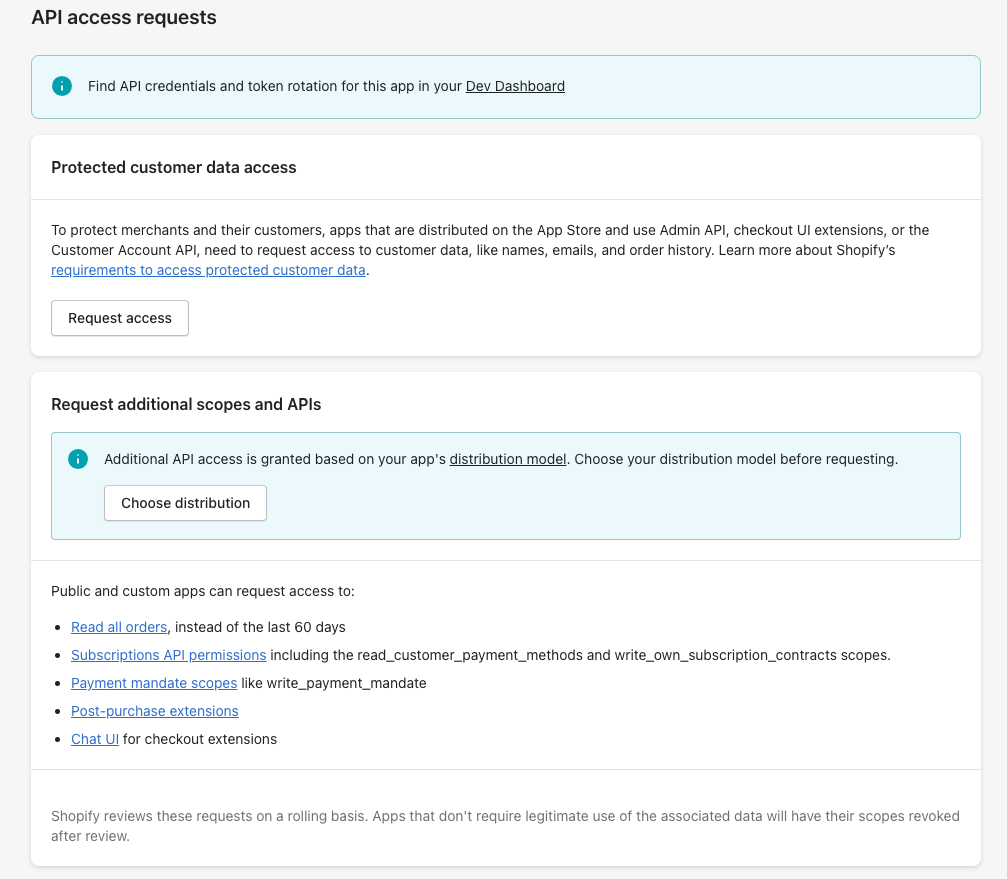
Open API access, then choose a distribution model before requesting scopes Choose Custom distribution
On the API access requests page, in the Request additional scopes and APIs card, click Choose distribution. On the Distribution page, select Custom distribution — the right option for connecting your own store (no App Store review) — and click Select.
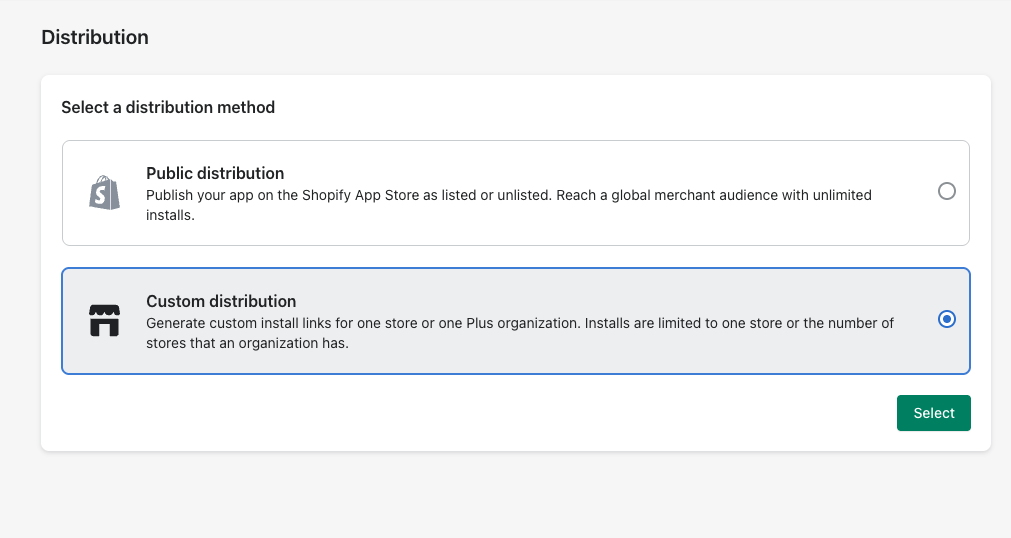
Choosing Custom distribution, the correct option for connecting your own store Request access to full order history
The
read_ordersscope only exposes orders from the last 60 days, and Yasan needs to look up older orders too — so you must also request theread_all_ordersscope. Back on the API access requests page, find the Read all orders scope card, click its Request access button, briefly explain your use case (for example, “AI customer support needs to look up older orders”), and submit. Shopify reviews the request to protect order data; for custom apps this is usually approved quickly.read_all_ordersis used together withread_orders— it does not replace it.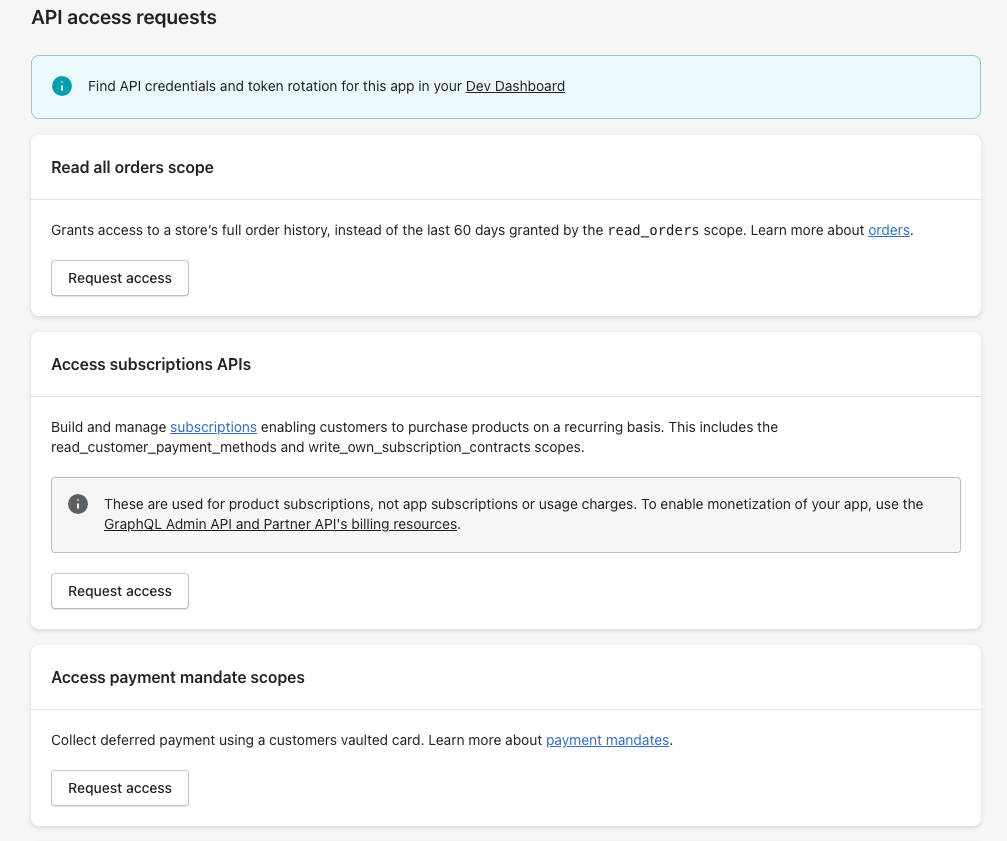
Requesting the Read all orders scope to access order history beyond the last 60 days Install the app on your store
Open the app’s Distribution page (now set to Custom distribution), enter your store’s
.myshopify.comdomain, and generate the one-time install link. Open the link, select your store, and approve the permissions. Installing the app is required — without it, connecting in Yasan fails with an “app not installed” error.Copy the credentials
In the Dev Dashboard, open your app and go to the API credentials section (Client credentials). Copy the Client ID and Client Secret.
Connecting the custom app in Yasan#
Open Integrations settings
Navigate to Settings > Integrations in the Yasan sidebar.
Select Shopify
Click Connect integration and select Shopify.
Enter your credentials
Provide:
- Store name: Your Shopify store handle only — for example
my-store, notmy-store.myshopify.comand not a custom domain. - Client ID: From your Shopify custom app.
- Client Secret: From your Shopify custom app.
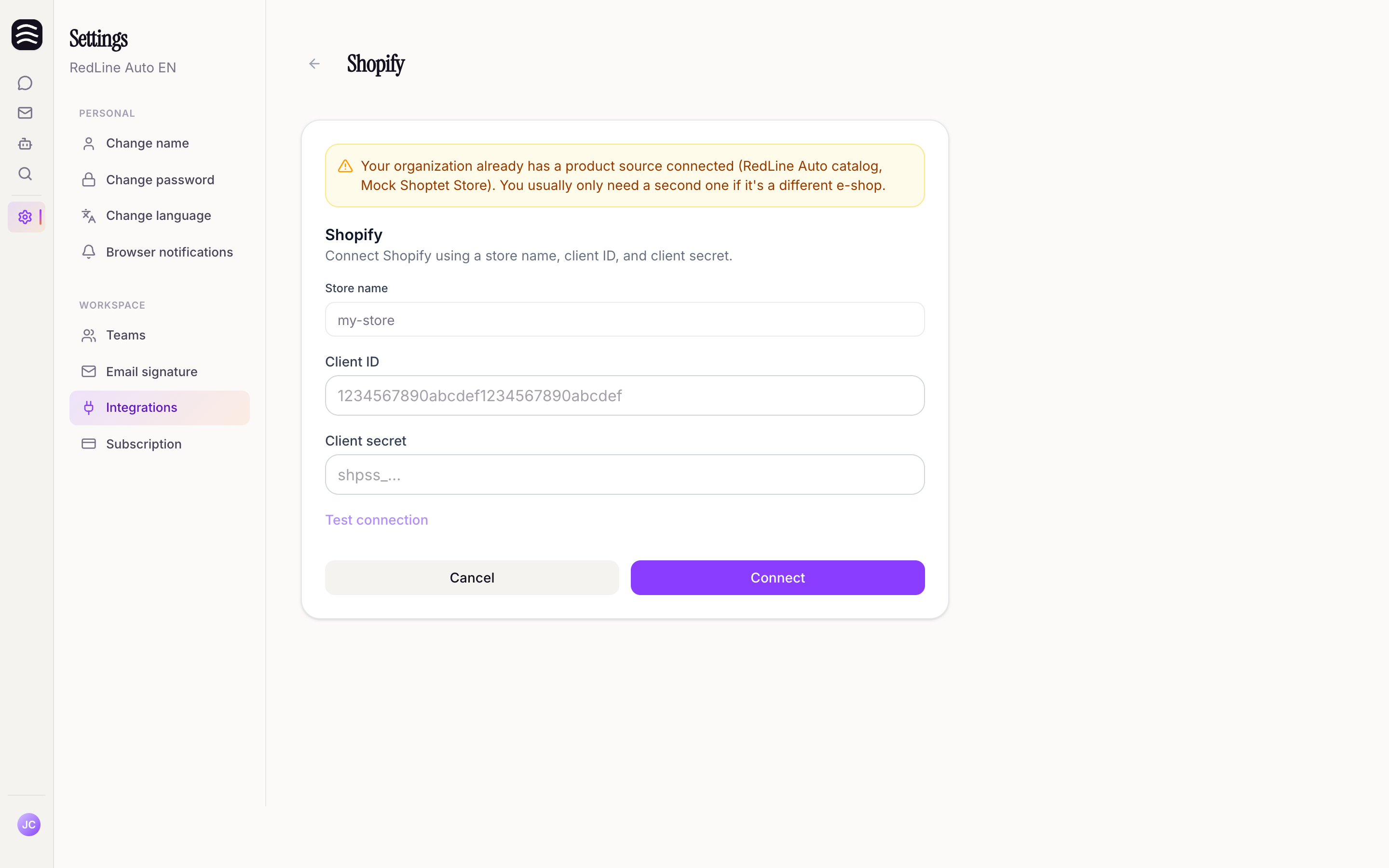
The form for entering the store name, Client ID, and Client Secret - Store name: Your Shopify store handle only — for example
Test the connection
Click Test connection to confirm the credentials are correct.
Save the integration
Once the test succeeds, save the integration.
Troubleshooting#
The store is installed, but Yasan does not show it
Open Yasan from Apps in Shopify admin and choose Continue in Yasan, or use the setup link emailed to the store contact.
App Home stays on Choose a plan
Pick a plan in Shopify. The app stays off until that plan is active.
The chat widget does not appear after you enable the agent
The Widgets embed still has to be turned on in the Theme Editor and saved. See Installing the AI Sales Agent.
"Store unavailable" when testing a custom app
Enter only your store handle as the store name (for example
my-store), not the full.myshopify.comdomain or a custom domain."App not installed" on a custom app
Make sure the custom app is installed on the specific store you are connecting. Credentials only work after the app is installed.
Orders not found after email verification
The email the customer verifies must match the email on the order. An App Store install can look up about the last 60 days. A custom app also needs the
read_orders,read_customers, and (for older orders)read_all_ordersscopes. Newly connected stores need a short time to finish the first catalog and order sync.