
Training Your AI Sales Agent
Improve AI Sales Agent's knowledge using feedback notes and uploading reference files.
Updated:
You can improve your AI Sales Agent’s knowledge by providing specific feedback, correcting errors, and uploading reference materials.
Feedback Notes#
Navigate to AI Sales Agents, click on your bot, and go to the Feedback & Training section.
Here you can give the chatbot specific instructions or update it with new information.
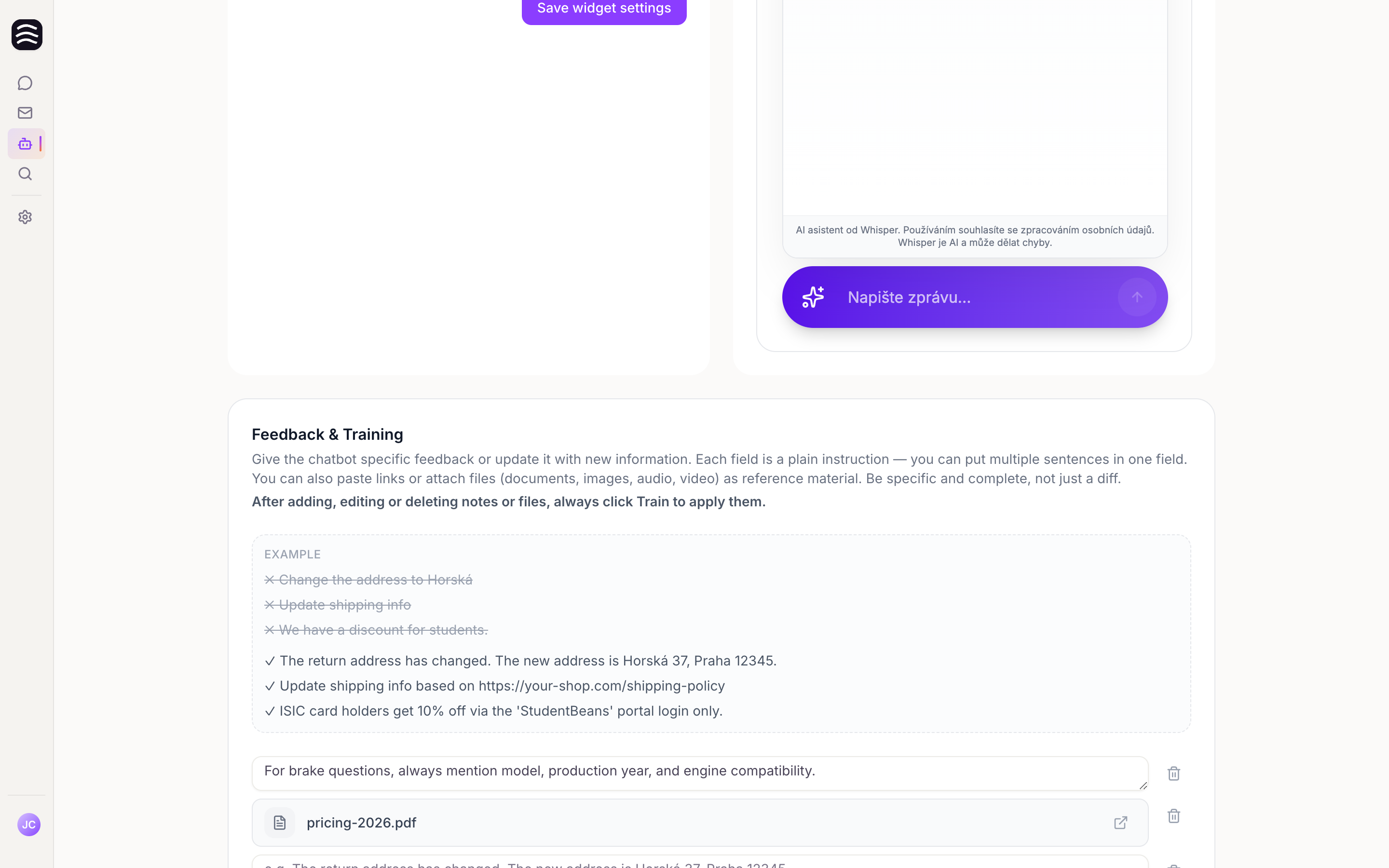
- Write one topic per note and add as many notes as you need. Use the Add note button above the notes.
- Keep every note that still applies. Training does not remember deleted notes: if you delete a note and click Train, the AI sales agent forgets what it said.
- You can paste links directly into the notes.
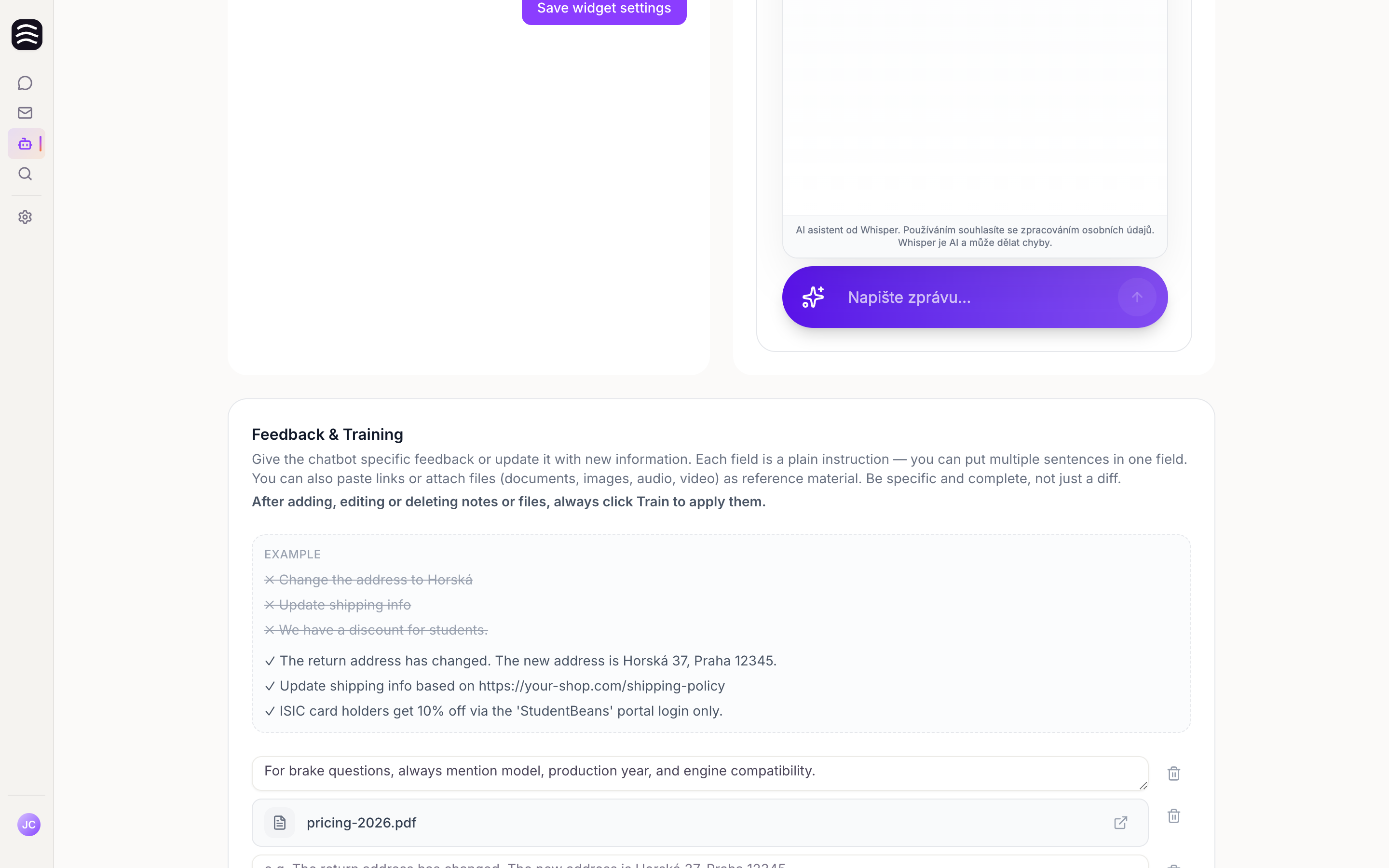
Best Practices for Notes#
Be specific and write in complete sentences. Avoid short, fragmentary edits — the AI needs the full context to understand the correction.
Good Examples:
- “The return address has changed. The new address is Horská 37, Praha 12345.”
- “Update shipping info based on https://your-shop.com/shipping-policy”
- “ISIC card holders get 10% off via the ‘StudentBeans’ portal login only.”
Bad Examples:
- “Change the address to Horská” (Missing full context)
- “Update shipping info” (Vague)
- “We have a discount for students.” (Lacks details on how to get it)
Add a Retino Return Link#
If you use Retino for returns or claims, you can give the chatbot a direct link to the returns portal. A direct link opens a form where the customer submits a return request, with their email and order number pre-filled so they don’t have to look anything up.
In Retino, direct links live under Settings → Portal Integration, with a separate link for each request type (Return, Claim, or all types). A Return link looks like this:
https://app.retino.com/en/portal/direct-link/PORTAL_ID/?form_id=FORM_ID&email={email}&order_code={order_code}The PORTAL_ID and FORM_ID are unique to your shop and are already filled in on the link you copy. The {email} and {order_code} parts are placeholders for the customer’s data.
Copy the direct link in Retino
Open Settings → Portal Integration and copy the direct link for the Return request type.
Add an instruction to a note
In Feedback & Training, create a new note using the template below and replace the placeholder with the link you copied.
When a customer wants to return an item, first ask for the email address used on the order and the order number. Then send them this link, replacing {email} with their email address and {order_code} with the order number: [paste your Retino direct link here] On that page the customer can fill in a form to submit a return request.Start training
Click Train so the chatbot starts using the new instruction.
File Uploads#
You can upload files as reference material for the AI to learn from.
- Supported types: Documents (PDF, txt, md, csv, rtf), images, audio, and video.
- Limits: Maximum 10 files, up to 15 MB per file.
- Drag and drop files or click to upload.
Applying the Training#
Important: After adding, editing, or deleting notes or files, you must always click the Train button.
Start the training
Click the Train button after making any changes.
Wait for completion
The training process may take a few moments.
And you're done
Once the process is complete, you’ll see a message confirming the chatbot was successfully trained.